


 Password Manager
 Identity Theft Protection

 Team / Business
 Enterprise
 Government
 MSP
MSP


TL;DR:
- Password managers securely store and generate strong, unique passwords for each account.
- Using multi-factor authentication enhances password manager security by protecting the master password.
- Layered security, including passkeys and MFA, is essential for effective digital identity protection.
Most people believe their passwords are “good enough.” They use a favorite pet’s name, swap a letter for a number, and maybe keep a notebook in their desk drawer. Security experts know better, and yet even seasoned cybersecurity professionals have been caught storing credentials in ways that leave them vulnerable. The real surprise is that those same experts openly recommend password managers despite recent headlines about vulnerabilities in popular tools. This article explains exactly what a password manager is, how it protects your accounts, where the genuine risks lie, and how to get started safely whether you are an individual or running a small to medium-sized business.
Key Takeaways
| Point | Details |
|---|---|
| Centralized security | Password managers let you securely store and manage passwords for all your accounts in one place. |
| Defense in depth required | Combining a password manager with strong master passwords and multi-factor authentication offers far stronger protection. |
| Emerging passkey support | Passkey integration is on the rise, making password managers more resistant to phishing attacks. |
| No tool is perfect | All password managers face some vulnerabilities, so choosing, configuring, and updating yours carefully is essential. |
| Business benefits | Teams and small businesses gain efficiency, security, and accountability by adopting a password manager. |
What is a password manager?
Think of a password manager as a digital safe that stores every login credential you have, locks everything behind one strong master password, and hands you the right key automatically when you need it. Instead of remembering 80 different passwords or reusing the same one everywhere, you remember a single strong phrase and let the software handle the rest.
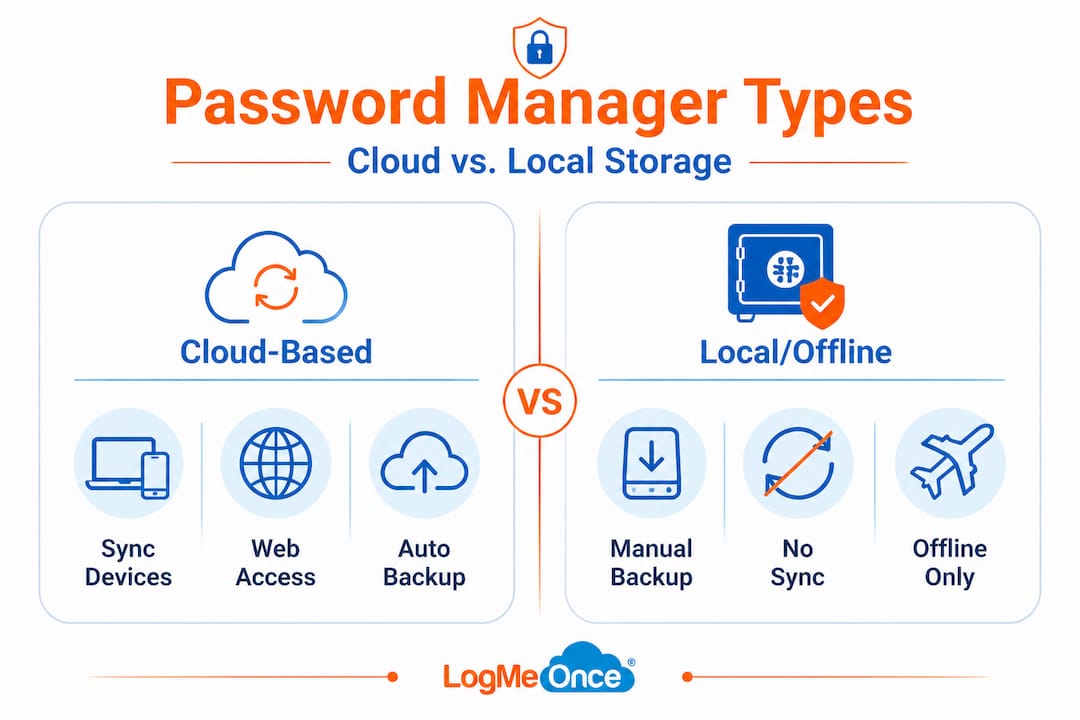
There are four main types worth knowing:
- Cloud-based managers (such as 1Password, Dashlane, and LogMeOnce) store an encrypted vault on remote servers and sync across every device you own. They are the most convenient option for most users.
- Local or offline managers (such as KeePassXC) store the vault exclusively on your own machine. Nothing leaves your device, which appeals to users who want maximum control over their data.
- Business-focused managers add shared vaults, admin controls, user provisioning, and audit logs so teams can manage credentials without sharing passwords over email or chat.
- Open-source managers (Bitwarden is the leading example) let security researchers inspect the code publicly, which increases trust through transparency.
Understanding password management basics helps you choose the right type for your situation. Each type solves the same core problem: remembering strong, unique passwords for every account is impossible for a human brain to do reliably, and credential reuse is one of the most exploited attack vectors in the wild.
Security researcher Bruce Schneier notes that dedicated managers are clearly preferable over browser-built-in storage, though he also points out that risks increase sharply if you use a weak master password or skip multi-factor authentication, and that local tools like KeePassXC remain worth considering for users with higher paranoia thresholds.
Pro Tip: Your master password is the single most important credential you will ever create. Make it a passphrase of four or more random words (like “correct-horse-battery-staple” style, but with your own twist), and activate multi-factor authentication the moment you set up any password manager.
How password managers work
Equipped with a definition, the next key is understanding how password managers function day-to-day. The process is more straightforward than most people expect, and walking through it step by step removes the mystery.
- Create your account and set a master password. This is the only password you need to memorize. The manager uses it to generate an encryption key that locks your entire vault. The software itself never transmits your master password in readable form.
- Install the browser extension or mobile app. This is what enables autofill. When you visit a login page, the extension detects the form fields and offers to fill in the matching credentials.
- Import existing credentials or add them manually. Most managers let you import from a CSV file or pull directly from your browser’s saved passwords. Add your most critical accounts first: email, banking, and business tools.
- Generate strong passwords for new accounts. Whenever you create a new account, use the built-in generator. A good generator creates 16 to 20 character strings of random letters, numbers, and symbols with a single click.
- Enable sync across devices. Cloud-based managers handle this automatically. Local managers require manual export and import unless you configure a self-hosted sync service.
- Set up emergency access and recovery options. This step is often skipped and later regretted. Recovery options let a trusted contact access your vault if you forget your master password or become incapacitated.
“Password managers are one of the most impactful security improvements most people can make. Even with known vulnerabilities, they dramatically reduce the risks compared to password reuse or storing credentials insecurely.” Paraphrased from cybersecurity guidance published across major security bodies.
Autofill is convenient but not without nuance. Modern managers compare the domain of the login page against the domain stored in your vault before filling. This is a built-in phishing defense: if you land on “paypa1.com” instead of “paypal.com,” the manager will not autofill, flagging the mismatch. That said, the Australian Cyber Security Centre cautions that autofill on phishing sites remains a risk in some edge cases, and that passkey integration is emerging as the most phishing-resistant authentication method available today.
Passkeys are the next generation of login technology. Instead of a string of characters, a passkey uses cryptographic keys tied to your device. Managers like 1Password and Dashlane already support storing passkeys alongside traditional passwords, bridging the gap while the internet finishes adopting the standard. Examining password manager security in depth shows why this evolution matters enormously for both individuals and teams.
Password manager security: Strengths, weaknesses, and real-world risks
Knowing how password managers work, it’s crucial to honestly weigh the risks and evidence. No security tool is perfect, and password managers are no exception.
A landmark 2026 security analysis by researchers at ETH Zurich examined the most popular managers under a “malicious server model,” meaning they simulated what would happen if an attacker controlled the server your vault syncs to. They found 12 exploitable vulnerabilities in Bitwarden, 7 in LastPass, and 6 in Dashlane. The researchers confirmed that 1Password showed the strongest resistance in this threat model. Critically, all affected vendors issued patches promptly after disclosure, which is exactly how responsible security research is supposed to work.
Here is a quick comparison of how the main manager types stack up on key security dimensions:
| Feature | Cloud-based | Local/offline | Open-source |
|---|---|---|---|
| Sync across devices | Yes | Manual only | Depends |
| Third-party server exposure | Yes | No | Varies |
| Patch speed | Fast (vendor managed) | User managed | Community driven |
| Transparency | Limited | Limited | Full code review |
| Best for | Most individuals and SMBs | High-paranoia users | Security-conscious users |
The stat that should motivate every reader right now: only 11.3% of top websites currently support passkey integration as of 2026. That means traditional password-based authentication is still the dominant standard for the vast majority of logins, which makes a strong, well-managed password vault absolutely essential.
Experts at the New York Times Wirecutter and security researchers continue to advocate for password manager use with a defense-in-depth approach, meaning you layer MFA on top, consider passkeys where available, and avoid browser-built-in storage for anything business-critical.
Pro Tip: Never store your master password in the same place as your vault. Write it down on paper, store it in a physically secure location, and do not photograph or email it to yourself. For businesses, consider a formal credential inheritance plan so a trusted administrator can recover access if needed.
You can choose a secure password manager by looking for end-to-end encryption, a zero-knowledge architecture (meaning the vendor cannot read your vault), and a clear public security audit history. Understanding the dangers of weak passwords makes the case even more concrete: credential stuffing attacks use databases of leaked passwords to try millions of combinations automatically, and reused passwords are the primary fuel for those attacks.
Practical guide: Getting started with a password manager
With strengths, weaknesses, and expert tips in mind, here’s a practical guide for your next steps. Setting up a password manager takes less than 30 minutes for most people, and the payoff begins immediately.
Step-by-step setup:
- Choose your software. Evaluate based on your platform, team size, and budget. Individuals and small businesses will do well with LogMeOnce, 1Password, or Bitwarden.
- Create a strong master password. Use a passphrase of at least five random words. Avoid names, dates, and dictionary words.
- Install the browser extension and mobile app. Getting both working at the start means you capture every login from day one.
- Import existing credentials. Export from your browser or existing tool, then import using the manager’s guided wizard. Delete the export file securely afterward.
- Enable multi-factor authentication on your manager account. Use an authenticator app rather than SMS where possible.
- Audit and update weak passwords. Most managers include a password health dashboard that flags reused, weak, or compromised credentials. Work through these systematically.
- Configure emergency access. Designate a trusted contact and set an appropriate delay window (24 to 72 hours is typical).
Common mistakes first-timers make:
- Reusing the master password from another account
- Skipping MFA because it feels like an extra step
- Importing credentials but never updating the weak ones the audit reveals
- Using the “remember me” feature on shared or public computers
- Failing to update credentials after a data breach notification
Here is a feature checklist to help individuals and small businesses prioritize:
| Feature | Individual | Small business |
|---|---|---|
| Password generator | Essential | Essential |
| Autofill across devices | Essential | Essential |
| Multi-factor authentication | Essential | Essential |
| Shared vaults | Optional | Essential |
| Admin controls and audit logs | Not needed | Essential |
| Emergency access | Recommended | Essential |
| Passkey support | Recommended | Recommended |
| Dark web monitoring | Recommended | Essential |
The benefits of using a password manager extend well beyond security. Teams stop wasting time on password resets, onboarding becomes faster, and offboarding a departing employee no longer requires a frantic scramble to change every shared credential.
For businesses specifically, an enterprise password manager adds role-based access, meaning employees only see the credentials they actually need. This is called the principle of least privilege, and it dramatically limits the damage if one account is ever compromised.
On the horizon, passkey adoption is accelerating. Empirical research shows that passkey integration is growing steadily, and forward-thinking organizations are already preparing by choosing password managers that support passkey storage so the transition happens with minimal friction.
The uncomfortable truth about password managers: What most advice misses
Armed with practical steps, let’s pause for some hard-earned perspective that few guides offer.
Password managers are not a finish line. They are a foundation. Most mainstream advice focuses on getting you to adopt one, and that is entirely reasonable given how many people still rely on sticky notes and recycled passwords. But the narrative stops too soon.
Here is the uncomfortable reality: a password manager with a weak master password and no MFA is only marginally better than writing your passwords in a notebook. The notebook cannot be remotely accessed by a threat actor on the other side of the world. Your cloud-synced vault can, if the attacker gets your master password through a phishing attack or malware. This is not an argument against using a cloud-based manager. It is an argument for treating your master password and MFA setup as the most security-critical decision in your entire digital life.
The tools themselves have security limits that vendors rarely emphasize in their own marketing. The ETH Zurich research mentioned earlier is a good example: vulnerabilities were real, exploitable under specific threat models, and discovered by outsiders, not the vendors themselves. The vendors patched them quickly, which is positive, but the lesson is that even well-funded, security-focused companies ship code with flaws.
There is also a practical argument against the “just go fully local” advice that some privacy advocates push. KeePassXC is excellent software. But for a 10-person accounting firm where employees work from laptops, home offices, and mobile phones, managing a locally stored vault without a sync mechanism is operationally painful. Security that your team works around is no security at all.
The experts at Wirecutter and Schneier agree: defense-in-depth is the answer. A password manager plus MFA plus passkeys where available plus a habit of reviewing your password health monthly gives you far more protection than any single layer alone. Password managers work best as part of a toolkit, never as your only security layer. The users who treat them as a complete solution are the ones who end up surprised when something goes wrong.
Secure your digital identity with the right tools
If this article has convinced you that layered security is the only real security, the next step is choosing tools that make layering easy rather than painful.

LogMeOnce brings together everything covered here into a single platform: end-to-end encrypted password storage, robust cybersecurity solutions built for individuals and teams, and a full password manager benefits overview that shows exactly how each feature maps to real-world protection. You also get native two-factor authentication features including passwordless MFA and passkey support, so you are not just securing your vault, you are building the layered defense that experts consistently recommend. Explore the free trial and experience what genuinely integrated password security feels like in practice.
Frequently asked questions
Can password managers be hacked?
No security tool is invulnerable, and a 2026 ETH Zurich analysis confirmed real vulnerabilities in several major managers, but combining a password manager with MFA makes your accounts far safer than password reuse ever could.
What happens if I forget my master password?
Most managers offer designated emergency access or account recovery options, but you must configure these features before you need them to avoid permanent data loss.
Are browser password managers a safe alternative?
Dedicated password managers are clearly preferable to browser-based storage, especially for business use, because browser managers carry higher risks if your device or browser account is compromised.
What is a passkey, and should I use one with my password manager?
A passkey replaces traditional passwords with phishing-resistant cryptographic authentication, and while adoption is growing, enabling passkey support in your manager now positions you ahead of the transition.
Should small businesses use a password manager for the whole team?
Centralized password managers give teams better security, accountability, and efficiency, but only when paired with enforced MFA and proper onboarding training for every user.
Recommended
- Data Security: The Incredible Benefits of Using a Password Manager
- What Is Password Management and Why Is It Important?
- Are Password Managers Safe? How to Find a Secure Password Manager
- What is the most secure online password manager? – LogMeOnce


