


 Password Manager
 Identity Theft Protection

 Team / Business
 Enterprise
 Government
 MSP
MSP


TL;DR:
- Credential-stuffing attacks exceed 1.5 billion monthly, but less than 40% of Americans use password managers.
- Password managers generate, securely store, and autofill unique passwords, significantly reducing reuse risks.
- Using dedicated, multi-factor authenticated password managers enhances security, but user habits remain crucial for protection.
Credential-stuffing attacks now exceed 1.5 billion per month, yet fewer than 4 in 10 American adults use a password manager. That gap between threat and response is exactly what makes password security one of the biggest unaddressed risks for individuals and small businesses today. This guide explains what password managers are, how they work across different types, where they protect you, where they can still fall short, and the habits that turn a good tool into a genuinely strong defense for your accounts and your organization.
Key Takeaways
| Point | Details |
|---|---|
| Password managers explained | They securely generate, store, and auto-fill strong passwords for you. |
| Types and trade-offs | Choose between cloud, local, and browser-based managers based on your needs for convenience and control. |
| Security plus best practices | No manager is infallible—enable MFA, strong master passwords, and use breach monitoring for best protection. |
| Adoption lags behind need | Only 36% of adults use password managers, even as credential attacks reach 1.5 billion monthly. |
| Your habits matter most | Real security depends as much on your usage as on the tool’s features—stay vigilant and proactive. |
Understanding password managers: The basics
A password manager is software that does three jobs simultaneously. It generates strong, randomized passwords, stores them securely using encryption, and fills them in automatically when you visit a login page. You remember one master password, and the manager takes care of everything else.
The practical effect is significant. Most people reuse the same few passwords across dozens of sites because remembering unique credentials for every account feels impossible. Password reuse is exactly the behavior attackers count on: steal one set of credentials from a breached site, then try those same credentials everywhere else. This technique is called credential stuffing, and it works at massive scale because password hygiene is so widely neglected.
Password management explained covers the full scope of what good credential practices look like in practice. The short version: a password manager breaks the reuse cycle entirely by giving every account its own unique, complex password that you never need to remember or type manually.
Key capabilities you get with a dedicated password manager:
- Unique password generation for every account, typically 16 or more random characters
- Encrypted vault storage so your credentials are unreadable to anyone without the master password
- Autofill across browsers and apps to reduce login friction
- Cross-device sync so your credentials are available on your laptop, phone, and tablet
- Breach alerts that notify you when a site you use has been compromised
- Secure sharing for teams or family members who need shared access to accounts
Currently, only 36% of US adults use password managers, but those who do are 15% less likely to suffer credential theft. That 15% reduction reflects real protection, not a marketing claim. You can review an honest breakdown of whether these tools hold up under scrutiny in this look at are password manager tools secure.
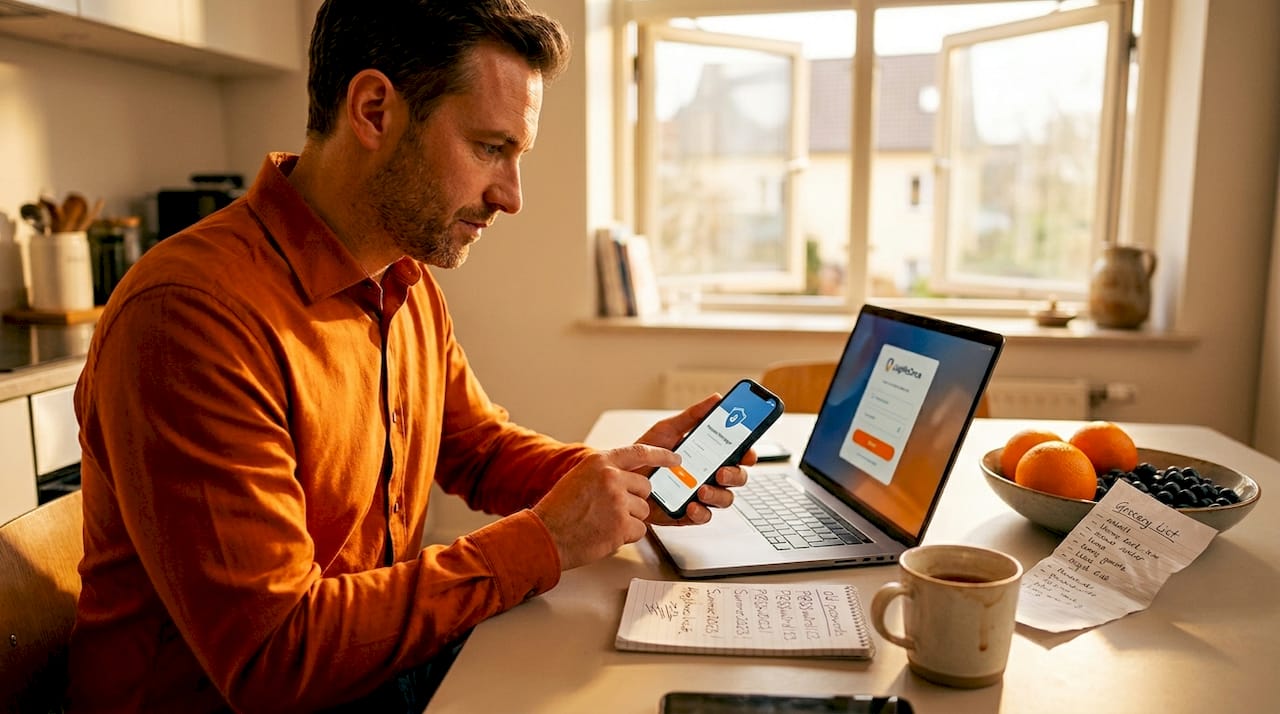
Pro Tip: Don’t rely on your browser’s built-in manager for sensitive accounts like banking, payroll software, or email. Browser managers offer convenience but lack the layered security features of dedicated tools.
Types of password managers: Cloud, local, and browser-based
Not every password manager works the same way. Understanding the three main categories helps you choose the option that fits your actual situation, whether you’re protecting personal accounts, a small team, or a distributed business.
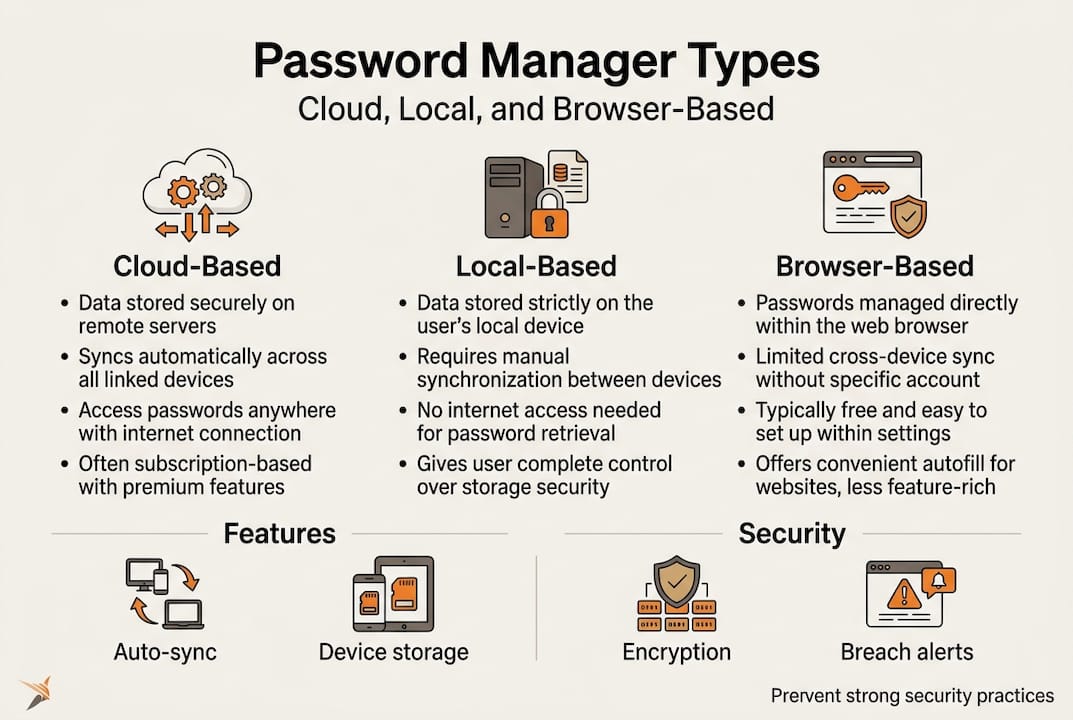
Cloud-based password managers store your encrypted vault on remote servers, which means your credentials sync automatically across all your devices. You get seamless access whether you’re logging in from your work laptop, personal phone, or a browser on a borrowed computer. The tradeoff is that your data lives with a vendor. Their security practices and breach response procedures become part of your security posture.
Local or offline password managers store everything directly on your device. Nothing leaves your computer or phone, which is ideal for privacy-first users who want maximum control. The obvious risk: if your device is lost, stolen, or corrupted without a recent backup, you could lose access to every stored credential. For businesses with strict data residency requirements, local managers can also satisfy compliance needs that cloud options cannot.
Browser-built-in managers (like those offered by Chrome, Safari, or Firefox) are convenient because they’re already there. You don’t have to install anything. But browser managers are limited to one ecosystem, offer less sophisticated encryption, and carry additional vulnerability because they can be compromised if the browser itself is exploited.
| Type | Convenience | Security level | Cross-platform | Best for |
|---|---|---|---|---|
| Cloud-based | High | High | Yes | Most users, teams |
| Local/offline | Medium | Very high | Limited | Privacy-focused users |
| Browser built-in | Very high | Medium | No | Basic personal use only |
Looking at types of password managers in more detail can help you map these categories to your specific setup. If you’re evaluating which product to trust, reviewing safe password manager features gives you the security criteria to compare tools objectively.
For small business owners, cloud-based managers with team features are usually the right call. They offer centralized admin controls, permission-based sharing, and audit logs that local or browser-based options simply don’t provide. For an individual who wants bulletproof privacy and doesn’t mind managing backups manually, a local manager is worth considering.
How password managers improve security (and what can still go wrong)
Password managers do several concrete things that make attackers’ lives harder. Here’s exactly how the protection plays out:
- Every account gets a unique password. If one site is breached and your credentials are stolen, the attacker can’t use them anywhere else. The credential-stuffing attack model collapses.
- Passwords are long and random. A 20-character password mixing letters, numbers, and symbols takes cracking tools far longer to break than “Summer2024!” does. A dedicated manager generates these automatically.
- Autofill blocks phishing. When you type a password manually, you might not notice you’ve landed on a fake site. Password managers autofill based on the exact URL, so if a phishing site has a slightly different address, the manager won’t fill in your credentials. That’s a built-in phishing defense most people don’t know about.
- Breach monitoring catches exposure early. Many managers monitor known data breaches and alert you when your email or credentials appear in leaked databases.
- Centralized management for teams. Business owners can revoke access when employees leave, see which team members have weak or reused passwords, and enforce minimum complexity standards.
The security of password manager tools is well established, with users seeing a measurable 15% reduction in credential theft. The password manager market is also growing at 21.9% per year, which reflects real-world confidence in these tools from businesses and consumers.
But no tool solves human error entirely. Here’s where things still go wrong:
- Weak master passwords. If your master password is something simple or reused, your entire vault is only as strong as that one weak link.
- No MFA on the vault. Without multi-factor authentication on the manager itself, a stolen master password gives an attacker everything at once.
- Using “Remember me” on shared devices. Staying logged in on a family computer, a hotel lobby terminal, or a coworker’s machine is a simple way to hand over access.
- Neglecting updates. Vulnerabilities in password manager software do appear. Keeping your app updated patches those gaps. Research on whether password managers are unhackable confirms that while the encryption architecture is strong, implementation bugs and user behavior are where attackers find their openings.
Pro Tip: Enable multi-factor authentication on your password manager first. Then enable it on email, banking, and any other accounts that support it. This creates a layered defense that stops most attacks even if a password is compromised.
Security stat: The global password manager market is on a 21.9% annual growth trajectory. That kind of growth reflects organizations and individuals finally recognizing what security professionals have been saying for years: reusing passwords is not a shortcut. It’s a liability.
Expert tips and real-world pitfalls: Getting the most from your password manager
Most guides stop at “use a password manager and enable MFA.” That’s accurate advice, but it skips the behavior patterns that determine whether those tools actually work for you. Here are the specifics that make the difference.
Use a strong, unique master password. Your master password is the single key to your entire credential vault. It should be long (16 or more characters), not based on a dictionary word or personal information, and not used anywhere else. A passphrase built from four or five unrelated words (like “purple-desk-river-lamp-40”) is both strong and easier to remember than a string of random characters. Write it down and store it somewhere physically secure, not in a note on your phone.
Enable auto-lock on a short timer. Most password managers allow you to set an auto-lock period after which the vault requires re-authentication. Setting this to five or ten minutes limits the exposure window if you step away from your device.
Set up breach monitoring. Several dedicated password managers monitor your stored emails against known breach databases. When your credentials show up in a fresh data dump, you get an alert and can change the affected password immediately rather than finding out months later when the damage is done.
Back up local managers regularly. If you use an offline or local password manager, treat your vault file the way you’d treat important financial documents. Back it up to an encrypted external drive and keep a copy offsite. Losing your device without a backup means losing access to every account stored in that vault.
Don’t use browser-based managers for sensitive accounts. Government cybersecurity agencies and independent experts strongly recommend dedicated managers over browser options, specifically because browser-based storage is more exposed to compromise when the browser itself is attacked.
Audit your vault periodically. At least twice a year, review your stored passwords. Look for duplicates, old accounts you no longer use, and passwords that haven’t been updated in over a year. Delete credentials for services you’ve stopped using entirely.
Recent ETH Zurich research from 2026 confirmed that no password manager is fully breach-proof. The risk isn’t the underlying encryption, which is generally solid. The risk is in implementation details, third-party integrations, and the human decisions made around the tool.
“Password managers plus MFA drastically reduce risk for both individuals and organizations, but the protection is only as strong as the practices surrounding the tool.” This is the consistent message from cybersecurity authorities worldwide.
For business owners managing a team, reviewing dos and don’ts of team password management and understanding the key features of any team password manager will help you build a policy that actually gets followed. Good password manager tips go beyond the basics and address the team behavior patterns that create vulnerability even when everyone technically has a manager installed.
Why most password manager advice is missing the real problem
Here’s an uncomfortable observation after looking closely at adoption data and security outcomes: most password manager guides focus entirely on product features. Which tool has the best interface. Which encrypts with AES-256. Which syncs the fastest. None of that matters if the user’s underlying behavior doesn’t change.
The real reason adoption sits at just 36% isn’t that people can’t find a good password manager. There are dozens of solid options, including free ones. The real reason is that most people underestimate their own exposure. They assume breaches happen to other people’s accounts, other companies, other industries. That assumption is wrong, but it’s persistent.
Even among people who do use a password manager, a significant number use the browser-built-in version for convenience, keep their master password simple because it’s easier to remember, skip MFA because the extra step feels annoying, and never audit their vault for weak or reused credentials. The tool is there, but the habits aren’t. And habits are where the actual protection comes from.
The solution isn’t to find a better password manager. It’s to treat password hygiene as a regular practice rather than a one-time setup. Schedule a 20-minute review of your vault every six months. Make migrating from browser managers to a dedicated tool a genuine priority, not something you’ll do eventually. Explore practical password manager tips that go beyond setup instructions and get into the ongoing habits that keep your credentials safe.
For small businesses, this extends to your whole team. The weakest credential in your organization is the one an attacker will find and exploit. Reviewing enterprise password management insights can help you think beyond individual accounts and build a culture where secure credential practices are the standard, not the exception.
Protect your accounts with advanced password management
If the guidance in this article has you thinking about gaps in your current setup, LogMeOnce offers tools built to close those gaps efficiently.

From individuals who want a single, reliable home for all their credentials to small business owners who need team vaults, admin controls, and dark web monitoring, LogMeOnce is designed to cover the full spectrum. You can explore the LogMeOnce password management benefits to see how the platform addresses everything covered in this guide. For businesses ready to add another critical protection layer, two-factor authentication setup is straightforward and immediate. And if you store sensitive files alongside passwords, cloud storage encryption ensures that data stays protected at rest.
Frequently asked questions
What is a password manager and how does it work?
A password manager is a tool that generates, stores, and fills your passwords automatically, keeping all login data encrypted and accessible only through your master password.
Are password managers completely safe from hackers?
No password manager is breach-proof, but enabling MFA, auto-lock, and breach monitoring dramatically reduces the risk of a successful attack on your vault.
Should I use a browser’s password manager or a dedicated app?
Government cybersecurity agencies and security experts recommend dedicated managers over browser-built-in options because dedicated tools offer stronger security and genuine cross-platform support.
How many people actually use password managers?
As of 2026, only about 36% of U.S. adults use password managers, even though adoption is growing year over year as awareness of credential attacks increases.
What’s the most important feature in a password manager?
Strong encryption combined with support for multi-factor authentication is the most critical combination, since MFA prevents vault access even when a master password is compromised.
Recommended
- Are Password Managers Safe? How to Find a Secure Password Manager
- Data Security: The Incredible Benefits of Using a Password Manager
- What Is Password Management and Why Is It Important?
- What is the most secure online password manager? – LogMeOnce


