


 Password Manager
 Identity Theft Protection

 Team / Business
 Enterprise
 Government
 MSP
MSP


TL;DR:
- A password manager securely stores encrypted login credentials in a vault protected by a master password. Encrypted data syncs across devices and remains unreadable to providers, enhancing online security. Using MFA and domain matching further prevents unauthorized access and phishing risks.
A password manager is a secure app that stores all your login credentials in an encrypted vault, so you only need to remember one master password. If you don’t use one yet, install a password manager today and enable multi-factor authentication (MFA) on your account — that single session is the most effective thing you can do for your online security, according to the NCSC.

What is a password manager, exactly?

Think of a password manager as a locked safe for your digital life. Inside that safe — called a vault — the app stores your usernames, passwords, secure notes, payment card details, and even passkeys. You unlock the entire vault with one strong master password that only you know.
The vault doesn’t store your credentials in plain text. Everything is scrambled using AES-256 encryption, the same standard used by financial institutions and government agencies. Even the company running the service cannot read your data — that’s the core promise of zero-knowledge architecture, where encryption and decryption happen entirely on your device, not on the provider’s servers.
What a password manager typically stores:
- Login credentials (username + password) for every site and app
- Secure notes (Wi-Fi passwords, software license keys, PINs)
- Payment card details for faster checkout
- Passkeys and other modern credential types
- Identity information for auto-filling forms
Pro Tip: Pick a master password that is long (16+ characters), memorable, and unique — a passphrase like “BlueSky!River42Lamp” works well. Write it down and store it somewhere physically secure until you have it memorized.
Vault → Device → Encrypted Cloud: Your credentials live in the vault. The app encrypts them on your device. Only the encrypted blob travels to the cloud for syncing. The provider never sees the raw data.
How does a password manager work, step by step?
The mechanics are simpler than they sound. Here’s what happens from the moment you create an account to the moment the app fills in your bank login.
-
You create a master password. The app uses it to derive a cryptographic key through a process called key derivation. That key is what actually locks and unlocks your vault — the master password itself is never stored anywhere.
-
Your vault is encrypted locally. Before any data leaves your device, the app encrypts it using AES-256. The encrypted file is what gets uploaded to the cloud, not your readable credentials.
-
Autofill matches the domain, not just the page. When you visit a login page, the manager checks whether the site’s URL matches a saved entry. If you land on a phishing copy of your bank’s site — say,
secure-bankofamerica-login.netinstead ofbankofamerica.com— the manager won’t fill anything in. That domain-matching behavior is a quiet but real anti-phishing benefit most people don’t think about. -
The password generator replaces reuse. Instead of recycling
Password1!across 30 sites, the generator creates something likeXq7#mPL9vR2@kTz. High-entropy, random, unique per site. Password reuse is the single biggest risk most users carry — one breach exposes every account sharing that password. -
Sync sends only encrypted data. When you add a new login on your phone, the encrypted vault syncs to the cloud and then to your laptop. Your devices exchange ciphertext, not credentials. Under a true zero-knowledge model, the provider holds no key that could decrypt it.
Security note: Cloud sync changes your trust model. Verify whether your provider holds any recovery secrets or key-derivation details on their servers — that detail matters for both privacy and recoverability.
What features should you expect from a good password manager?
Modern password managers do a lot more than store passwords. Here’s what to look for, split by priority:
Start here (beginner priorities):
- Password generator — creates long, random, unique passwords on demand; eliminates the temptation to reuse
- Autofill — fills login forms automatically so you never have to copy-paste
- Cross-device sync — keeps your vault consistent across your phone, laptop, and browser
- MFA/2FA support — lets you add a second layer of protection to the vault itself
Add these once you’re comfortable:
- Password health audit — scans your vault for reused, weak, or old passwords and flags them
- Dark web breach detection — alerts you when your email or credentials appear in a known data breach
- Secure notes — stores sensitive text (recovery codes, PINs, Wi-Fi passwords) inside the encrypted vault
- Secure sharing — lets you share a login with a family member or colleague without revealing the actual password
- SSO (single sign-on) support — relevant for workplace use; lets one login authenticate across multiple business apps
Browser-based managers like those built into Chrome or Safari cover the basics but often lack auditing, secure sharing, and cross-platform sync. For most people who use more than one browser or device, a dedicated third-party app fills those gaps. You can read more about the benefits of password management software to see how these features translate into real-world protection.
Which type of password manager fits your situation?
Not all password managers are built the same way. The four main categories each make a different trade-off between convenience, control, and features.
| Type | Best for | Key trade-off |
|---|---|---|
| Browser/OS built-in (e.g., Chrome, Safari, Windows Hello) | Single-ecosystem users who want zero setup | Limited cross-platform sync; no auditing or secure sharing |
| Cloud third-party consumer app | Most individuals and families | Strongest feature set; you trust the provider’s encryption claims |
| Local-only / offline vault | Privacy-first users who manage their own backups | No automatic sync; you own the data entirely |
| Team / enterprise platform | Businesses, IT teams, organizations | Admin controls, SSO, role-based access; higher cost and complexity |
A few practical notes on each:
- Browser managers are fine if you live entirely in one ecosystem and don’t need to share logins or audit your vault. The moment you switch browsers or need to share a password securely, they fall short.
- Cloud consumer apps are the right choice for most readers of this guide. They handle sync automatically, generate strong passwords, and surface health reports. The trade-off is trusting the provider’s zero-knowledge claims — which is why verifying those claims matters (see the checklist below).
- Local-only vaults give you full control but require manual backups. Lose the backup, lose the vault.
- Enterprise platforms add admin dashboards, provisioning, and SSO. If you’re evaluating options for a team, the enterprise password management considerations are meaningfully different from personal use.
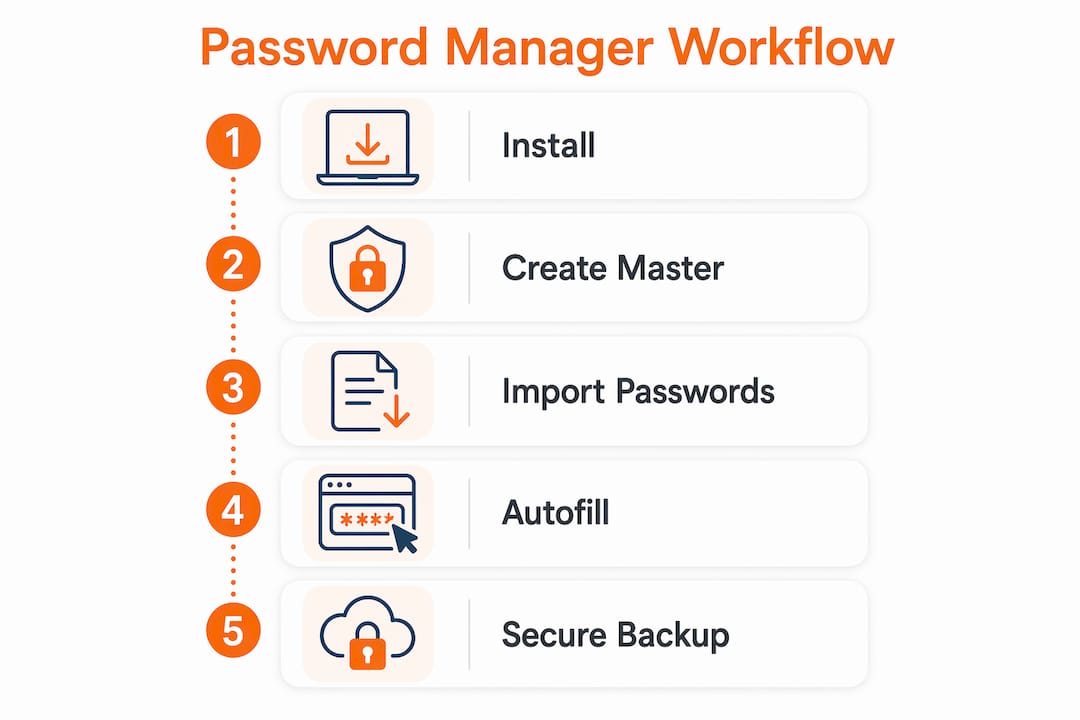
How to start using a password manager in your first session
Getting set up takes under an hour. Here’s the sequence that gets you from zero to secure without missing anything critical.
Before you install — quick checklist:
- Decide on your recovery plan (what happens if you forget the master password?)
- Make sure your device has a screen lock enabled
- Have your existing passwords somewhere accessible (browser export, sticky note, memory)
Step-by-step setup:
-
Install the app and browser extension. Download from the provider’s official site or your device’s app store. Install the browser extension so autofill works on websites.
-
Create your master password. Make it long, unique, and something you can remember. This is the one password you must never forget and never reuse anywhere else.
-
Enable MFA immediately. Before you add a single credential, turn on multi-factor authentication for the vault. An authenticator app (like Google Authenticator or Authy) is more secure than SMS. MFA on the vault stops an attacker even if they somehow get your master password.
-
Import or save existing passwords. Most managers let you import a CSV from your browser. Alternatively, log into each site normally and let the manager prompt you to save.
-
Run a password health audit. The audit will flag reused passwords, weak passwords, and accounts that appeared in known breaches. Start replacing the worst offenders — prioritize email, banking, and social media.
-
Set up account recovery. Configure an emergency access contact or recovery code before you need it. Under zero-knowledge policies, recovery may be impossible if you lose your master password and skipped this step.
Timeline: Most people finish install, MFA, and import within a short initial session. Replacing weak passwords across your most important accounts takes a few days at a comfortable pace. A practical setup guide from TechRepublic confirms this sequence is the standard starting point most security writers recommend.
What are the real risks and limits of password managers?
Password managers are not perfect. Knowing the limits helps you use them more safely.
The master password is your single point of failure. If someone obtains it and you haven’t enabled MFA, they have access to everything. Treat it with the same care you’d give a house key — don’t write it on a sticky note on your monitor, and don’t reuse it anywhere.
Vendor breach: If the provider’s servers are compromised, attackers get encrypted data. Under a genuine zero-knowledge architecture, that data is unreadable without your master password. The risk isn’t zero, but it’s far lower than storing passwords in a plain-text document or reusing them across sites.
Device compromise: A password manager can’t protect you from malware already running on your device. If a keylogger captures your master password as you type it, the vault is exposed. Keeping your operating system and apps updated, running reputable security software, and avoiding suspicious downloads reduces this risk substantially.
Phishing edge cases: Domain-matching autofill helps, but it’s not foolproof. A convincing phishing site on a slightly different domain won’t get autofilled — but if you manually type your credentials there anyway, the manager can’t stop you. The URL-matching protection is passive, not active.
Practical mitigations:
- Enable MFA on the vault (highest-impact single action)
- Keep your device OS and security software current
- Configure emergency access or recovery codes before you need them
- Run a vault audit every few months to catch stale or reused passwords
Pro Tip: Check whether your provider publishes independent security audit results or runs a bug-bounty program. Those two signals tell you more about a provider’s real security posture than any marketing claim.
What should you verify before choosing a password manager?
Use this checklist when evaluating any provider. It cuts through marketing language and focuses on what actually matters.
Architecture and transparency:
- Does the provider clearly explain their encryption model — specifically that encryption happens on your device?
- Is zero-knowledge architecture explicitly stated and explained in their documentation?
- Can you find a published explanation of how key derivation works?
Independent verification:
- Look for published third-party security audit reports (SOC 2, penetration tests, or similar).
- Check whether the provider runs a public bug-bounty program — it signals they want vulnerabilities found and fixed.
- Search for any disclosed breaches and read how the provider responded.
Recovery and access:
- What recovery options exist if you lose your master password?
- Does the provider hold any recovery key on their servers, and if so, what does that mean for zero-knowledge claims?
- Is emergency access (trusted contact) available?
MFA and platform support:
- Does the vault support authenticator-app MFA, not just SMS?
- Are apps available for every platform you use (iOS, Android, Windows, Mac, major browsers)?
- For workplace use: does it support SSO and role-based access controls?
Questions to ask directly in support documentation: “What happens to my data if I forget my master password?” and “Where does encryption happen?” If the answers are vague, that’s a signal worth taking seriously. You can also review what makes a password manager truly secure for a deeper look at these criteria.
Key Takeaways
A password manager encrypts your credentials on your device, syncs only the encrypted vault to the cloud, and autofills logins only on matching domains — making unique, strong passwords practical for everyone.
| Point | Details |
|---|---|
| One master password, full vault | You remember one strong password; the manager handles every other credential securely. |
| Local encryption protects you | AES-256 encryption happens on your device before any data reaches the cloud. |
| MFA is non-negotiable | Enable multi-factor authentication on your vault immediately — it’s the highest-impact single action. |
| Domain-matching reduces phishing | Autofill only triggers on exact domain matches, so phishing copies of sites get nothing. |
| Logmeonce covers the full checklist | Logmeonce offers zero-knowledge encryption, MFA options, dark web monitoring, and enterprise tiers in one platform. |
Why password managers are worth the friction
The conventional wisdom treats password managers as a convenience tool. That undersells them. The real argument is structural: human memory cannot generate and recall dozens of unique, high-entropy passwords. It was never designed to. Every workaround people use instead — slight variations on one password, a spreadsheet, browser autosave — introduces a failure point that a password manager eliminates by design.
The zero-knowledge model is what makes the trust question answerable. You’re not trusting the provider with your passwords. You’re trusting their implementation of an encryption standard that has been publicly vetted. That’s a much more defensible position than trusting yourself to remember 60 unique passwords, or trusting a browser you didn’t choose to secure.
The one thing most guides understate is recovery. Configuring emergency access before you need it is not optional housekeeping — it’s the step that determines whether zero-knowledge is a feature or a liability for you personally. Set it up in your first session, not later.
This guide reflects Logmeonce’s commitment to straightforward cybersecurity education. Logmeonce offers password management, MFA, and identity protection tools — the features discussed here are ones you can evaluate directly against any provider, including Logmeonce itself.
Logmeonce covers what this checklist asks for
If you’ve worked through this guide and want a single platform that checks the boxes above, Logmeonce is worth a direct look. It combines zero-knowledge encryption, multiple MFA options (including passwordless login), dark web monitoring, and both personal and enterprise tiers — so the same platform scales from a solo user to a full IT team.

The feature set maps directly to the priorities this guide outlines: client-side encryption, domain-matched autofill, password health auditing, and secure sharing. For teams, business security controls add SSO and role-based access on top of the core vault. For individuals, the free tier covers the essentials to get started without a financial commitment.
Ready to put the checklist to work? Visit Logmeonce cybersecurity to explore plans and start a free trial — setup takes the same 30–45 minutes this guide describes, and MFA is built into the onboarding flow.
Useful sources and further reading
- NCSC — Password managers: top tips for staying secure online — The UK’s National Cyber Security Centre explains why password managers reduce risk and what to look for in a trustworthy one.
- StaySafeOnline (National Cybersecurity Alliance) — Plain-language guidance on password security and AES-256 encryption standards for everyday users.
- Sophos — What is a password manager? — Clear explanation of zero-knowledge architecture and what a vendor breach actually means for your data.
- TechTarget — Password manager definition — Technical breakdown of how URL-matching autofill works and the differences between browser and third-party managers.
- TechRepublic — How do password managers work? — Practical setup walkthrough covering the standard install-to-audit sequence for new users.
- Wikipedia — Password manager — Broad overview of vault types, passkey support, and the history of credential management tools.
- Consumer Reports — How to use a password manager — Independent, consumer-focused guidance on evaluating and using password managers safely.
- Logmeonce — Password management benefits — Publisher documentation covering the specific features and security architecture Logmeonce provides.
Recommended
- What Is Password Management and Why Is It Important?
- What is the most secure online password manager? – LogMeOnce
- Data Security: The Incredible Benefits of Using a Password Manager
- Are Password Managers Safe? How to Find a Secure Password Manager


