


 Password Manager
 Identity Theft Protection

 Team / Business
 Enterprise
 Government
 MSP
MSP


Go straight to Google Account Recovery. That single URL is where every Gmail password reset begins. Enter your email address, follow the identity-verification prompts, and you will be able to create a new password. The process is free, fully automated, and run entirely by Google. No payment, no third-party service, no phone call required.
What do you do if you forgot your Gmail password? Follow these steps
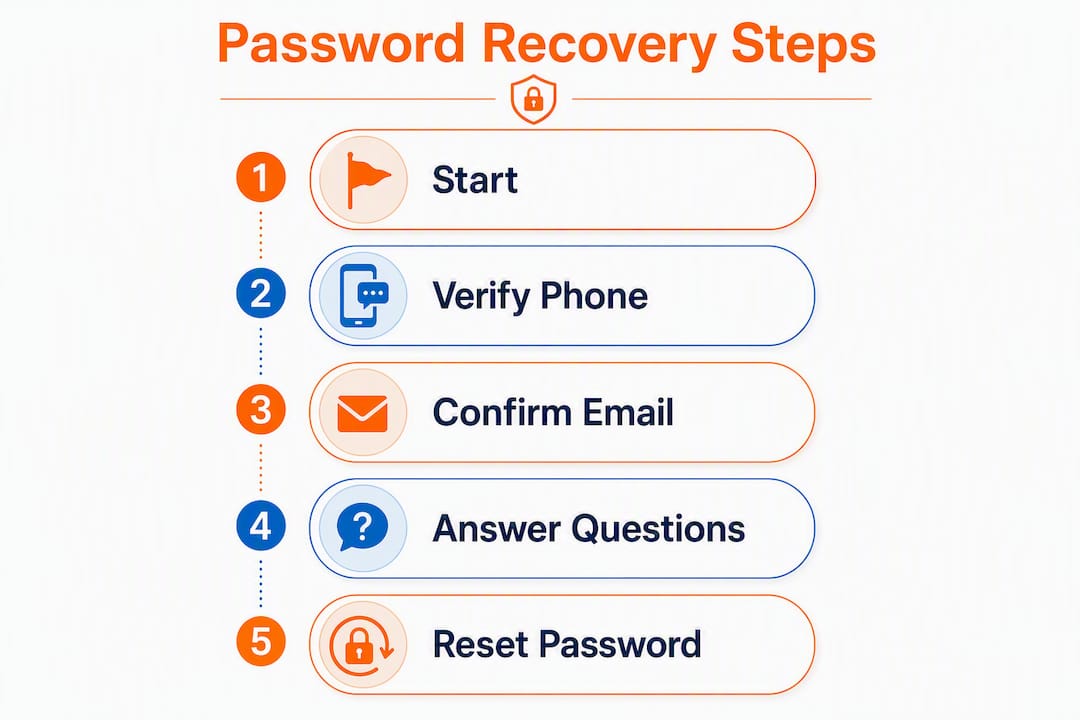
Google’s official recovery flow walks you through a short identity check before letting you set a new password. Here is the exact sequence:
- Go to accounts.google.com/signin/recovery.
- Enter your Gmail address (or phone number linked to the account) and click Next.
- Try the last password you remember. Even a close guess helps Google confirm ownership.
- Choose a verification method. Google will offer to send a code to your recovery phone number, your recovery email address, or a trusted device already signed in.
- Enter the code when it arrives and click Next.
- Create a new password. Google requires it to be one you have never used with this account before.
- Click Change Password to finish.
Pro Tip: Use the same computer, browser, and Wi-Fi network you normally use for Gmail. Google’s system reads device and location signals to confirm you are the account owner, and a familiar setup measurably improves your odds of getting through on the first attempt.
| Verification method | What you need | Speed |
|---|---|---|
| Recovery phone (SMS/call) | Access to that phone number | Seconds |
| Recovery email | Access to that inbox | Under a minute |
| Trusted device already signed in | The physical device | Immediate |
| Identity verification form | Account details, old passwords | Hours to days |

What if you can’t access your recovery phone or email?
This is where most people get stuck. If your recovery phone is lost or your secondary inbox is also inaccessible, click the “Try another way” link on the password-assistance page. That opens Google’s identity-verification path, which leads to the Account Recovery form.
On that form, Google may ask for:
- The full name on the account
- Passwords you used previously, even old ones
- The approximate date you created the account
- Recent contacts you emailed or apps you connected
You do not need exact answers. Google explicitly encourages best guesses and sets no limit on recovery attempts, so incorrect answers will not lock you out. If you have forgotten your username entirely, visit accounts.google.com/signin/usernamerecovery and provide the full name on the account plus either the recovery phone or recovery email to retrieve it.
Pro Tip: Clear your browser cache, then open the recovery page in the same browser you always use for Gmail. A fresh session on a familiar browser gives Google cleaner device signals.
If you need to recover a forgotten username, the same device-familiarity logic applies.
Your Gmail is managed by work or school — what now?
Google’s public recovery flow does not work for Google Workspace accounts. If your email ends in a company or school domain, managed accounts require an admin reset. The public recovery page will either redirect you or simply fail.
- Contact your IT helpdesk or Google Workspace admin and ask them to reset your password.
- Give them your full account email address and confirm your identity per their internal process.
- Once they reset it, sign in and immediately update your recovery phone and secondary email.
- Child accounts follow a similar pattern: a parent or guardian must use Family Link to authorize a password reset.
Pro Tip: Ask your admin to enable account recovery options for your Workspace account while they have it open. Many organizations leave recovery phone and email fields blank by default, which makes future lockouts harder to resolve on your own.
What if you deleted your Google account?
Speed matters here. Attempting recovery immediately after deletion gives you the best chance of getting the account back. Wait too long and the account, along with all its data, becomes permanently unrecoverable.
Security checklist: what to do after you reset your password
Regaining access is step one. Securing the account is step two, and skipping it is how people end up locked out again, or worse, compromised.
- Sign out of all other sessions — Go to your Google Account, select Security, then “Manage devices,” and remove anything unfamiliar.
- Run Google Security Checkup at myaccount.google.com/security-checkup. Google recommends this immediately after a reset to catch unauthorized apps and connected accounts.
- Change passwords on other sites where you used the same Gmail password. Password reuse turns one compromised account into many.
- Run a dark-web scan to check whether your credentials appeared in a breach. Logmeonce’s dark web monitoring tool can surface exposed credentials tied to your email.
Pro Tip: Set a calendar reminder to review your Google Security Checkup every six months. Recovery info goes stale fast — people change phone numbers and abandon old email addresses without updating their Google account.
Better protection going forward: password managers and MFA
The best way to handle a forgotten Gmail password is to make sure it never happens again.
- A password manager — stores your credentials in an encrypted vault, so you never need to memorize a complex password or reuse a weak one.
- Never use paid or third-party “account recovery” services. They cannot do anything Google’s free tools cannot, and many are outright scams. Stick to official Google channels and follow safe password practices.
Pro Tip: Set up at least two recovery options in your Google Account today, before you need them. A recovery phone and a secondary email together give Google enough signals to verify you even if one becomes inaccessible.
How long does recovery take, and does it cost anything?
Google Account Recovery is completely free. There is no official paid recovery channel, no premium tier, and no subscription that speeds up the process.
No SLA exists for the identity-verification route. The more account history you can provide, the faster and more likely a positive outcome becomes.
How to spot and avoid account recovery scams
Scammers target people who are already locked out and anxious. Here is what a fraudulent “recovery service” looks like:
- Unsolicited calls or emails claiming to be Google support and asking for verification codes
- Websites or ads charging a fee to recover your Google account
Google will never ask for your password or verification codes and does not offer paid phone support for account recovery. If you shared credentials with a suspicious service, change your password immediately and run the Security Checkup.
Report scams at google.com/safebrowsing/report_phish.
Key Takeaways
The fastest path back into a locked Gmail account is Google Account Recovery at accounts.google.com/signin/recovery, attempted from a familiar device, with recovery options already set up.
| Point | Details |
|---|---|
| Official starting point | Always begin at accounts.google.com/signin/recovery — it is free and the only legitimate path. |
| Familiar device matters | Google uses device and location signals; recovering from your usual computer raises success odds. |
| No recovery options available | Use “Try another way” to access the identity-verification form and provide best guesses. |
| Managed accounts need an admin | Google Workspace accounts cannot use public recovery — contact your IT admin directly. |
| Post-reset security | Enable 2-Step Verification, update recovery info, and run Google Security Checkup immediately. |
The part most guides skip
The procedural steps above are straightforward once you know them. What actually costs people their accounts is not forgetting a password — it is the gap between when they set up the account and when they last checked their recovery info.
Phone numbers change. Secondary email addresses get abandoned. People set up a Google account with a phone number they no longer own, then discover years later that the recovery path leads nowhere. Google’s system is genuinely good at verifying identity through device signals and account history, but it cannot work miracles when the account has been dormant for years and the recovery fields are empty.
The real lesson here is that account recovery is a maintenance task, not a crisis response. Spending two minutes updating your recovery phone and secondary email today is worth more than any step-by-step guide when you are locked out at midnight with an important email to send.
Stop future lockouts before they start with Logmeonce
Recovering a Gmail password manually is stressful, time-consuming, and sometimes impossible if your recovery info is out of date. Logmeonce removes that risk entirely by storing your credentials in an encrypted vault, keeping recovery details current, and giving you secure access from any device.

Where Google’s built-in recovery depends on you having set everything up correctly years ago, Logmeonce’s password management platform keeps that infrastructure maintained automatically. You get strong, unique passwords for every account, MFA built in, and dark-web monitoring that alerts you before a breach becomes a lockout. No more scrambling through old phone numbers or guessing at account creation dates.
Official Google recovery is still the right immediate action when you are locked out today. But for everyone who wants to make sure it never happens again, Logmeonce password management is the practical next step. Start a free trial and get your accounts secured in under ten minutes.


