


 Password Manager
 Identity Theft Protection

 Team / Business
 Enterprise
 Government
 MSP
MSP


TL;DR:
- Multi-factor authentication requires two or more verification factors to secure accounts effectively.
- FIDO2 hardware keys and passkeys offer the highest Phishing resistance, making them the strongest options.
Multi-factor authentication (MFA) is defined as a security process that requires two or more independent factors to verify your identity before granting account access. MFA blocks over 99.9% of automated account attacks, making it the single most effective defense against credential theft. Knowing how to set up MFA correctly, with the right methods and backup strategies, separates accounts that stay secure from accounts that get compromised. This guide covers the strongest authentication methods, step-by-step setup instructions, backup and recovery practices, and the most common mistakes that undermine protection.

What do you need before setting up MFA?
Before you start the MFA setup process, you need the right tools in place. The method you choose determines how strong your protection actually is.
MFA method comparison
| Method | Security level | Phishing resistant | Recovery ease |
|---|---|---|---|
| Hardware security key (FIDO2) | Highest | Yes | Low without backup |
| Authenticator app (TOTP) | High | Partial | Medium |
| Passkeys | High | Yes | Medium |
| SMS one-time password | Low | No | High |
| Email one-time password | Low | No | High |
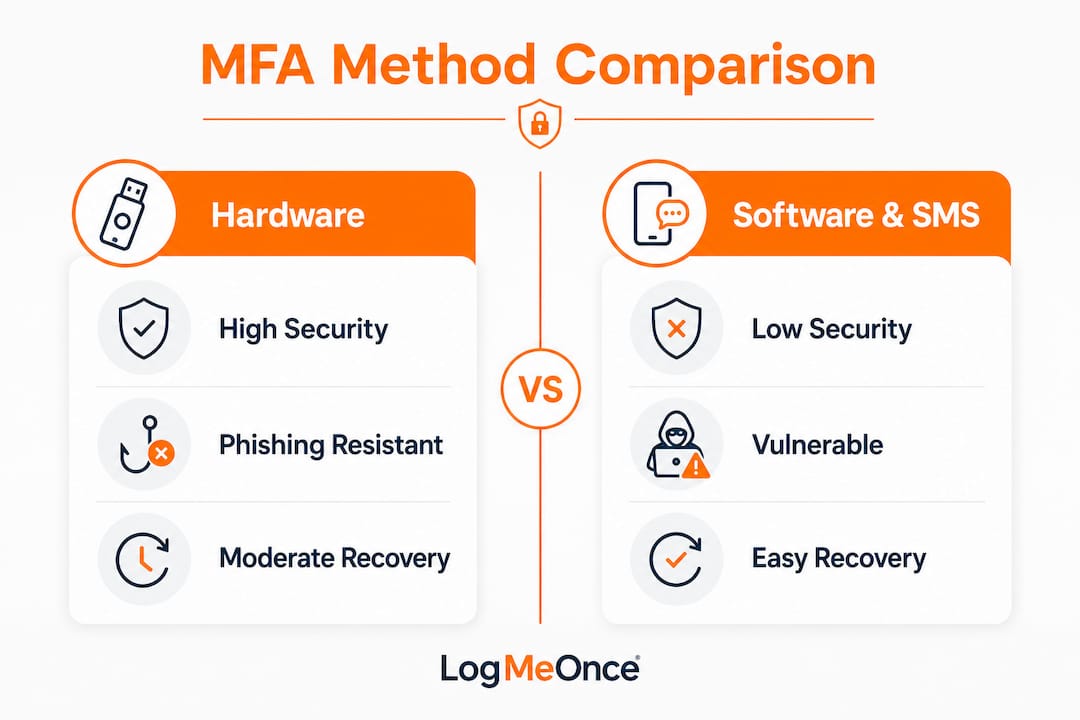
SMS and email OTP are vulnerable to SIM swapping and interception. That means relying on them as your primary MFA method leaves a significant gap in your defense.
The strongest options are FIDO2 hardware security keys and passkeys, which use cryptographic domain verification to block phishing at the technical level. An attacker cannot trick these methods with a fake login page because the key checks the domain before responding.
For most users, a TOTP authenticator app is the practical starting point. Google Authenticator and Authy are the two most widely used options. Authy adds cloud backup, which matters for device migration. Google Authenticator stores credentials locally, which requires a manual export if you switch phones.
Essential items to gather before you begin:
- A TOTP authenticator app installed on your phone
- A hardware security key if you manage high-risk accounts
- A secure location to store backup codes (a password manager or printed and locked away)
- Access to the account’s security settings
Pro Tip: Download your authenticator app and create a test account before enrolling your primary accounts. This removes the learning curve when it counts.
How to set up MFA step by step on common platforms
The core process for enabling multi-factor authentication follows the same pattern across most platforms. Scanning a QR code with your authenticator app and entering the rotating 6-digit code confirms the link between your account and your device. The whole process typically takes under five minutes.
General MFA setup steps
-
Open account security settings. Log in to your account and navigate to “Security,” “Privacy,” or “Account Settings.” Look for a section labeled “Two-Factor Authentication,” “MFA,” or “Login Verification.”
-
Select your authentication method. Choose “Authenticator App” over SMS when both options appear. If a hardware key option exists, select it for your highest-risk accounts.
-
Scan the QR code. Open your authenticator app, tap the “+” or “Add Account” button, and point your camera at the QR code displayed on screen. The app creates a time-based one-time password (TOTP) entry linked to your account.
-
Enter the 6-digit verification code. Your app generates a new code every 30 seconds. Type the current code into the platform’s confirmation field before it expires. This step confirms the link is working.
-
Save your backup codes immediately. Most platforms generate 8–10 single-use backup codes after you complete setup. Download or copy them now. Do not skip this step.
-
Add a secondary MFA method. Enroll a second factor, such as a hardware key or a second device, as a fallback. Single-method setups create a single point of failure.
-
Test the full login flow. Log out and sign back in using your authenticator app to confirm everything works before you close the settings page.
Adding a hardware security key
Navigate to the same security settings page and look for “Security Keys” or “Passkeys.” Insert your FIDO2 key into a USB port or hold it near your device for NFC pairing. Follow the on-screen prompts, which typically ask you to touch the key’s button to confirm enrollment. Name the key something specific like “YubiKey home” so you can identify it later if you need to remove it.
Pro Tip: Register two hardware keys if your platform supports it. Keep one as your primary and store the second in a physically separate location as a backup.
How to handle MFA backup, recovery, and device migration
Backup code loss is the leading cause of MFA lockouts. Account recovery without backup codes is slow, sometimes impossible, and always stressful. Treating backup codes as a critical asset from day one prevents that outcome.
Saving backup codes is not optional. Test them immediately after setup. Store them in at least two separate locations: one digital (a password manager) and one physical (printed and locked away). An untested backup code is an unknown backup code.
Best practices for backup and recovery:
- Store backup codes in a password manager with strong encryption, not in a plain text file or email draft.
- Print one copy and keep it in a locked drawer or safe, separate from your devices.
- Test at least one backup code within 24 hours of setup to confirm it works.
- Never store backup codes in the same account they protect. If that account gets locked, you lose access to both.
Migrating your authenticator app to a new device
Device migration is where many users accidentally lock themselves out. The process differs by app.
Authy users have the simplest path. Cloud sync in Authy transfers all credentials to a new device automatically after you verify your phone number and PIN. Install Authy on the new device, authenticate, and your accounts appear.
Google Authenticator requires a manual export. Open the app on your old device, go to “Transfer Accounts,” and select “Export Accounts.” A QR code appears. Scan it with Google Authenticator on your new device. Complete this step before wiping or losing your old phone.
Pro Tip: Before any planned device change, verify that every account has backup codes saved. Do not rely on the migration process alone.
Common MFA setup mistakes and how to avoid them
Most MFA failures trace back to a small set of predictable errors. Recognizing them before they affect you is the practical advantage.
Relying solely on SMS OTP is the most common mistake. SMS is better than no MFA, but it is not a secure long-term solution. SIM swapping attacks can redirect your messages to an attacker’s device without your knowledge. Move high-value accounts to an authenticator app or hardware key.
Ignoring MFA fatigue attacks creates a different risk. MFA fatigue attacks flood users with push notification approval requests until someone accidentally taps “Approve.” Enabling number matching, where you must type a number displayed on the login screen into your authenticator app, eliminates accidental approvals.
Skipping phishing-resistant methods for high-risk accounts leaves a gap that attackers exploit. Biometric authentication without domain verification does not qualify as phishing resistant. FIDO2 keys and passkeys verify the domain cryptographically, so a fake login page cannot capture your credentials.
For IT professionals managing organizational rollout, two additional mistakes stand out.
First, rolling out MFA to all users simultaneously creates a support surge and increases the chance of misconfiguration. Phase the rollout by starting with administrators and privileged users, then moving to users with access to sensitive data, and finally extending to the full organization.
Second, managing MFA policy at the application level rather than the identity provider level creates gaps. Centralized MFA enforcement via SSO applies consistent policy across every connected application and prevents individual apps from bypassing the requirement.
| Mistake | Corrective action |
|---|---|
| SMS as sole MFA method | Switch to authenticator app or FIDO2 key |
| No backup codes saved | Generate and store codes immediately after setup |
| Push notification fatigue | Enable number matching on push-based MFA |
| All-at-once org rollout | Phase by privilege level, starting with admins |
| App-level MFA management | Centralize enforcement through SSO at identity provider |
Key Takeaways
Setting up MFA correctly requires choosing phishing-resistant methods, saving backup codes immediately, and centralizing policy enforcement to prevent gaps.
| Point | Details |
|---|---|
| Choose the right method | Use FIDO2 keys or authenticator apps; avoid SMS OTP for high-value accounts. |
| Save backup codes first | Store codes in a password manager and a physical location before finishing setup. |
| Test before you finalize | Log out and log back in to confirm MFA works before closing security settings. |
| Phase organizational rollout | Start with admins and privileged users, then expand to the broader organization. |
| Centralize with SSO | Enforce MFA at the identity provider level to close gaps across all applications. |
MFA in practice: what the setup guides don’t tell you
I’ve watched organizations spend weeks planning MFA rollouts, only to stumble on the same two problems every time: backup codes and user behavior.
The technical setup is genuinely straightforward. Adaptive MFA that adjusts requirements based on device, location, and activity context is the right direction for reducing friction without reducing security. A user logging in from their usual device at a normal hour should not face the same friction as someone logging in from an unfamiliar country at 3:00 AM. Risk-based prompting keeps security strong where it matters and invisible where it doesn’t.
What I’ve found is that user education on MFA phishing and fatigue attacks matters as much as the technical configuration. A perfectly configured FIDO2 key does nothing if the user hands their session cookie to a phishing site because they didn’t recognize the attack pattern. Training people to pause before approving any unexpected push notification is a behavioral control that no software can replace.
Hardware keys and passkeys are the clearest upgrade available right now. The two-factor authentication conversation has moved past “use an app” to “use a method that can’t be phished.” That shift is real and the tools to act on it are widely available.
The part most guides skip is ongoing vigilance. MFA setup is not a one-time task. Review enrolled devices and methods every quarter. Remove old devices. Rotate backup codes after any suspected compromise. Security is a practice, not a configuration.
— Mike
Logmeonce makes MFA and password security work together
Protecting your accounts takes more than a single tool. Logmeonce combines MFA and password management in one platform, so you get phishing-resistant authentication and encrypted credential storage without managing separate systems.

Logmeonce supports passwordless MFA, single sign-on, and dark web monitoring for individuals, businesses, and enterprise teams. Every account you protect with a strong password becomes significantly harder to compromise when paired with MFA. Logmeonce brings both layers together in a single, centrally managed security platform built for users who take account protection seriously.
FAQ
What is MFA and how does it differ from 2FA?
MFA (multi-factor authentication) requires two or more verification factors to access an account. Two-factor authentication (2FA) is a specific type of MFA that uses exactly two factors, making 2FA a subset of MFA.
How long does MFA setup take?
Setting up MFA with an authenticator app typically takes under five minutes. Hardware security key enrollment takes slightly longer but follows the same basic process through your account’s security settings.
What is the most secure MFA method?
FIDO2 hardware security keys and passkeys are the most secure MFA methods available. They use cryptographic domain verification, which means a phishing site cannot capture your credentials even if you land on it.
What happens if I lose my MFA device?
Use your saved backup codes to log in and then enroll a new MFA device. If you did not save backup codes, you must go through the platform’s account recovery process, which can take days and requires identity verification.
Should organizations use SMS-based MFA?
SMS-based MFA is better than no MFA, but organizations should treat it as a temporary measure. SIM swapping and interception attacks make SMS OTP unreliable for protecting sensitive accounts or privileged access.


