


 Password Manager
 Identity Theft Protection

 Team / Business
 Enterprise
 Government
 MSP
MSP

TL;DR:
- Using an authentication app for Instagram enhances security by generating offline, time-sensitive codes that protect accounts from theft. It avoids vulnerabilities linked to SMS verification, such as SIM-swapping attacks, and only requires a quick setup with backup codes. Regularly testing the setup and securely storing backup codes are crucial for maintaining account access.
An authentication app for Instagram is a third-party security tool that generates time-sensitive, six-digit codes used to verify your identity during login. These apps work alongside your password as part of two-factor authentication (2FA), the industry-standard method for protecting accounts from unauthorized access. If someone steals your password, they still cannot get in without the code from your phone. This guide explains how these apps work, how to set one up, and why they protect your account far better than a text message ever will.
What is an authentication app for Instagram?
An authentication app for Instagram is any app that follows the Time-based One-Time Password (TOTP) open standard to generate login codes that Instagram accepts during 2FA verification. TOTP is the technical protocol behind every major authenticator app. It means the app and Instagram’s servers share a secret key, and both calculate the same six-digit code at the same moment using the current time.
Authenticator apps use TOTP technology, and because this is an open standard, apps like Google Authenticator, Microsoft Authenticator, and Authy all work interchangeably with Instagram’s 2FA system. You are not locked into one specific app. Any TOTP-compliant app will do the job.
One common misconception is that you need Instagram’s own app to use this feature. You do not. Instagram does not make its own authenticator. Any standard TOTP app connects to your Instagram account through a QR code scan during setup.
Two-factor authentication dramatically reduces the risk of account compromise even when your password is exposed. That matters because password breaches happen constantly, and a second layer of verification is the most reliable defense you have.
How does an authentication app work with Instagram?
The core mechanic is simple. Your authenticator app generates a new six-digit code every 30 seconds. When you log into Instagram from a new device, the app asks for that code after you enter your password. You open your authenticator, read the current code, and type it in.
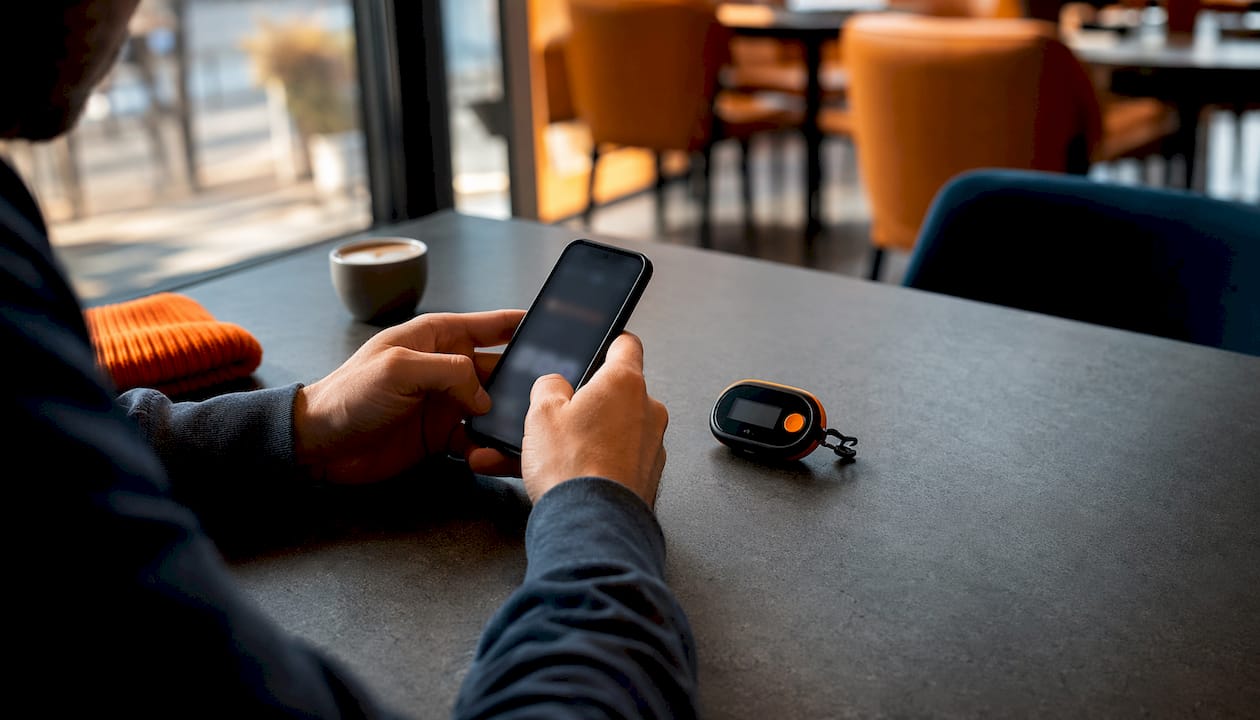
Codes refresh every 30 seconds and work entirely offline. This is a critical advantage. The code never travels over a network, so no one can intercept it in transit.
The security model works because of two factors combined:
- Something you know: your Instagram password
- Something you have: your phone running the authenticator app
An attacker who only has your password cannot log in. They would also need physical access to your phone at the exact moment you are logging in. That combination is extremely difficult to fake.
Pro Tip: Enable automatic time sync on your phone. The TOTP algorithm depends on your device clock matching the server’s clock. If your phone’s time drifts, your codes will fail.
Why offline code generation matters
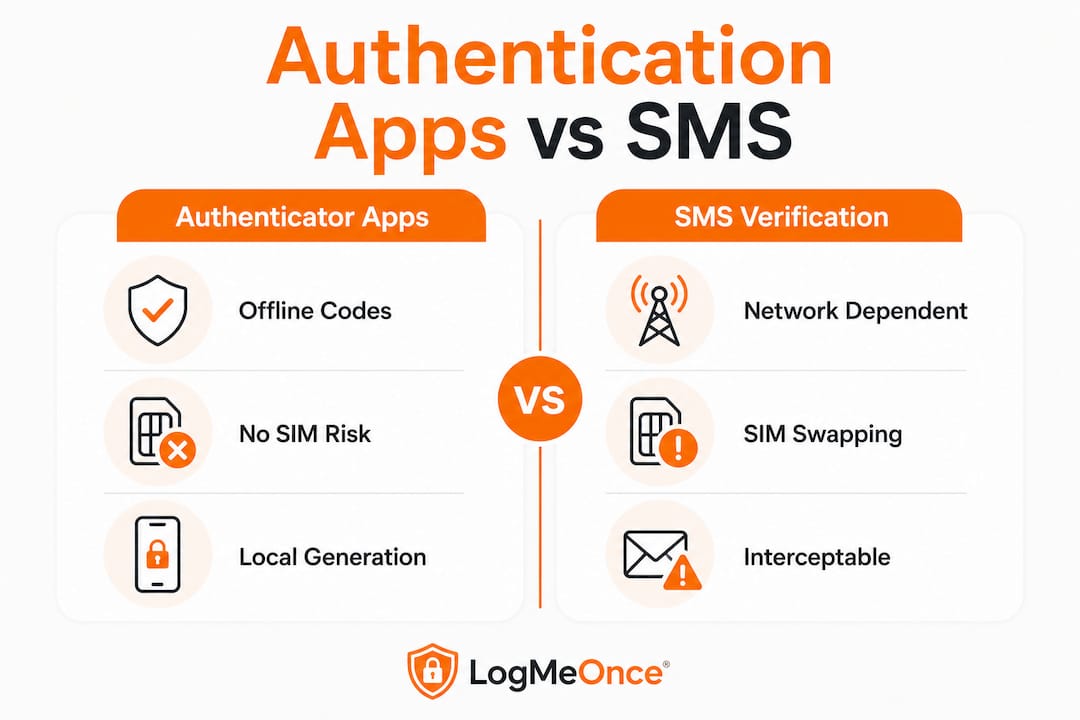
SMS verification sends a code over the cellular network. That transmission can be intercepted. Authenticator apps skip the network entirely. The code is calculated on your device and never sent anywhere. This single difference is why security professionals consistently recommend authenticator apps over SMS for Instagram account protection.
How to set up an authentication app for Instagram
Setup takes under five minutes and costs nothing. You need the Instagram mobile app and any TOTP-based authenticator app installed on your phone.
- Open Instagram and go to your profile.
- Tap the three-line menu in the top right corner, then select “Settings and privacy.”
- Tap “Accounts Center,” then navigate to “Password and security.”
- Select “Two-factor authentication” and choose your Instagram account.
- Tap “Authentication app” as your preferred method.
- Scan the QR code that Instagram displays, or copy the setup key manually into your authenticator app.
- Enter the six-digit code your authenticator app generates to confirm the connection.
- Save your backup codes. Instagram provides a set of one-time recovery codes at this step.
Pro Tip: Screenshot your backup codes and store them somewhere offline, like a printed sheet in a secure location or an encrypted notes app. Do not save them only on the same phone running your authenticator.
After completing setup, test the process immediately. Log out of Instagram and log back in to confirm your authenticator app produces a working code. This takes 30 seconds and confirms everything is connected correctly.
- Download your authenticator app before starting the Instagram setup process
- Use the QR code scan method when possible; manual key entry is error-prone
- Verify the six-digit code works before closing Instagram’s setup screen
- Store backup codes in at least two separate secure locations
What are the security advantages of using an authentication app over SMS?
SMS-based 2FA is vulnerable to SIM-swapping attacks, where an attacker convinces your mobile carrier to transfer your phone number to a SIM card they control. Once they have your number, every SMS verification code goes to them, not you. This attack requires no hacking skill, just social engineering at a carrier store.
Authentication apps eliminate this attack vector entirely. The code is generated locally on your device. No carrier is involved. No network transmission occurs. A SIM-swap attack against an authenticator app user accomplishes nothing.
| Security feature | Authentication app | SMS verification |
|---|---|---|
| Code transmission | None (generated locally) | Sent over cellular network |
| SIM-swap vulnerability | Not affected | Fully exposed |
| Works without cell service | Yes | No |
| Code interception risk | None | Possible via SS7 exploits |
| Offline functionality | Yes | No |
Scenarios where an authenticator app is especially important:
- You travel internationally and use foreign SIM cards
- Your phone number has been targeted by spam or fraud attempts
- You manage a business or creator account with significant followers
- You have previously experienced an account compromise
The business benefits of two-factor authentication extend beyond personal accounts. Creator accounts, brand pages, and business profiles face higher-value targeting from attackers, making the stronger protection of an authenticator app the clear choice.
Common issues and expert tips for Instagram authentication apps
Most problems with authenticator apps come down to three causes: clock drift, lost devices, and app reinstalls. Each one has a straightforward fix if you prepare in advance.
Device time synchronization is crucial because the TOTP algorithm calculates codes based on the current time. If your phone’s clock is even slightly off, Instagram rejects the code. Most authenticator apps include a “time correction” or “sync” option in their settings. Use it if your codes start failing unexpectedly.
- Lost phone: Without backup codes, recovering your Instagram account becomes very difficult. Instagram’s recovery process is slow and not guaranteed to succeed.
- Switching phones: Before wiping your old phone, transfer your authenticator app accounts to the new device. Most apps offer an account transfer or export feature.
- Reinstalling the app: Reinstalling an authenticator app does not automatically restore your accounts. You must either transfer them first or use backup codes to reconnect.
- Multiple accounts: If you manage several Instagram accounts, add each one separately to your authenticator app and label them clearly to avoid confusion.
Pro Tip: Treat your backup codes like a spare house key. You hope you never need them, but losing them at the wrong moment causes serious problems. Review and refresh them once a year.
Recovery codes provided during setup are the only reliable fallback if you lose your authenticator app or phone. Instagram does not offer an instant automated recovery path for 2FA-protected accounts. Those codes are your safety net.
Key Takeaways
An authentication app for Instagram is the most reliable way to protect your account because it generates codes locally, eliminates SMS interception risks, and follows the open TOTP standard accepted by Instagram’s 2FA system.
| Point | Details |
|---|---|
| TOTP is the core standard | Any TOTP-compliant app works with Instagram’s 2FA, so you are not locked into one specific tool. |
| Codes work offline | Six-digit codes generate on your device every 30 seconds with no network transmission required. |
| SMS is the weaker option | SIM-swap attacks can intercept SMS codes; authenticator apps are immune to this attack vector. |
| Backup codes are critical | Save Instagram’s recovery codes offline immediately after setup to avoid permanent lockout. |
| Clock sync prevents failures | Keep your phone’s time set to automatic to prevent code rejection caused by clock drift. |
Why I think most Instagram users are one mistake away from losing their account
I have watched people lose Instagram accounts they spent years building, and almost every case had the same story: they relied on SMS verification, their number got swapped, and it was over before they realized what happened. The fix was available the whole time. They just never used it.
The part that surprises most people is the backup codes. Setting up an authenticator app feels like the finish line, but skipping the backup codes is like installing a deadbolt and throwing away the spare key. When I walk anyone through this setup, I stop them at the backup code screen and watch them save the codes before we move on. That one habit has saved at least a few people I know from a very bad day.
The other thing I have noticed is that people treat two-factor authentication as a one-time task. They set it up and forget it. Then they get a new phone, reinstall their apps, and discover their authenticator accounts did not come back automatically. Test your 2FA setup after every phone upgrade. It takes two minutes and confirms your protection is actually working.
My honest recommendation: use an authenticator app, save your backup codes in two places, and check that everything still works after any major phone change. That is the entire playbook. It is not complicated, but most people skip at least one step.
— Mike
Logmeonce and your Instagram security setup
Securing your Instagram account with an authenticator app is a strong first step. Protecting every other account you own requires the same level of attention.

Logmeonce offers a full suite of cybersecurity tools designed for individuals and businesses who want consistent protection across all their accounts, not just one platform. Its multi-factor authentication features, password management benefits, and identity security tools work together to close the gaps that single-platform security leaves open. If you are already thinking seriously about Instagram account protection, Logmeonce gives you a way to apply that same discipline everywhere else.
FAQ
What is an authentication app for Instagram?
An authentication app for Instagram is a TOTP-based app that generates six-digit login codes used during two-factor authentication. It adds a second layer of security beyond your password, making unauthorized access far harder.
Does Instagram have its own authentication app?
Instagram does not make its own authenticator app. Any TOTP-compliant app, such as Google Authenticator or Microsoft Authenticator, works with Instagram’s 2FA system through a QR code scan during setup.
What happens if I lose my phone with the authenticator app?
Losing your authenticator app without saved backup codes makes account recovery very difficult. Always store Instagram’s one-time recovery codes in a secure offline location immediately after setup.
Is an authentication app safer than SMS for Instagram?
Yes. Authentication apps generate codes locally and never transmit them over a network, making them immune to SIM-swap attacks that can compromise SMS-based verification.
How long does it take to set up an authentication app for Instagram?
Setup takes under five minutes. You scan a QR code from Instagram’s security settings, enter the generated code to confirm, and save your backup codes.


