


 Password Manager
 Identity Theft Protection

 Team / Business
 Enterprise
 Government
 MSP
MSP


Struggling to keep user accounts secure without slowing down your business? Many IT managers find that relying on manual processes leads to overlooked risks and outdated access, especially when team members come and go. For small to medium-sized businesses, staying on top of account security means more than just strong passwords. Bold moves like implementing multifactor authentication and automated provisioning can make a real difference. Discover practical steps to build a reliable, modern workflow that prevents breaches and puts you in control.
Quick Summary
| Key Insight | Explanation |
|---|---|
| 1. Examine Current Account Management Processes | Audit how user access currently flows, identify gaps, and map the user lifecycle to understand existing weaknesses before implementing improvements. |
| 2. Implement Multifactor Authentication (MFA) | Use MFA to protect accounts by requiring additional verification such as a phone or fingerprint, reducing the risk of account breaches significantly. |
| 3. Centralize Password Management | Use a secure password manager to store, share, and control access to credentials securely, avoiding the use of insecure methods like sticky notes. |
| 4. Automate User Provisioning and Deprovisioning | Set up automated processes that grant access on hire and revoke it upon departure, minimizing risks associated with manual oversight. |
| 5. Conduct Regular Security Audits | Schedule periodic audits to verify access controls, authentication enforcement, and address any gaps in security practices before they lead to incidents. |
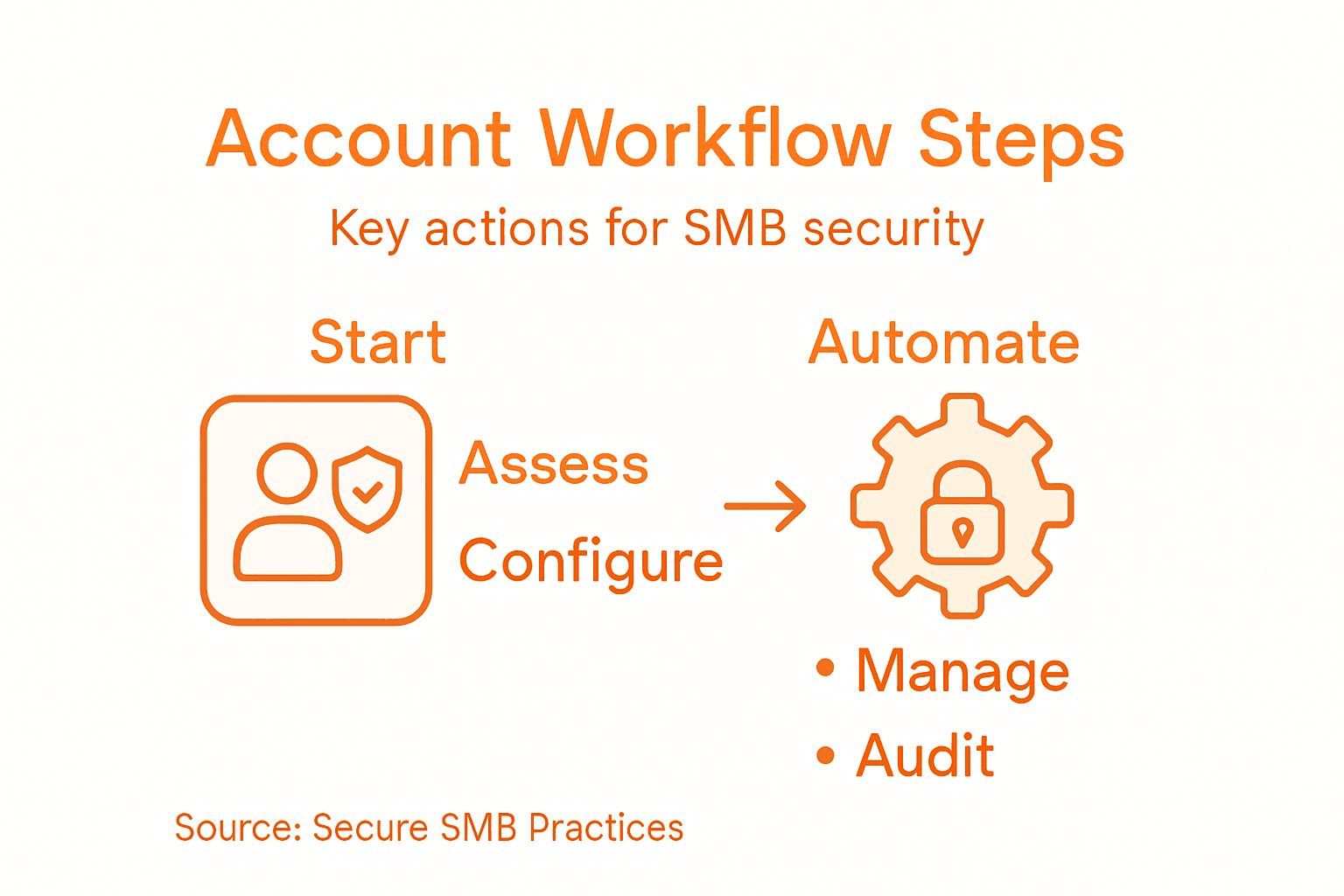
Step 1: Assess existing account management practices
Before you implement a secure online account workflow, you need a clear picture of what’s actually happening right now. Your current account management system is the baseline. You can’t improve what you don’t understand. This step involves examining your existing processes, identifying gaps, and understanding how user access currently flows through your organization. Think of it like an audit, but conversational and practical.
Start by mapping out your user lifecycle from day one to day last. When someone joins your company, what happens? Does an IT manager manually create accounts across multiple systems? Do they send emails requesting access, hoping systems administrators respond? Are there written procedures, or are people following unwritten rules passed down through institutional knowledge? Document each step, every system involved, and who touches the process. This includes not just the obvious applications like email and shared drives, but also specialized tools your teams depend on. One critical area many SMBs overlook is what happens when someone leaves. Prioritizing risk reduction through effective de-provisioning prevents unauthorized access to sensitive data and mission critical applications. When was the last time someone actually removed access from a departed employee across all systems? Most organizations discover they haven’t, which is a serious problem.
Next, identify the gaps and pain points. Interview your IT team, department managers, and a few employees about the current account setup process. How long does it take for a new hire to get full access? Do tickets get lost? Do people access accounts they shouldn’t have? What compliance requirements are you tracking right now, and where are you falling short? Look at your user personas too. A developer needs different access than an accountant. A contractor needs temporary access. Your current system may treat everyone the same, which creates unnecessary risk. Understanding your business priorities and risk levels helps you focus your assessment where it matters most. Take notes on which systems have the most critical data. Those deserve the most attention.
Also examine your current tools and platforms. Are you using standalone password managers, spreadsheets, or built-in directory services? How are you handling multi-factor authentication, if at all? What’s your current audit trail looking like? Can you track who accessed what, when, and why? These details matter because they show you what you’re working with and what needs to change.
Pro tip: Create a simple spreadsheet documenting your current workflow with columns for system name, access method, who manages it, and any known issues, then share it with your team for feedback before moving forward.
Step 2: Configure secure authentication and MFA
This is where your actual security gets built. Passwords alone stopped working years ago. You need multiple layers of authentication to protect your accounts, and that means setting up multifactor authentication across your organization. This step walks you through choosing the right MFA methods for your SMB, then actually implementing them in a way your team will actually use.
Start with understanding what MFA actually does. Multifactor authentication layers additional security beyond passwords, making accounts 99% less likely to be hacked. Instead of just needing something you know (your password), MFA requires something you have (your phone, a hardware key) or something you are (your fingerprint). When an attacker gets your password from a breach, they still can’t access your account without that second factor. For SMBs, this is non-negotiable. You’re not protecting a single system. You’re protecting email, financial software, client databases, and everything else your team relies on daily. The reality is that most breaches targeting small businesses succeed because attackers just need one weak password. MFA changes that equation entirely.
Now let’s talk about which MFA methods actually work in the real world. You have several options, and the best choice depends on your team’s workflow and your risk tolerance. Time-based one-time passwords (TOTP) apps like Google Authenticator or Microsoft Authenticator are solid choices. Your employees install an app, it generates a new code every 30 seconds, and they enter it during login. It’s not perfect if someone gets physical access to their phone, but it’s way better than passwords alone. SMS text messages are convenient but slightly weaker because SIM swapping attacks exist. Hardware security keys (like YubiKeys) are the gold standard if your team can manage them, but they’re overkill for most SMBs and add friction to the user experience. Start with TOTP apps as your baseline. They offer a good balance between security and usability. According to NIST guidance on multifactor authentication, using multiple independent authentication factors significantly mitigates credential compromise risk.
Here’s a comparison of common multifactor authentication (MFA) methods and where each fits best:
| MFA Method | Security Level | User Convenience | Best Use Case |
|---|---|---|---|
| TOTP Authenticator App | High (software-based) | Moderate (requires app) | General employee access |
| SMS Code | Medium (vulnerable to SIM swap) | High (easy setup) | Low-risk accounts, transitional |
| Hardware Security Key | Very high (physical) | Lower (hardware mgmt) | Admin and sensitive roles |
Here’s the practical implementation part. Begin with your highest-risk accounts. Your email admin account, your financial software access, and any accounts that touch sensitive customer data should get MFA first. Once that’s working smoothly, expand to everyone’s email. Email is the master key to your organization because password reset links go there. After email is locked down, tackle your most critical business applications. Your accounting software, CRM, or whatever stores client information needs MFA next. Don’t try to do everything at once. Your team will revolt, and people will find workarounds that defeat the purpose.
When you enable MFA, your users need clear instructions and time to set it up. Walk through the process with them or create a simple video. Make sure they know to save their backup codes somewhere secure. These codes work if they lose their phone, so losing them means they’re locked out. Also plan for the inevitable situation where someone loses their device. You need a process to verify their identity and re-enroll them in MFA without making it so easy that attackers can also do it. This is where a password manager with secure sharing comes in handy.
Pro tip: Enforce MFA registration during your next team meeting or onboarding session, then give people one week to complete setup before it becomes mandatory for daily use.
Step 3: Integrate centralized password management tools
You’ve assessed what you have and locked down authentication with MFA. Now you need a system that actually manages all those passwords across your organization. A centralized password manager becomes the backbone of your secure account workflow. Instead of sticky notes, shared spreadsheets, or everyone using their browser’s memory, your team stores credentials in one encrypted vault that you can control, audit, and secure.

Before you choose a tool, understand what you need it to do. Your password manager should store login credentials securely, but it should also let you share sensitive access with team members without exposing the actual password. It should generate strong random passwords so your team stops using variations of their kids’ names. It should track who accessed what and when, giving you visibility into your security posture. It should integrate with your existing systems so teams don’t have to copy and paste credentials manually. And critically, secure password storage uses resource intensive hashing algorithms like Argon2id to protect credentials even if attackers somehow breach your vault. A good enterprise password manager handles all of this so you don’t have to reinvent the wheel.
When selecting a tool, evaluate it against your specific needs. If you have five employees, you need something different than a fifty person organization. Consider whether you want cloud based or self hosted. Cloud based tools are easier to manage and scale as your company grows, but some industries prefer keeping everything on their own servers for compliance reasons. Look for features like single sign on integration, which lets your team use one master password to access multiple applications without needing separate credentials everywhere. Check if the tool supports your existing applications. If your team uses Salesforce, Jira, and Slack, make sure your password manager plays nicely with those platforms. Ask about their security certifications and audit history. Does a third party regularly test their security? Have they ever been breached? These matter more than marketing claims.
Implementation happens in phases. Start by piloting with your IT team and department heads. Let them use it for two weeks and gather feedback. What’s confusing? What works great? Then roll it out to the entire organization with clear training. Walk people through logging in, generating passwords, and sharing credentials securely with colleagues. This is where many implementations fail because the tool sits there unused if people don’t understand why they need it or how to use it properly. Set company policies around password requirements. Organizational password best practices include enforcing password history, avoiding reversible encryption, and conducting regular audits to catch misuse. Your password manager should enforce these policies automatically. For example, it should require passwords to be at least 16 characters long with a mix of character types. It should prevent people from reusing old passwords they might have written down somewhere.
Once your tool is running, configure audit logging immediately. You need to see who’s accessing what credentials, when they’re accessing them, and from where. This becomes invaluable if you suspect a compromised account or need to investigate an incident. Set up alerts for suspicious activity like someone accessing a production password from an unknown location at 3 a.m. Schedule regular password rotation for your most critical systems. Financial software, email admin accounts, and database access should rotate every 90 days. Less critical systems can go longer. Your password manager should make this easy through automated password changes whenever the target system supports it.
Pro tip: During your pilot phase, require all password managers to have a master password that’s different from anyone’s personal password, and use your MFA setup to protect access to the password manager itself.
Step 4: Establish automated user provisioning and deprovisioning
Manual account creation and removal is how breaches happen in small businesses. Someone leaves, nobody officially removes their access, and six months later they still have database credentials. Automation fixes this by triggering account creation when someone joins and removing access when they leave. This step walks you through setting up workflows that respond to real business events so access stays accurate without anyone thinking about it.
Start by mapping your user lifecycle events. When does someone need access created? On their first day, obviously. When their role changes? If the marketing coordinator becomes a team lead, they need different permissions. When they take leave? You might want to disable their accounts temporarily. When they leave the company? Access gets removed immediately. When they return from leave? Accounts get reactivated. Your provisioning system should trigger on these events automatically. A human HR system already tracks employment changes, so your automation should pull that data and act on it. This eliminates the manual email where someone says “Hey IT, please set up Linda from accounting” and then nobody does it until Linda complains three days later. When you build automated provisioning systems that detect role changes, you ensure timely access adjustments that maintain both security and compliance. Your IT team no longer acts as the bottleneck.
The real security wins happen on the deprovisioning side, though. Creating accounts is one thing. Removing access is harder because it requires discipline and follow up. This is where most companies fail. When someone quits, their email account gets disabled, but their Salesforce access, financial software access, and cloud storage access remain. Six months later they still have credentials written in a notebook somewhere and access to sensitive systems. Focus your automation on deprovisioning first because that’s where the biggest risk lives. When someone is marked as terminated in your HR system, trigger an immediate workflow that removes their access from every system simultaneously. Don’t wait. Don’t send IT a ticket hoping it gets done. Automate it. You want their email to bounce within hours of their departure, not weeks.
Implementing this requires connecting your HR system to your identity management platform. Your HR software knows who works for you and what their role is. Your identity management tool knows what access each role should have. Connect them and let the system do the work. Most modern HR software supports this through APIs or standard integrations. If your current tools don’t talk to each other, that’s a gap you need to fix. The good news is that aligning automated provisioning and deprovisioning with business priorities starts with understanding your specific access requirements and user personas. Don’t try to automate everything at once. Begin with your most sensitive systems. Database access, financial software, and anything that touches customer data should be fully automated. Less critical systems can follow later.
Test your automation before going live. Create a test employee in your HR system and watch the account appear in your applications. Terminate the test employee and verify the account disappears or gets disabled. Check that access is actually removed everywhere, not just in one system. Verify that the process happens quickly. If it takes twelve hours to deprovision someone, that’s too slow. Set up monitoring and alerts so you know when provisioning or deprovisioning fails. If someone leaves and the system can’t automatically remove their access, you need immediate notification so you can remove it manually. Automation fails sometimes, and when it does, you need to catch it.
Below is a summary of core automated provisioning and deprovisioning steps with their security impact:
| Event Trigger | Action Taken | Security Benefit |
|---|---|---|
| New Hire Entry | Assign access based on role | Immediate, least-privilege access |
| Role Change in HR System | Update system permissions | Minimizes permission creep |
| Termination/Exit | Revoke all access immediately | Blocks post-employment risk |
| Return from leave | Restore appropriate permissions | Ensures up-to-date entitlements |
Pro tip: Create a test user in your HR system monthly and run through the full provisioning and deprovisioning cycle to catch breakdowns before they cause real security problems.
Step 5: Verify workflow security through regular audits
Building a secure account workflow means nothing if you never check whether it actually works. Regular audits are how you catch problems before they become breaches. This step shows you how to systematically examine your security controls, policies, and procedures to uncover gaps and verify that everything functions as intended.
Start with understanding what you’re actually auditing. You need to examine three main areas. First, your access controls. Does your provisioning and deprovisioning automation work correctly, or are former employees still accessing systems? Are people accessing systems they shouldn’t have access to? Second, your authentication mechanisms. Is MFA actually enforced everywhere it should be, or are people finding ways around it? Are your password policies being followed, or are people still using weak passwords? Third, your audit trails and logging. Can you see who accessed what and when? Are suspicious activities being flagged and investigated? These questions matter more than any security tool you could buy. You need visibility into what’s actually happening. Regular cybersecurity audits identify risks and ensure regulatory compliance by systematically examining your controls and providing actionable recommendations for improvement. Without audits, you’re flying blind.
Schedule your first audit for 30 days after you fully implement your workflow. Pull a report from your identity management system showing all active accounts and their access levels. Compare that list to your HR system. Are there accounts that shouldn’t exist? Are there people in HR who don’t have corresponding IT accounts? Pull your MFA enrollment report. What percentage of your team has MFA enabled? If it’s below 95 percent, you have a problem. Pull your password manager audit logs. Who accessed what credentials, when, and from where? Look for unusual patterns like someone accessing administrative credentials at 2 a.m. from a different country than they normally work in. These details reveal security weaknesses immediately. Pull your provisioning logs. When people were hired, did their accounts appear within one business day? When people were terminated, how long before their access was removed? If it took three weeks to remove a terminated employee’s access, your automation has a gap.
Beyond the technical checks, interview your team about the workflow itself. Does it feel natural to them, or are they finding workarounds? Are people sharing passwords because the password manager is too difficult? Are people delaying MFA registration because the process is unclear? Are there business processes that the workflow breaks? A security system that nobody uses or that creates friction isn’t actually secure. The best security is the kind your team embraces rather than circumvents. Effective cybersecurity audits require evaluation of policies and integrated security approaches alongside continuous monitoring to maintain strong workflows. Document what you find. Create a simple report with findings, severity levels, and recommendations. Share it with your leadership team so they understand the security posture. Some findings are quick fixes. Others require investment or process changes. Prioritize based on risk. A former contractor still having database access is critical. Someone not having MFA enrolled is important but less critical. Someone accessing the password manager from an unusual location might be normal if they’re traveling.
Schedule follow up audits quarterly at minimum, more frequently if you’re still in the first year of implementation. Each audit should get faster as your processes stabilize. After six months, if you’re finding the same issues repeatedly, something in your workflow design needs to change. Maybe your MFA enrollment process is too complicated if people keep skipping it. Maybe your deprovisioning doesn’t work correctly if terminated employees still have access. Use audit findings to drive continuous improvement. Your workflow isn’t finished after you implement it. It evolves based on what you learn.
Pro tip: Create a simple audit checklist covering access verification, MFA enrollment, password manager usage, and deprovisioning speed, then assign someone to run it quarterly on the same date so gaps don’t slip through.
Strengthen Your SMB Security with LogMeOnce Solutions
The article highlights critical challenges small and medium businesses face when implementing secure online account workflows like managing user provisioning, enforcing multifactor authentication, and eliminating risky password habits. If you feel overwhelmed by manual account management or worry about unauthorized access due to poor deprovisioning and weak password policies LogMeOnce offers a comprehensive suite tailored for SMBs that simplifies these exact issues. Their innovative identity management tools and passwordless MFA create seamless security layers that protect your sensitive data while making user adoption easy and friction-free.
Take control of your cybersecurity now by exploring LogMeOnce’s powerful security solutions. Discover how you can automate provisioning and deprovisioning workflows, enforce strong password policies automatically, and protect your organization with next-generation multifactor authentication. Don’t wait for a breach to expose vulnerabilities leverage LogMeOnce Resources today to transform your SMB’s online account security and gain peace of mind.
Frequently Asked Questions
What are the first steps to assess my current account management practices?
To assess your current account management practices, start by mapping out the user lifecycle from onboarding to offboarding. Document each step in the process, including who manages various accounts and any issues you’ve encountered, to establish a clear picture of existing practices.
How can I implement multifactor authentication (MFA) for my Small and Medium-Sized Business (SMB)?
To implement MFA, begin by choosing suitable MFA methods, such as time-based one-time password (TOTP) apps. Roll out MFA to your highest-risk accounts first, ensuring employees understand how to set it up and use it within the next week.
What features should I look for in a centralized password management tool?
When selecting a password management tool, ensure it securely stores login credentials, allows shared access without exposing passwords, and integrates with your existing systems. Evaluate tools based on features like password generation and audit logging capabilities to keep track of access activities.
How can I automate user provisioning and deprovisioning in my organization?
To automate user provisioning and deprovisioning, connect your human resources system to your identity management platform. Set up workflows that trigger when employees join or leave, ensuring immediate access for new hires and revoking access for terminated employees to minimize security risks.
What should I include in my regular audits of the account workflow?
Your regular audits should include checks on access controls, authentication mechanisms, and logging practices. Schedule audits quarterly to compare active accounts with your human resources system and identify any discrepancies or security gaps, aiming to catch issues before they lead to a breach.
How can I ensure ongoing security and improve my account management processes?
To ensure ongoing security, document the findings from your audits and implement necessary changes based on identified risks. Focus on continuous improvement by reviewing processes every few months and adapting your security measures based on feedback from your team.
Recommended
- blogs – LogMeOnce
- How to Keep a Scalable Online Business Safe: Tools to Use and Things to Remember – LogMeOnce
- Single Sign On – Online Security Needn’t be Complex
- What Is Single Sign-On and How Does It Keep Information Secure?


