


 Password Manager
 Identity Theft Protection

 Team / Business
 Enterprise
 Government
 MSP
MSP


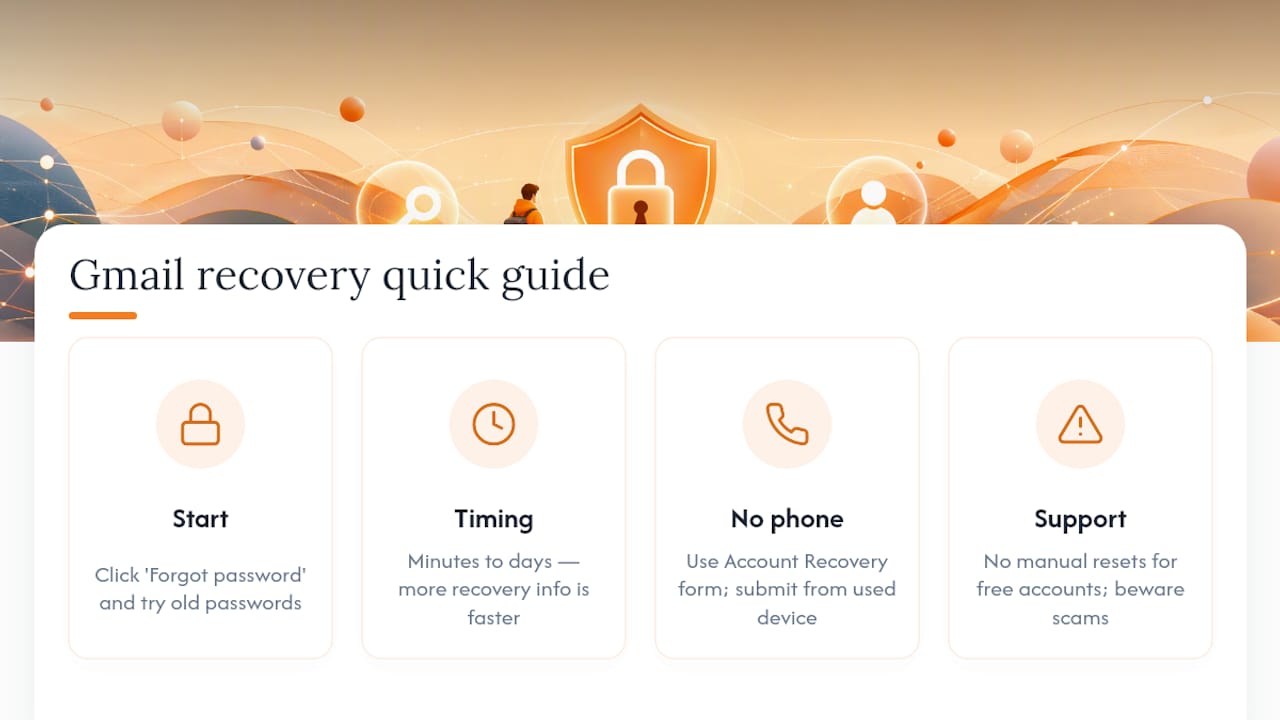
Go to accounts.google.com/signin right now and click “Forgot password?” That’s the entire first move, and it works for the overwhelming majority of people locked out of Gmail.
Here’s what happens next, in order:
- Enter your email address and tap “Forgot password?”
- Try any password you’ve used on this account before, even an old one
- Accept a verification prompt sent to your recovery phone or recovery email
- If none of that works, fill out the Account Recovery form with your best-guess answers
Google verifies you through a mix of signals: past passwords, recognized devices, and recovery contact info. Some people get back in within two minutes. Others wait a day or two while Google’s automated system checks their answers. There’s no live agent you can call to speed this up. LogMeOnce and other identity tools exist partly because this automated process is the only path Google offers, and it rewards people who prepared recovery details in advance.
Key Takeaways
Recovering a forgotten Gmail password requires starting at Google’s official sign-in flow, providing accurate recovery signals, and choosing a password you’ve never used on the account before.
| Point | Details |
|---|---|
| Start immediately | Go to accounts.google.com/signin and click “Forgot password?” before trying anything else. |
| Use familiar devices | Attempt recovery from a device and Wi-Fi network you’ve used before with the account. |
| Fill out every field | On the Account Recovery form, give best-guess answers instead of leaving questions blank. |
| Secure the account after | Update recovery phone/email, enable 2-Step Verification, and run Security Checkup. |
| Prevent future lockouts | A password manager like LogMeOnce stores unique passwords and backup codes so you avoid repeat lockouts. |
What to Do If You Forgot Your Gmail Password: The Standard Recovery Flow
The official Gmail password reset process follows the same sequence every time, whether you’re on a phone, tablet, or laptop. Knowing the steps ahead of time saves you from fumbling through prompts while your patience runs out.
Step 1: Start at the sign-in page. Open accounts.google.com/signin, type in your full email address, and click “Forgot password?” Don’t try to guess your way through a browser autofill, since Google needs you to confirm the account before it shows any reset options.
Step 2: Try a password you remember. Even if you’re fairly sure it’s wrong, type in an old password. Google uses this attempt as one signal to confirm you’re the real account owner, not a stranger trying to break in.
Step 3: Choose a verification method. Google will show you options based on what you’ve set up: a text code sent to your recovery phone, a link emailed to your recovery address, or a tap-to-confirm prompt on a device where you’re already signed in. Pick whichever one you can actually access.
Step 4: Set a new password. Once verification succeeds, you’ll be asked to create a new password. Google won’t let you reuse a password you’ve used previously with the same account, so have a fresh one ready.

Along the way, expect a few small interruptions. You might see a CAPTCHA or distorted-text check to prove you’re not a bot. If you don’t have your phone handy, there’s usually an “I don’t have my phone” link that routes you to alternate verification. Take your time reading each screen. Rushing through and clicking the wrong option is one of the most common ways people accidentally lock themselves out further.
Before you start, gather three things:
- The device you normally use to check Gmail (your usual phone or laptop helps Google recognize you)
- Any password you’ve used on this account, even from years ago
- Access to your recovery phone or recovery email, if you set one up
Pro Tip: Do the reset from your home Wi-Fi and your usual phone or laptop if you can. Google’s fraud detection pays close attention to location and device history, and a familiar setup often speeds up verification.
What if You Don’t Have Your Recovery Phone or Email?
This is where most people panic, but it’s not a dead end. Google built a fallback specifically for this situation.
When the standard options fail, the sign-in flow routes you to the Account Recovery form, a longer questionnaire that asks about your account history instead of relying on a code sent to a device you no longer control. It might ask when you created the account, what other email addresses you use, or the approximate dates you last signed in successfully.
Work through it methodically:
- Answer every question, even the ones that feel like a stretch
- Give your most accurate guess rather than skipping a field
- Submit the form from a device and location you’ve used before with this account
A few do’s and don’ts matter more than people expect:
- Do use a device you’ve logged into Gmail from previously, and the same home or work Wi-Fi network if possible
- Do take your time on each answer instead of rushing to submit
- Don’t create a brand-new Google account out of frustration. It won’t help you recover the old one and adds confusion later
- Don’t submit the recovery form repeatedly from different phones or browsers in a short window. That pattern can look suspicious to Google’s automated checks and may slow things down further
Pro Tip: Before you start the form, jot down rough dates of your last few sign-ins, the names of a couple of people you email often, and any account labels or folders you remember creating. These small, specific details are exactly what the Account Recovery form’s contextual questions are designed to check.
What Happens If You’ve Lost Your 2-Step Verification Device?
Losing the phone or app tied to 2-Step Verification feels worse than a forgotten password, but there are usually more paths out of this than people realize.
Check these backup options first, in order of how fast they typically work:
- Printed backup codes, if you saved a set when you first turned on 2-Step Verification
- A secondary phone number registered as a backup on the account
- An authenticator app installed on a different device where you’re still logged in
- A security key, if you registered one
- A Google prompt that pops up on another signed-in device, like a tablet or old phone
If you saved backup codes anywhere (a notes app, a printed sheet, a password manager), use one now. It’s the fastest route back in. If you’re signed into Gmail on another device, like a laptop that’s stayed logged in, you can often approve the sign-in there without touching your missing phone at all.
If this is a work or school account, stop trying to self-recover and contact your organization’s IT admin instead. Admins can reset sign-in access for managed accounts in ways individual users can’t do themselves.
Without backup codes, a spare device, or admin access, your best move is the same Account Recovery form covered above. Fill it out with as much detail as you can, since the system weighs every accurate signal you provide.
Why Didn’t I Get the Reset Code, and Can I Just See My Old Password?
Two problems come up constantly here, and they need different fixes.
No email arriving? Check your Spam or Junk folder first. That’s where reset emails land more often than people expect. Also check any other email addresses you might have listed as a backup years ago. Add noreply@google.com to your contacts to stop future filtering, then wait a few minutes before requesting another code. Repeated rapid requests sometimes get delayed rather than sped up.
No text arriving? Confirm your recovery phone is active and has signal, and that it can receive texts from international short codes if you’re traveling. A disconnected number or a plan that blocks short-code texts will silently kill this option.
One myth worth killing outright: you cannot “see” your current Gmail password anywhere, ever. Google stores passwords as encrypted hashes, not plain text, so there’s no screen, setting, or support request that reveals it. Resetting is the only path forward.
Pro Tip: If codes still aren’t showing up after checking Spam and your phone signal, switch to whichever verification method you haven’t tried yet, then fall back to the Account Recovery form if that also stalls.
How Do You Secure Your Account Once You’re Back In?
Getting back into Gmail is only half the job. Skipping the cleanup step is exactly how people end up locked out again six months later.
Run through this checklist right after you regain access:
- Set a new, unique password you haven’t used on this account before
- Turn on 2-Step Verification if it isn’t already active
- Update your recovery phone number and recovery email to ones you actually check
- Run Google’s Security Checkup to review signed-in devices, recent activity, and connected third-party apps
While you’re in Security Checkup, remove any device you don’t recognize and revoke access for apps you no longer use. It takes about five minutes and closes off a lot of the ways accounts get quietly compromised.
For the password itself, a long passphrase beats a short, clever one. Something like four unrelated words strung together is harder to crack than “P@ssw0rd1” and easier for you to remember. Better yet, store it in a password manager instead of a sticky note or a phone notes app. Tools like LogMeOnce generate and store complex, unique passwords per account, which sidesteps the whole “I forgot it again” cycle entirely.
Pro Tip: Google blocks password reuse on purpose, since security guidance from Google itself confirms recycled passwords are one of the easiest ways accounts get compromised after a breach elsewhere on the web.
What Do Google’s Own Recovery Guides Say That Most People Miss?
Google’s recovery system runs entirely on automation. There’s no support agent who can manually flip a switch and hand a free Gmail account back to you, and services claiming they can do a manual reset for you are not legitimate.
That single fact changes how you should approach the whole process. The system is scoring your recovery attempt based on signals, not judgment calls, so a few tactics genuinely move the needle:
- Submit your most accurate guesses on every recovery question rather than leaving blanks, since partial answers still count toward the automated scoring
- Attempt recovery from a device and Wi-Fi network you’ve used with this account before
- Include specific details, like approximate account creation dates or frequent contacts, rather than vague answers
Pro Tip: Read Google’s own sign-in troubleshooting guide before you start. It routes you down a different path depending on whether the problem is a forgotten password, a forgotten username, or a 2-Step Verification issue, and starting on the wrong path wastes your attempts.
My Go-To Routine When I Forget a Password
When I get locked out of any account, I run the same short sequence before I touch a recovery form:
- Check whether my recovery phone still has the same number and signal
- Try two or three old passwords I might have reused from memory
- Switch to a device I’ve logged in from before, since fresh devices trigger more scrutiny
- If the recovery form comes up, answer every question with my best guess instead of skipping the hard ones
- Once I’m back in, immediately update the password and recovery info before doing anything else
If none of that works and the account is truly unrecoverable, the honest fallback is starting a new account and letting your regular contacts know your old address is no longer active.
Stop Forgetting Passwords in the First Place
Recovery works, but it costs you time you didn’t plan to spend. A password manager removes the guessing entirely by generating and storing a unique password for every account, including Gmail, so you’re never staring at a “Forgot password?” screen again.

LogMeOnce builds this around a few specific features worth knowing about:
- Encrypted storage for complex, unique passwords across every account you own
- Passwordless login options that skip typed credentials entirely
- Multi-device sync so your credentials follow you across phone, tablet, and laptop
- Backup code storage, so a lost 2-Step Verification device doesn’t strand you
- Dark web monitoring that flags if your Gmail credentials show up in a breach
If today’s lockout cost you twenty minutes, imagine cutting that to zero going forward. Check out LogMeOnce’s cybersecurity tools and see what a password manager built for this exact problem looks like.
Official Google Recovery Links
- How to recover your Google Account or Gmail
- Change or reset your password (Gmail Help)
- Sign-in troubleshooting
- LogMeOnce password management tips
Frequently Asked Questions
What should I do first if I forgot my Gmail password?
Go to accounts.google.com/signin, click “Forgot password?”, and enter your email address. Try any old password you remember, then follow the verification prompt Google shows you.
How long does Gmail password recovery take?
It ranges from a couple of minutes to a couple of days, depending on how many recovery signals (phone, email, familiar device) you have set up. Accounts with more verification info tend to recover faster.
Can I recover Gmail without a phone number or recovery email?
Yes, through the Account Recovery form, though it takes longer. Answer every contextual question with your best guess and submit from a device you’ve used with the account before.
What if I still have 2-Step Verification but lost my phone?
Use a saved backup code, a registered secondary phone number, or sign in on another device where you’re already logged in and approve the prompt there.
Can Google support manually reset my password for me?
No. Google’s recovery system for free accounts is fully automated, and there’s no manual reset service. Any site or service claiming to manually reset a Gmail password is not affiliated with Google.
Sources
- How to recover your Google Account or Gmail – Google Account Help
- Change or reset your password – Computer – Gmail Help


