


 Password Manager
 Identity Theft Protection

 Team / Business
 Enterprise
 Government
 MSP
MSP


TL;DR:
- Most people reuse weak passwords, increasing vulnerability to cyberattacks and credential stuffing.
- Password managers securely store, generate, and autofill passwords, enhancing digital security.
- Using strong master passwords, enabling MFA, and conducting regular audits maximize password manager effectiveness.
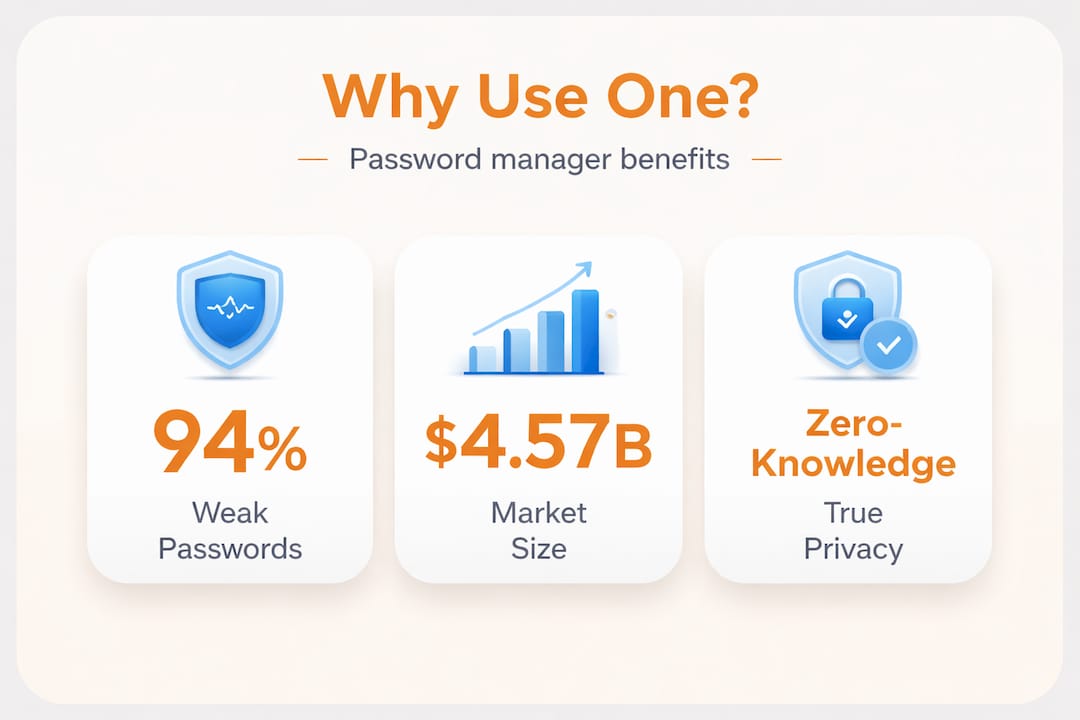
Most people know they should use stronger passwords. Almost nobody actually does. 94% of passwords are weak or reused, and credential stuffing attacks, where hackers use stolen login data to break into other accounts, hit 1.5 billion times every month. That number should stop you cold. This guide explains exactly what a password manager is, how it works, and how both individuals and small business owners can use one to close the most common gap in their digital security, without needing a technical background to get started.
Key Takeaways
| Point | Details |
|---|---|
| Passwords are vulnerable | Weak and reused passwords expose you and your business to frequent attacks. |
| Password managers simplify security | They securely store, generate, and autofill strong passwords for all your accounts. |
| Choose the right tool | Cloud, offline, and browser managers each have pros and cons—evaluate your needs. |
| User habits matter most | A strong master password and multi-factor authentication are critical for true protection. |
| No perfect solution | Combine tools and good practices for the best defense against evolving security threats. |
Why passwords are a cybersecurity weak spot
Passwords have been the default security layer for decades, and that’s precisely the problem. Humans are not wired to memorize dozens of long, unique, random strings. So we cut corners. We reuse the same password across multiple sites. We pick easy phrases. We ignore prompts to update credentials after a breach.
The dangers of weak passwords go far beyond a single compromised account. When one password leaks, attackers run it against hundreds of other services automatically. This is credential stuffing, and it works because password reuse is so widespread. One stolen password from a forgotten forum account can open your email, your bank, or your business tools.
Here are the most common pitfalls that make passwords a liability:
- Reusing the same password across multiple sites (the single biggest risk)
- Using predictable patterns like “Password1!” or a pet’s name
- Never updating passwords after a data breach notification
- Storing passwords in plain text in notes apps or spreadsheets
- Sharing passwords over email or chat without encryption
“Passwords are and have always been an Achilles heel in cybersecurity.” The tools have changed, but human behavior has not kept pace.
For small businesses, the stakes multiply. A single employee reusing a weak password on a company account can expose customer data, financial records, and intellectual property. The cost of a breach, including legal fees, lost business, and remediation, often runs into six figures for small teams. Strong password hygiene is not optional anymore. It is a baseline business requirement.
What is a password manager and how does it work?
A password manager is software that stores, generates, and fills in your passwords automatically. Think of it as a secure digital vault. You remember one strong master password to unlock the vault, and the manager handles everything else.
Inside that vault, all your credentials are stored using strong encryption, typically AES-256, which is the same standard used by governments and financial institutions. When you visit a login page, the manager recognizes the site and fills in your username and password without you typing a thing. It also generates genuinely random, unique passwords for every new account you create.
Here is how a typical day with a password manager looks:
- Open your browser and navigate to your bank’s website.
- The manager detects the login page and autofills your credentials instantly.
- You log in without typing anything, reducing the risk of keylogger attacks.
- When you create a new account elsewhere, the manager generates a 20-character random password and saves it automatically.
- On your phone, the same vault syncs so you always have access across devices.
The security behind password manager tools comes down to zero-knowledge architecture. This means the provider never sees your actual passwords. Only you can decrypt the vault using your master password, which never leaves your device in readable form.
The market reflects how much this technology has matured. Password managers are projected to reach a $4.57 billion market in 2026, and adoption of strong passwords among US adults jumps to 36% among users who rely on a dedicated manager. That is a meaningful improvement over the general population’s habits.
| Feature | What it does | Why it matters |
|---|---|---|
| Password generation | Creates long, random, unique passwords | Eliminates guessable patterns |
| Autofill | Fills login forms automatically | Saves time and reduces keylogging risk |
| Security audit | Flags weak, reused, or breached passwords | Helps you find and fix vulnerabilities |
| Secure sharing | Shares credentials without revealing them | Safe for teams and families |
| Dark web monitoring | Alerts you if your data appears in a breach | Early warning system |
| Cross-device sync | Keeps vault updated across all your devices | Consistent protection everywhere |
Types of password managers: cloud vs. offline vs. browser
Not all password managers work the same way. Understanding the three main types helps you pick the right fit for your situation.

Cloud-based managers store your encrypted vault on remote servers. You can access your passwords from any device, anywhere. This is the most convenient option and the most popular for individuals and small teams. The trade-off is that your encrypted data lives on someone else’s infrastructure, which means you are trusting the provider’s security practices.
Offline (local) managers store your vault only on your own device or network. Nothing leaves your control. This appeals to security-conscious users and businesses with strict data policies. However, offline tools carry a real risk: if your device fails and you have no backup, your vault is gone. Syncing across devices also requires manual effort.
Browser-based managers are built into Chrome, Safari, Firefox, and Edge. They are free and easy to use, which makes them popular. But dedicated managers outperform browser storage on cross-platform use, security audits, and credential sharing. Browser managers also lack admin controls, making them a poor fit for any business environment where multiple employees share access to accounts.
| Type | Best for | Pros | Cons |
|---|---|---|---|
| Cloud-based | Individuals, SMBs, remote teams | Easy sync, accessible anywhere, feature-rich | Relies on provider’s security |
| Offline/local | High-security environments, privacy-focused users | Full control, no external exposure | Risk of data loss, harder to sync |
| Browser-built-in | Casual personal use | Free, convenient, zero setup | No auditing, no sharing, no admin tools |
For most small businesses, a cloud-based secure online manager with strong encryption and multi-factor authentication (MFA) offers the best balance of usability and protection. Offline tools make sense for specific high-security roles, but they require disciplined backup habits to avoid catastrophic data loss.
Pro Tip: If you run a small team, prioritize a manager with admin controls, user provisioning, and audit logs. These features let you see who has access to what, revoke credentials instantly when someone leaves, and prove compliance if you ever face a security review.
Risks, limitations, and how to maximize your security
Password managers are not magic. They reduce risk dramatically, but they introduce their own attack surface. Understanding the real vulnerabilities helps you use them more safely.
A recent ETH Zurich study found security vulnerabilities in well-known managers including Bitwarden, LastPass, and Dashlane. The study praised 1Password’s dual-key model as notably stronger. This does not mean you should avoid password managers. It means you should choose carefully and layer additional protections on top.
The master password is both the vault’s greatest strength and its biggest risk. If you forget it and have no recovery method, you can be permanently locked out of every account stored in your vault. Some providers offer recovery features, but these often require storing a recovery key or trusting a third party, which can weaken the zero-knowledge model.
Security researcher Bruce Schneier notes that no system offers perfect zero-knowledge protection. Real risks come from user error, legal pressure on providers, and emerging threats like quantum computing. The right response is defense-in-depth: use a password manager, but also enable MFA and passkeys wherever possible.
Here is a practical checklist to strengthen your password manager setup:
- Create a strong, memorable master password that is at least 16 characters and not used anywhere else
- Enable multi-factor authentication on your password manager account itself
- Store your emergency recovery kit in a secure physical location, not digitally
- Run a security audit inside your manager to find and replace weak or reused passwords
- Review password manager vulnerabilities periodically and update your manager when patches are released
- Never share your master password with anyone, including support staff
The weakest link in any security system is almost always human behavior, not the technology itself.
Pro Tip: Enable passkey support if your manager offers it. Passkeys replace traditional passwords with cryptographic keys tied to your device, making phishing attacks nearly impossible. This is the direction the industry is moving, and early adoption puts you ahead of most threats.
Getting started: tips for seamless adoption
Starting with a password manager feels overwhelming for about the first 48 hours. After that, most users wonder how they managed without one. The key is getting the setup right from day one.
Follow these steps to roll out a password manager smoothly:
- Choose your manager based on whether you need personal, family, or business features.
- Create your master password first, before importing anything. Make it long, unique, and something you can actually remember. A passphrase like “BlueSky$Hiking!River2026” is far stronger than “P@ssw0rd.”
- Install the browser extension and mobile app so autofill works everywhere.
- Import existing passwords from your browser or a CSV file. Most managers guide you through this.
- Run the built-in security audit immediately. It will flag every reused or weak password.
- Change your highest-risk passwords first: email, banking, and business tools.
- Enable MFA on the manager account and on every critical service it stores.
Research on password manager usability shows that new users most often stumble during master password setup and frequently ignore early security warnings. Those first impressions shape whether someone sticks with the tool long-term. Take the onboarding seriously, and the habit will stick.
Common mistakes to avoid:
- Skipping the security audit after import, leaving dozens of weak passwords in place
- Using a weak master password because it feels easier to remember
- Not setting up MFA on the manager itself
- Ignoring breach alerts when the manager flags a compromised account
For teams, review best practices for team password management before rolling out to employees. Establish clear policies about which accounts go into the shared vault and which stay personal. And if your team is experiencing password fatigue, a well-deployed manager is one of the fastest ways to relieve it.
Pro Tip: Spend 15 minutes teaching your team how to create strong passwords using the manager’s generator. When people understand why random passwords matter, adoption rates climb significantly.
Our perspective: What most people miss about password managers
Most reviews focus on features and pricing. What they skip is the uncomfortable truth about what password managers cannot do.
Zero-knowledge is a marketing term as much as a technical one. It means the provider cannot read your vault in normal operation. It does not mean your data is invulnerable. Legal demands, insider threats, and architectural flaws, as the ETH Zurich research showed, can all create exposure. Trusting any single tool with your entire digital identity is a risk that deserves honest acknowledgment. The security realities of password managers are more nuanced than most vendors admit.
User behavior remains the dominant variable. We see this consistently: people adopt a manager, import their passwords, and then never run an audit. They keep 200 old, weak passwords in the vault and only update the five accounts they use daily. The tool is only as effective as the habits surrounding it.
The threat landscape is also shifting faster than most users realize. Quantum computing threatens to break current encryption standards within the next decade. Regulatory environments are changing how providers can respond to government requests. These are not reasons to avoid password managers. They are reasons to stay informed and to treat your security setup as a living system, not a one-time fix.
The most resilient approach combines a strong password manager with MFA, passkeys where available, regular audits, and a healthy skepticism toward any claim of “perfect security.” No single tool replaces judgment.
Take charge of your digital security with LogMeOnce
If this guide has made one thing clear, it’s that better password habits are within reach for everyone, whether you’re protecting a personal email account or managing credentials across a 50-person team.
LogMeOnce offers a full suite of cybersecurity solutions built around exactly the principles covered here: zero-knowledge encryption, passwordless MFA, dark web monitoring, and seamless cross-device access. The platform is designed for real people and real businesses, not just enterprise IT departments. Explore the full range of password management benefits and see how LogMeOnce combines strong security with the kind of usability that actually gets adopted. Start with a free trial and experience the difference that a purpose-built security platform makes.
Frequently asked questions
Is a password manager safe to use?
Password managers significantly improve security compared to reusing weak passwords, but no system is completely foolproof. Use a strong master password and enable two-factor authentication, since dedicated managers still carry vulnerabilities that defense-in-depth practices help offset.
What happens if I forget my master password?
Without a backup or recovery option, you can be permanently locked out of your entire vault. Loss of a master password with no recovery method means losing access to every stored credential, so store your emergency kit securely offline.
Are browser password managers as good as dedicated password managers?
Browser managers are convenient for casual use but fall short for security and business needs. Dedicated managers outperform browsers on auditing, secure sharing, cross-platform access, and admin controls that small businesses require.
Can password managers be hacked?
Like any software, password managers can have vulnerabilities. A recent ETH Zurich study found issues in several popular tools, which reinforces why choosing a well-audited manager and layering MFA on top is essential rather than optional.
What’s the best way to get started with a password manager?
Start by creating a strong, memorable master password, then enable multi-factor authentication immediately. Strong onboarding practices and MFA are the two factors most strongly linked to long-term successful adoption among new users.
Recommended
- How secure are password manager tools – LogMeOnce
- Are Password Managers Safe? How to Find a Secure Password Manager
- Data Security: The Incredible Benefits of Using a Password Manager
- What is the most secure online password manager? – LogMeOnce


