


 Password Manager
 Identity Theft Protection

 Team / Business
 Enterprise
 Government
 MSP
MSP

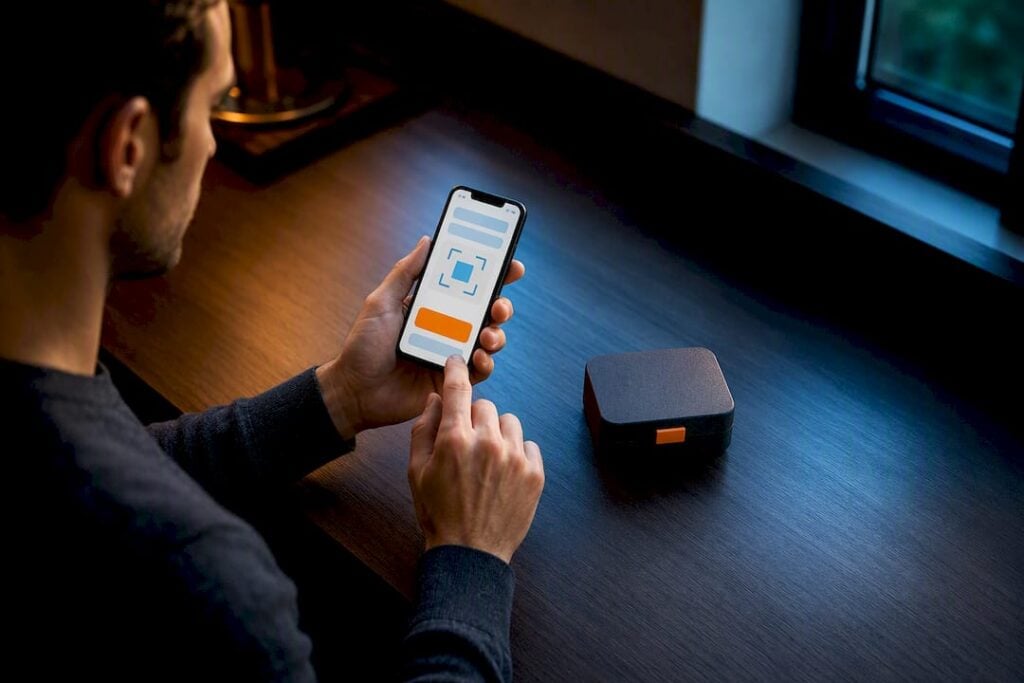
Enable two-factor authentication now, starting with email and your password manager. Use an authenticator app or a hardware security key for the strongest protection; SMS codes work only as a last-resort fallback. Go to your account’s security settings, turn on 2FA, then immediately save your backup codes and test signing out and back in before you move to the next account.
TL;DR:
- Using an authenticator app or hardware security key provides significantly better protection than SMS, especially against phishing and SIM-swap attacks.
- Setting up 2FA with an authenticator app involves scanning a QR code, saving backup codes securely, and testing access immediately to prevent lockouts.
- Hardware security keys are recommended for high-risk accounts like email and banking, with immediate registration of backup keys and secure storage.
- Relying solely on SMS or push notifications exposes accounts to vulnerabilities, so treat them as fallback options, not primary security methods.
- Proper backup planning, including saving recovery codes and testing backup access, prevents prolonged lockouts if devices are lost or damaged.
Which 2FA Method Should You Actually Use?
Not all two-factor methods protect you equally, and the differences matter more than most setup guides admit.
- Authenticator apps (TOTP): Generate codes locally on your phone, no signal or carrier needed. Strong, free, and widely supported.
- Hardware security keys (FIDO2/WebAuthn): The toughest option against phishing since the key physically confirms you’re on the real site, not a lookalike.
- Push notifications: Convenient, tap-to-approve prompts, but only as strong as the device receiving them.
- Passkeys: Newer, phishing-resistant, and increasingly available across major platforms as a passwordless option.
- SMS/text codes: Better than nothing, but tied to your phone number, which can be hijacked.
The gap between these options isn’t small. The Cybersecurity and Infrastructure Security Agency reports that accounts with any form of MFA enabled are significantly less likely to be compromised, even when a password has already leaked. That statistic alone should settle the “should I bother” question. The remaining question is which method, and the answer is simple: pick a TOTP app or hardware key over SMS whenever a service offers the choice, and use a passkey if it’s available.
How Do You Set Up an Authenticator App?
Authenticator apps hit the best balance of security and convenience for most people, which is why they’re the default recommendation here.
- Install an authenticator app on your phone and turn on encrypted backup if the app supports it, so a lost phone doesn’t mean a lost account.
- In your account’s security settings, find “Two-Factor Authentication” or “2-Step Verification” and choose the authenticator app option.
- Scan the QR code with your app, or tap “enter setup key manually” if scanning fails.
- Type in the 6-digit code the app generates to confirm the link worked.
- Save the backup or recovery codes the account gives you, somewhere offline.
- Add the same account to a second device if your app allows it, as insurance against losing your primary phone.
- Sign out completely and sign back in right away to confirm the whole setup actually works.
These apps run on the TOTP standard defined in RFC 6238, which generates a new code roughly every 30 seconds using a shared secret and the current time. That’s why a badly set clock on your phone can break the whole system, a problem we’ll fix in the troubleshooting section below.
Pro Tip: Don’t screenshot your backup codes and leave them in your camera roll. Anyone who gets into your phone gets into everything those codes protect. Store them in an encrypted note or a password manager’s secure storage instead.
When Is a Hardware Security Key Worth It?
A physical security key costs money and adds a step to every login, so it’s fair to ask when that’s worth it. The honest answer: for your primary email, banking, and any account with administrative access to other systems, yes. These keys are phishing-resistant in a way no code-based method fully matches, since the key checks that you’re on the genuine site before it responds.
- Insert the key into a USB port or tap it against your phone (NFC) when prompted.
- Give the key a name in your account settings so you can tell multiple keys apart later.
- Confirm the registration when the account asks you to touch or tap the key again.
- Register a second backup key immediately, not weeks later, and store it somewhere separate from the first.
- Label both keys clearly. A key with no label is useless during a stressful lockout at 2 a.m.
Pro Tip: Keep one key on your keychain and one in a locked drawer or safe. If you only own one key and it’s lost or damaged, you’ve traded a password problem for a hardware problem.
Most keys work across phones, laptops, and browsers without extra software, and many workplaces now issue them directly to employees for exactly this reason.
Are SMS and Push Prompts Safe Enough to Use?
Turning on SMS or phone-call verification is usually the fastest option in account security settings, and push prompts (a tap-to-approve notification from an already-installed app) aren’t far behind in convenience. Neither is as safe as an authenticator app or a hardware key.
- SMS codes route through your phone number, and phone numbers can be stolen through SIM-swap attacks, where an attacker convinces your carrier to move your number to their device.
- The FTC’s guidance on two-factor authentication confirms authenticator apps and hardware keys resist phishing and SIM-swapping far better than SMS, and recommends treating text codes as a fallback rather than a first choice.
- If you must rely on SMS, add a carrier account PIN and enable any extra account-recovery lock your phone company offers.
What Happens If You Lose Access After Setup?
Backup planning is the step almost everyone skips, and it’s the one that turns a minor inconvenience into a days-long lockout.
- Save backup codes the moment your account generates them. Print them and store the paper somewhere secure, or drop them into an encrypted password manager’s secure notes. Paper is offline and immune to hacking, but it can be lost in a move or a fire; a digital vault is searchable and backed up, but only as secure as its own master password.
- Register a second authenticator device or a backup hardware key, and keep at least one copy of your access method somewhere other than your main phone.
- Test your recovery method right after setup, not after you’re already locked out. Sign out, then sign back in using only your backup method.
- Understand the real cost of skipping this: Microsoft’s own support documentation states that losing access to your second verification method can mean waiting a prolonged period in some cases to regain full control of your account.
That 30-day figure is the entire reason backup codes exist. Losing a phone is common; losing a month of access to your email or bank shouldn’t be.
How Do You Enable 2FA on Google, Apple, Microsoft, and GitHub?
Every major platform buries its 2FA settings in a slightly different place, so here’s where to look and what to pick.
| Platform | Where to find it | Recommended method |
|---|---|---|
| Google Account → Security → 2-Step Verification | Google Prompt, passkey, or authenticator app | |
| Apple | Settings → [Apple ID] → Sign-In & Security | Two-Factor Authentication (built-in, device-based) |
| Microsoft | Account → Security → Advanced security options | Microsoft Authenticator app |
| GitHub | Settings → Password and authentication | TOTP app plus downloaded recovery codes |
Google offers 2-Step Verification with three real choices: Google Prompt notifications, passkeys, or a TOTP authenticator app. Passkeys are worth setting up first if your device supports them, since Google itself recommends them for the strongest phishing protection.
Apple turns on Two-Factor Authentication at the Apple ID level, so it covers your iPhone, iPad, Mac, and Apple ID sign-ins on the web automatically once enabled. There’s no separate authenticator app needed; trusted devices handle verification.
Microsoft accounts route through Security → Advanced security options, where the Microsoft Authenticator app is the recommended default over SMS.
GitHub’s two-factor setup walks you through scanning a QR code with a TOTP app and, critically, forces you to download recovery codes before finishing. GitHub also requires 2FA for anyone contributing to certain organizations, so setting it up early avoids a scramble later.
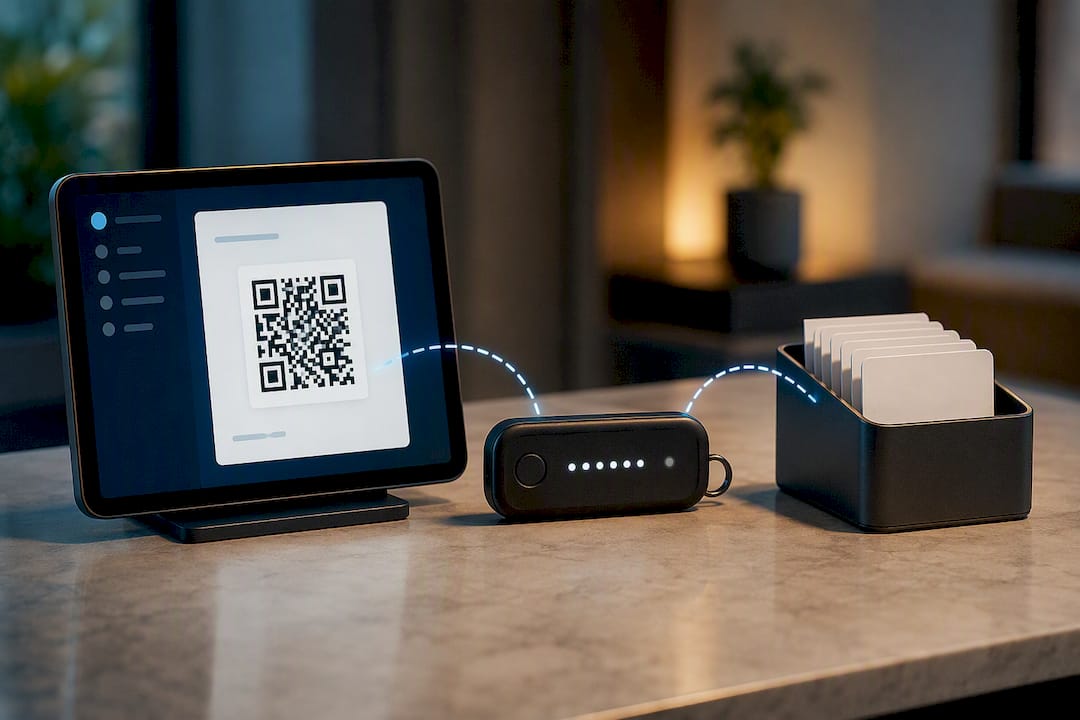
Most social platforms follow the same basic pattern: look under “Security” or “Login and Security” in account settings, and choose an authenticator app over SMS wherever it’s offered.
Why Isn’t Your 2FA Setup Working?
A few problems cause most 2FA setup failures, and nearly all of them have quick fixes.
- QR code won’t scan: Skip the camera and use the “enter code manually” option most services offer next to the QR code. Type the setup key exactly as shown, including case.
- Codes keep getting rejected: This is almost always a clock problem. TOTP codes are time-based, so if your phone’s clock has drifted, codes will fail even when typed correctly. Turn on automatic date and time in your phone settings, or reinstall the authenticator app if that doesn’t fix it.
- Push prompts never arrive: Confirm you’re signed into the right account on the device, check that notifications are allowed for the app, and verify your phone actually has an internet connection.
- Locked out with no backup codes: Use the account’s official recovery flow. Expect it to take real time. As Microsoft’s own guidance notes, recovery without a working second method can stretch out for weeks in some cases, so treat backup codes as mandatory, not optional.
Which Accounts Should You Secure First?
Most people set up 2FA backward, securing their bank first and leaving email for later. That’s the wrong order. Email resets almost every other password on the internet, so it should be the very first account you lock down, followed by your password manager, then banking and cloud storage. An authenticator app with a registered backup device covers nearly everyone’s needs without the friction of carrying a physical key everywhere. Where setup gets genuinely easier is when your password manager already generates and stores TOTP codes or supports passwordless MFA directly, cutting out the app-switching that trips people up mid-setup.
— Mike
How LogMeOnce Simplifies 2FA Management
Setting up 2FA account by account works, but it gets tedious fast once you’ve done it for email, banking, cloud storage, and a handful of work logins. LogMeOnce is built around exactly that pain point: it stores your TOTP codes alongside your passwords, supports passwordless MFA so you’re not stuck re-entering codes on every sign-in, and keeps backup codes in encrypted secure notes instead of a screenshot folder or a sticky note.

That matters most during the exact moment this guide warns you about: recovery. Instead of hunting for a scrap of paper with backup codes, everything lives in one encrypted vault you can access when a device gets lost or replaced. Check out LogMeOnce’s cybersecurity tools to see how password management and MFA work together, or start a free trial to move your accounts into one place before your next device switch catches you off guard.
Sources
- More than a Password | CISA
- How to use two-step verification with your Microsoft account
- Use Two-Factor Authentication To Protect Your Accounts | Consumer Advice
FAQ
How do I set up a two-factor authentication code?
Go to your account’s security settings, choose “Two-Factor Authentication” or “2-Step Verification,” select an authenticator app, then scan the QR code shown or enter the setup key manually to link your app and generate codes.
What are the most common 2FA setup mistakes?
The biggest ones are skipping backup codes entirely, relying only on SMS when a stronger option exists, and never testing sign-in after setup, which means problems surface only during an actual lockout.
Why can’t I get two-factor authentication to turn on?
Usually it’s a device clock that’s out of sync, an outdated authenticator app, or a QR code that failed to scan; correcting your phone’s date and time settings or switching to manual key entry solves most of these issues.
How do I get a QR code for an authenticator app?
The QR code appears automatically in your account’s 2FA setup screen once you select “authenticator app” as your method. If it doesn’t display or won’t scan, look for a “can’t scan” or “enter code manually” link next to it.
Is SMS-based 2FA safe enough to use?
SMS is better than having no 2FA at all, but the FTC notes it’s more vulnerable to SIM-swap attacks than an authenticator app or hardware key, so use it only when nothing stronger is offered.


