


 Password Manager
 Identity Theft Protection

 Team / Business
 Enterprise
 Government
 MSP
MSP


TL;DR:
- Two-factor authentication enhances account security by requiring two forms of verification instead of just a password. Using authenticator apps provides a safer, offline alternative to SMS codes and prevents SIM swapping attacks. Properly storing and testing backup codes is essential to avoid being locked out during device loss or failure.
Two-factor authentication (2FA) is defined as a security process that requires two separate forms of identity verification before granting account access. A password alone is no longer enough. 2FA blocks phishing, credential stuffing, and brute-force attacks by making stolen passwords useless without the second factor. Tools like Google Authenticator, Authy, and Microsoft Authenticator generate the codes that power this second layer. Whether you run a small business or manage personal accounts, setting up two-factor authentication is the single most effective step you can take to protect your digital life right now.
What do you need before setting up two-factor authentication?
Preparation takes five minutes and prevents hours of frustration later. Gather these items before you touch a single security setting.
Device and app requirements:
- A smartphone (iPhone or Android) with an authenticator app installed
- Google Authenticator, Authy, or Microsoft Authenticator are the three most widely supported options
- A secure location for backup codes: a printed copy in a safe, a locked filing cabinet, or a dedicated password manager vault
- Access to the email address linked to each account you plan to secure
Why authenticator apps beat SMS codes:
Authenticator apps generate 6-digit codes every 30 seconds locally on your device, with no internet connection required. SMS codes travel over phone networks, which exposes them to SIM swapping attacks where criminals convince your carrier to transfer your number to their device. Once they have your number, every SMS code you receive goes to them. Authenticator apps eliminate that risk entirely because the codes never leave your phone.

Start with your email account:
Your email is the master key to every other account you own. An attacker who controls your inbox can reset passwords on your bank, social media, and payment accounts within minutes. Secure your email with 2FA before anything else. This single step limits the blast radius of any future breach.
Pro Tip: Install Authy instead of Google Authenticator if you own multiple devices. Authy supports encrypted backups across devices, so you won’t lose all your codes if your phone is stolen or damaged.
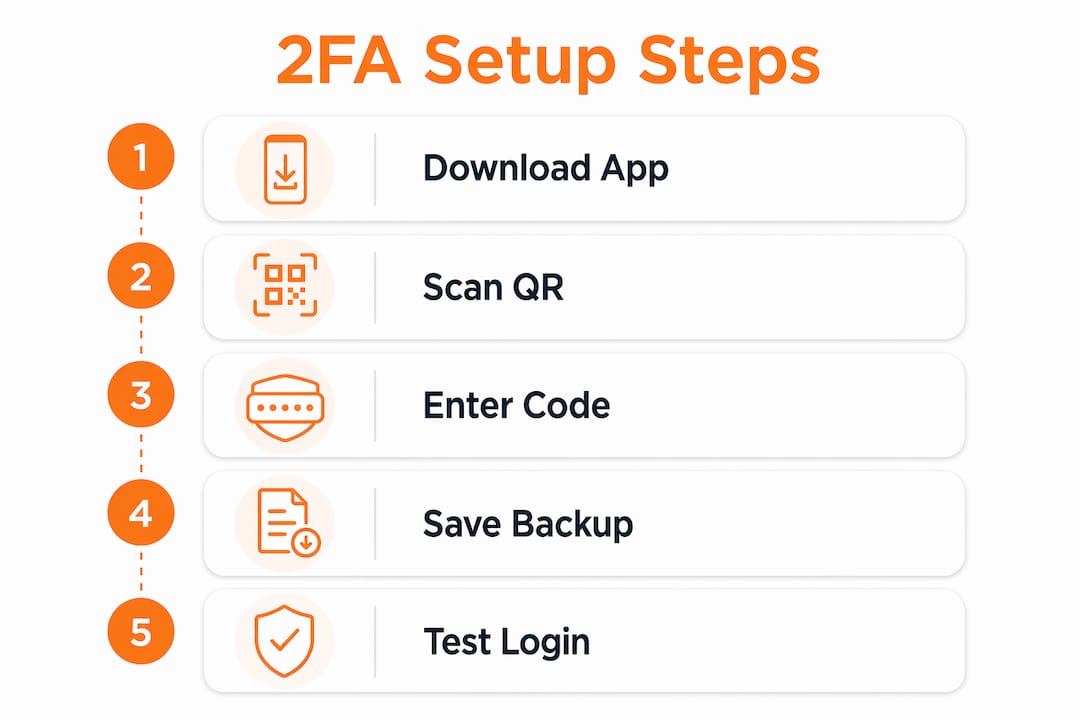
How to set up 2FA with an authenticator app, step by step
This process works for Google, Apple, and Microsoft accounts. The steps vary slightly by platform, but the core flow is identical.
-
Sign in to your account and navigate to the security settings. On Google, go to myaccount.google.com and select “Security.” On Apple, open Settings, tap your name, then “Password and Security.” On Microsoft, visit account.microsoft.com and click “Security.”
-
Locate the two-step verification section. Platforms label this differently. Look for “2-Step Verification,” “Two-Factor Authentication,” or “Additional Security.” Click to begin setup.
-
Select “Authenticator app” as your method. Skip the SMS option. The authenticator app method is more secure, and most platforms now offer it as the default recommendation.
-
Scan the QR code. Open Google Authenticator, Authy, or Microsoft Authenticator on your phone. Tap the “+” or “Add account” button. Point your camera at the QR code displayed on your screen. The app captures the code and immediately begins generating rotating 6-digit tokens.
-
Enter the current 6-digit code from your app into the confirmation field on the website. This verifies that your app is synced correctly. The code refreshes every 30 seconds, so type quickly or wait for a fresh one.
-
Save your backup codes immediately. The platform will display 8–10 one-time backup codes. Download them, print them, and store them somewhere physically secure. Do not save them in a notes app on the same device you use for 2FA.
-
Confirm the setup is active. Sign out of your account completely, then sign back in. You should be prompted for your password first, then a 6-digit code from your app. If both steps appear, your 2FA is working.
Pro Tip: Hardware security keys like the YubiKey offer an even stronger alternative to authenticator apps for high-value accounts. They plug into your USB port or tap via NFC and require no code entry at all.
How to manage backup codes and recover access if you lose your device
Backup codes are one-time emergency passwords generated when you first enable 2FA. Each code works exactly once. After you use it, it expires permanently. Most platforms generate 8–10 codes per account.
Critical warning: Losing access without backup codes can take days or weeks to resolve through customer support. Some platforms require identity verification, government ID submission, and manual review before restoring access. Do not treat backup codes as optional.
Best practices for backup code storage:
- Print your backup codes and store them in a fireproof safe or a bank safe deposit box
- Save a copy inside a password manager like Logmeonce, which encrypts stored data and keeps it separate from your 2FA device
- Never store backup codes in the same app or device you use to generate 2FA codes
- Label each set of codes clearly with the account name and the date you generated them
Testing your backup codes before an emergency:
Test your backup codes by logging out of an account and signing back in using a backup code instead of your authenticator app. This takes two minutes and confirms your codes are valid. Most people skip this step and only discover a problem when they are already locked out. Cross one code off your list after testing so you know it has been used.
If you lose your device without backup codes:
Contact the platform’s customer support directly. Google, Apple, and Microsoft each have account recovery flows that involve verifying your identity through alternate email addresses, phone numbers, or trusted devices you previously registered. Recovery is possible but slow. The process reinforces why saving backup codes upfront is non-negotiable.
Backup multi-factor options must be maintained as a standard practice, and in some regulated industries, having a documented backup authentication method is now a compliance requirement.
What are the most common 2FA mistakes and how do you avoid them?
Even users who enable 2FA correctly can undermine their own security through a handful of predictable errors. Knowing these pitfalls in advance puts you ahead of most people.
Relying on SMS as your primary method:
SMS-based 2FA is better than no 2FA, but it is the weakest option available. SIM swapping attacks are well-documented and increasingly common. Switch to an authenticator app or hardware key as soon as your platform supports it.
Skipping the backup code test:
Saving backup codes is step one. Testing them is step two. Intentionally logging out and verifying that a backup code works is the only way to confirm your emergency access is real and not just a file sitting in a drawer.
Falling for social engineering:
Scammers impersonate service providers and call or text users asking them to read out their 2FA code to “verify their identity.” The moment you share a 2FA code with anyone, an attacker can use it to log in as you. No legitimate company will ever ask for your 2FA code over the phone or by text.
Forgetting to update 2FA when switching phones:
When you get a new phone, your authenticator app does not transfer automatically. Before wiping your old device, transfer your accounts to the new phone using the app’s built-in migration feature. Google Authenticator and Authy both support account transfer. Skipping this step locks you out of every account secured by that app.
Prioritizing the wrong accounts first:
Email, banking, social media, and payment services carry the highest risk if compromised. Secure these four categories before anything else. A breach in any one of them can trigger a chain reaction across your entire digital identity.
Weak passwords alongside 2FA:
2FA is a second layer, not a replacement for a strong password. Using “password123” with 2FA still gives attackers a weak first door. Combine 2FA with unique, complex passwords for every account. A password manager makes this practical without requiring you to memorize dozens of credentials.
For small business owners, the business case for 2FA extends beyond individual accounts. 2FA is a core element of Zero Trust security models, where every access request is verified regardless of who is asking or where they are connecting from.
Key takeaways
Setting up two-factor authentication with an authenticator app and properly stored backup codes is the most effective way to protect your accounts from unauthorized access.
| Point | Details |
|---|---|
| Use an authenticator app | Google Authenticator, Authy, and Microsoft Authenticator are safer than SMS codes. |
| Secure email first | Your email account controls password resets for every linked account you own. |
| Save and test backup codes | Print codes, store them offline, and verify one works before an emergency hits. |
| Avoid SMS-based 2FA | SIM swapping attacks make SMS the weakest available second factor. |
| Update 2FA when changing phones | Transfer authenticator accounts before wiping your old device to avoid lockouts. |
Why I think most people set up 2FA wrong
Most guides tell you to turn on 2FA and call it done. That advice misses the part that actually matters: what happens when your phone is gone.
I have watched people go through account recovery nightmares that lasted two weeks, all because they never saved their backup codes. The setup took them three minutes. The recovery cost them hours of support calls and, in one case, a notarized identity document. That is a painful lesson to learn the hard way.
My honest recommendation is to treat backup code storage as seriously as you treat your house key. Print them. Put them somewhere physical and secure. Then test one immediately. That 90-second test is the difference between a minor inconvenience and a full lockout.
The social engineering angle also gets underestimated. Attackers do not need to hack your app. They just need to call you, sound official, and ask for the code you are looking at right now. Awareness of these social engineering tactics is the layer of security no app can provide for you.
2FA is not a finish line. It is a foundation. Pair it with strong passwords, a reliable password manager, and a habit of reviewing your account security settings once a year. That combination covers the vast majority of real-world threats facing individuals and small businesses today.
— Mike
How Logmeonce makes 2FA management easier
Managing two-factor authentication across dozens of accounts gets complicated fast, especially for small business owners juggling team access and multiple platforms.
Logmeonce combines password management and cybersecurity tools into one platform, so your 2FA setup, password vault, and account security all live in the same place. The integrated approach means you are not switching between five apps to stay secure. Logmeonce supports passwordless MFA, encrypted storage, and single sign-on, giving individuals and small businesses a practical way to manage security without a dedicated IT team. Explore Logmeonce to see how it fits your security setup.
FAQ
What is two-factor authentication?
Two-factor authentication is a login process that requires two separate forms of identity verification: your password and a second factor such as a code from an authenticator app, a hardware key, or a biometric scan.
Why is an authenticator app better than SMS for 2FA?
Authenticator apps generate codes locally on your device every 30 seconds and work offline, while SMS codes travel over phone networks and are vulnerable to SIM swapping attacks.
What should I do if I lose my phone and can’t access my 2FA codes?
Use a backup code saved during your initial setup to log in. If you have no backup codes, contact the platform’s customer support and prepare to verify your identity, a process that can take days.
Which accounts should I protect with 2FA first?
Prioritize your email account first, then banking, payment services, and social media. These accounts carry the highest risk and can trigger cascading breaches if compromised.
Can someone bypass my 2FA?
Yes, through social engineering. Attackers impersonate service providers and ask you to read your 2FA code aloud. Never share a 2FA code with anyone who contacts you, regardless of who they claim to be.


