


 Password Manager
 Identity Theft Protection

 Team / Business
 Enterprise
 Government
 MSP
MSP


Passkeys and hardware security keys are the strongest secure login options available now, because they resist phishing in a way passwords and most one-time codes cannot. Where passkeys aren’t yet supported, enforce multi-factor authentication as the baseline, not an add-on. This isn’t a fringe opinion. It’s the direction the FIDO Alliance, the UK’s NCSC, and both Google and Microsoft point their own guidance toward.
TL;DR:
- Enforcing multi-factor authentication is essential where passkeys are not yet supported, especially to counter the vulnerabilities of SMS and email OTPs.
- Hardware security keys and device-bound passkeys provide the strongest resistance to phishing, with synced passkeys offering convenience but some security trade-offs.
- Organizations should restrict SMS-based MFA to backup options, prioritize phishing-resistant methods for high-security accounts, and implement adaptive authentication and session management.
- Bridging legacy systems that only support passwords requires careful planning, Pilot passkeys early, and gradually enforce MFA policies to minimize support issues.
- Combining passwordless MFA, single sign-on, and encrypted storage into one platform simplifies rollout, oversight, and helps secure account recovery workflows.
What are the main types of secure login options?
Every login method boils down to proving one or more of three things: something you know (a password or PIN), something you have (a phone, a security key), or something you are (a fingerprint, a face scan). Stack two or more of those factors and you get multi-factor authentication, or MFA. Layer them well and a stolen password stops being enough to break in.
Here’s how the main categories break down in practice:
- Passwords: still the fallback almost everywhere, but the weakest link. Reused, guessed, or phished passwords are tied to roughly 80% of data breaches.
- MFA: adds a second factor (app code, push notification, hardware key) on top of a password or in place of one.
- Passwordless / passkeys: replace the password entirely with a cryptographic key tied to your device.
- Single sign-on (SSO): one login gets you into multiple connected apps through a trusted identity provider.
- One-time passcodes (OTPs): temporary codes sent by SMS, email, or generated in an app, often used as a secondary or recovery factor.
Passwords aren’t disappearing overnight. Most organizations run them as a fallback for legacy systems that were never built for anything else. The goal is to make the password the last line of defense, not the only one.
How do passkeys and FIDO2 actually work?
Passkeys run on public-key cryptography instead of a shared secret. When you register a passkey, your device generates a key pair: a private key that never leaves the device, and a public key that gets stored by the website or app. Logging in means proving you hold the private key, typically with a fingerprint, face scan, or device PIN. There’s no password transmitted, no shared secret sitting in a database for an attacker to steal.
This is what WebAuthn, the W3C standard behind FIDO2, actually specifies: credentials are cryptographically scoped to the exact origin that registered them. A phishing site with a lookalike URL simply can’t request your credential, because the browser checks the origin before anything happens. That’s what “phishing-resistant” means in practice, not marketing language.
There are two flavors worth knowing apart:
- Device-bound passkeys live only on the hardware that created them (a security key or a specific phone), which makes them harder to extract but less convenient if that device is lost.
- Synced passkeys back up through a cloud account (iCloud Keychain, Google Password Manager) so you can use them across devices, trading some assurance for convenience.
For high-security accounts, device-bound passkeys or dedicated hardware security keys are the safer bet, since a synced backup adds a cloud account as another point of failure. Security keys also double as a strong recovery credential when a primary device goes missing.
The payoff shows up in daily use, too. Google reports that passkeys are about four times simpler for people to use than traditional passwords, mostly because there’s nothing to type, remember, or reset.
Statistic Callout: Passkeys cut password-related friction by roughly 4x, according to Google, while closing off the phishing vector that accounts for most credential theft.
What MFA options should you actually use?
Not all second factors carry equal weight. Ranked roughly from weakest to strongest resistance against phishing:
- SMS codes: convenient, but vulnerable to SIM-swap fraud and interception. Treat as a last resort.
- Email OTPs: better than nothing, but only as secure as the inbox they land in.
- TOTP apps (Google Authenticator, Authy): solid for most personal accounts, immune to SIM swaps.
- Push notifications: fast and low-friction, though prone to “prompt bombing” if users approve without thinking.
- Hardware tokens and FIDO2 keys: the strongest option, because they’re bound to the origin and can’t be phished or relayed.
Microsoft’s own guidance for high-assurance sign-ins recommends phishing-resistant methods like FIDO2 keys and Windows Hello for Business over anything code-based. For organizations, that means writing policy that mandates MFA everywhere and specifically restricts SMS to a backup role, not a primary one.
Pro Tip: If your team still allows SMS as the only second factor on admin accounts, that’s the first policy gap to close. Attackers target the weakest allowed method, not the strongest one you offer.
How does single sign-on fit into a secure login strategy?
SSO lets one login, handled by a trusted identity provider, grant access across every connected app instead of forcing a separate password for each one. Most implementations run on federation protocols like OIDC or OAuth, which pass a signed token between the identity provider and each app rather than sharing credentials directly.
The real security value isn’t convenience. It’s control. With SSO in place, an organization can enforce one consistent MFA policy across dozens of applications instead of hoping each app owner configured something reasonable on their own.
The trade-off is centralization risk: one compromised identity provider account can cascade into every connected system. The mitigations are well established:
- Enforce phishing-resistant MFA specifically on the identity provider account, not just downstream apps.
- Monitor sign-in logs for unusual location or device patterns.
- Limit standing access with session timeouts rather than indefinite trust.
Are magic links and OTP codes safe enough to use?
Magic links (a one-click login link emailed to you) and OTP codes exist because they’re easy. No password to remember, no app to install. For low-stakes logins, that trade-off is often reasonable.
The risks are real, though. SIM-swap attacks can hijack SMS codes, and a compromised email inbox hands over every magic link sent to it. NCSC guidance groups magic links and OTPs among its four core authentication models, but frames them as one option among several, not the default.
Practical mitigations:
- Keep code and link lifetimes short, ideally under 10 minutes.
- Pair OTPs with device or location checks before granting access.
- Reserve magic links for lower-value accounts, and use passkeys or hardware keys for anything holding financial or sensitive data.
What is adaptive authentication and why does session security matter?
Adaptive authentication adjusts what it demands based on context. A login from a recognized device on a familiar network might sail through with no extra step. The same account logging in from a new country, a new device, or an unusual hour can trigger a step-up challenge, like a push notification or hardware key tap. Key signals include device fingerprint, IP reputation, and login velocity (how many attempts, how fast).
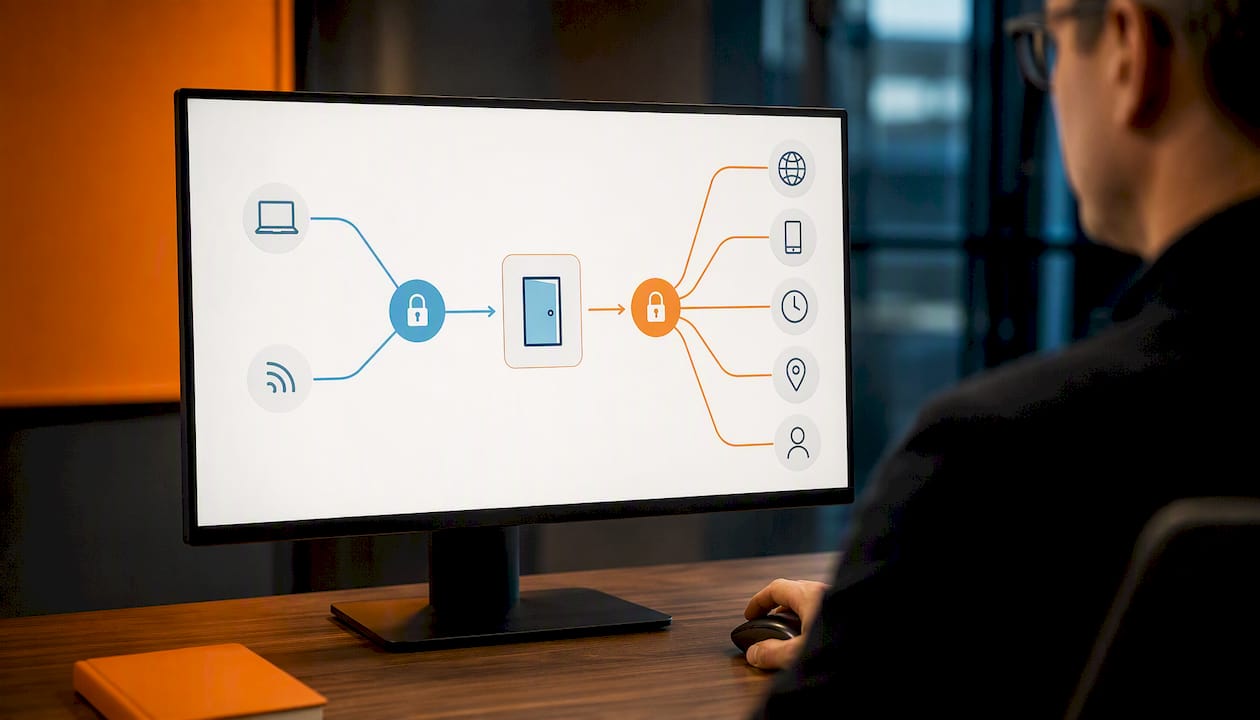
Session management matters just as much as the login itself. A stolen session token can bypass authentication entirely, so tokens need short lifespans, secure storage, and prompt revocation when a device is lost or an account looks compromised.
Recovery is where most passwordless rollouts actually get tested. Microsoft’s guidance points toward verified-identity flows and hardware-backed recovery keys rather than weak fallback channels like security questions or SMS resets, which attackers target precisely because they’re weaker than the primary login.
Pro Tip: Design your recovery process before you roll out passkeys, not after the first support ticket. Recovery is the part everyone forgets until someone’s locked out.
How do you choose and roll out secure login options?
A practical rollout follows a predictable sequence:
- Inventory legacy systems that can’t yet support passkeys or SSO, since these will need a bridging strategy.
- Pilot passkeys with a small group before requiring them organization-wide.
- Require MFA everywhere else, with SMS restricted to backup status only.
- Bridge legacy apps using an authentication proxy or identity gateway rather than rewriting older systems from scratch.
- Plan recovery and helpdesk workflows before enforcement begins, including verified-ID recovery and hardware key backups.
- Communicate the change to users well ahead of enforcement, with clear steps for setting up a passkey or authenticator app.
- Measure results: track account takeover attempts and helpdesk password-reset volume before and after, then adjust policy based on what actually moves.
Staged rollouts beat flipping a switch. Forcing every user onto a new method on day one guarantees a spike in support tickets and workarounds that undercut the whole point.
How does LogMeOnce support these secure login recommendations?
LogMeOnce builds toward the same model this guide recommends: phishing-resistant login as the default, passwords as the fallback. The platform’s passwordless MFA capability replaces typed credentials with device-based authentication, following the same principle behind FIDO2 and WebAuthn. Its passwordless authentication approach extends that further across mobile and desktop use.
For organizations managing many users, LogMeOnce’s enterprise password management tools pair MFA enforcement with SSO and encrypted credential storage, mapping directly onto the checklist above: consistent policy, centralized control, and a documented path to phishing resistance. Details on the underlying architecture are available on the LogMeOnce security page.
A practical view on rollout trade-offs
The hardest part of any passwordless rollout is rarely the technology. It’s the legacy application that predates modern authentication entirely and wasn’t built to accept anything but a password field. Bridging that gap usually means an authentication proxy sitting in front of the old system, which buys time without forcing a rewrite nobody budgeted for.
The friction argument against MFA is mostly outdated. Passkeys remove typing altogether, and most users adapt within a single login cycle. The organizations that struggle are the ones that skip the pilot phase and enforce a new method on everyone at once, then wonder why the helpdesk lit up.
— Mike
Get secure login options built into one platform
Rolling out passkeys, MFA, SSO, and encrypted storage as separate tools usually means separate vendors, separate policies, and separate places where something falls through the cracks. LogMeOnce puts passwordless MFA, single sign-on, and cloud storage encryption into one platform, so the checklist in this guide maps to features you can actually turn on rather than a list of products to evaluate separately.

That matters most for the account recovery and helpdesk questions this guide flagged as the hardest part of any rollout. If you’re weighing whether to pilot passkeys internally or need a clearer picture of what a fully deployed setup looks like, review the LogMeOnce password management benefits page and start a trial to see how the pieces fit for your own environment.
Sources
- FIDO Alliance – identityweek/Mastercard: 80% of data breaches linked to passwords
- Google Safety Center — Authentication Tools for Secure Sign-In
- NCSC — Authentication methods: choosing the right type
- W3C — Web Authentication: An API for accessing Public Key Credentials – Level 3
- Microsoft Entra — Overview: authentication
Recommended


