


 Password Manager
 Identity Theft Protection

 Team / Business
 Enterprise
 Government
 MSP
MSP


The official Regions login page is Login, and it’s the only place you should enter your Online ID and password. If sign-in fails, use the “Forgot Online ID” or “Forgot Password” links on that same page rather than guessing repeatedly. Still stuck? Call Regions customer support at 1-800-REGIONS (1-800-734-4267) or walk into a local branch with your ID.
TL;DR:
- Using a private device and current browsers can help prevent login failures caused by cached data or outdated software.
- Enrolling for online banking takes 5 to 10 minutes with correct account details and can activate immediately after verification.
- Lockouts from multiple failed attempts are common and require contacting Regions support or visiting a branch for recovery.
- Strong, unique passwords combined with multi-factor authentication and a password manager significantly improve account security.
- Business account resets differ, often needing administrator intervention, and account lockouts require direct verification to resolve.
How to Sign In to Regions Online Banking on Desktop
Getting into your account takes less than a minute when your credentials are right and your browser cooperates. Most login failures come down to something small: a stray space, an old cached password, or a browser extension interfering with the page.
- Go directly to login.regions.com by typing the address yourself. Confirm the padlock icon and the “regions.com” domain before entering anything. Never click a login link from an unsolicited text or email.
- Enter your Online ID and password exactly as created. Both fields are case sensitive, so check that Caps Lock isn’t quietly ruining your session.
- Use “Remember my username” only on a private device. On a shared or public computer, skip it entirely.
- If the page rejects your credentials, clear your browser’s cache and cookies, or open a private/incognito window and try again. A stale cached version of the login page is a surprisingly common culprit.
- Still failing? Switch browsers. Regions online banking generally runs the smoothest on current versions of Chrome, Safari, or Edge, and an outdated browser can break the login form silently.
Once you’re in, the dashboard shows account balances, recent transactions, transfer tools, and statements front and center. From there you can set up alerts, schedule bill payments, or jump into mobile deposit settings without logging in again.
How to Enroll for Regions Online Banking Access
New to Regions or never activated your online profile? Enrollment is a self-service process built for speed, not a multi-day approval cycle.
Here’s what you need before you start:
- Your Regions account number, found on a statement or check
- A debit card number or customer ID tied to the account
- Your Social Security number and date of birth for identity verification
- Your legal name spelled exactly as it appears on Regions’ records, since mismatches are a common rejection point
Enrollment typically takes 5 to 10 minutes, and access often activates immediately after verification clears. You’ll find the registration link on the main login page under an “Enroll” or “Sign up” prompt.
If you don’t have a Social Security number, an alternate verification path exists. Regions can validate identity through other documentation instead, though this may require a phone call or a branch visit rather than pure self-service enrollment.
What to Do When You Forget Your Username or Password
Locking yourself out isn’t a crisis if you use the right recovery tool instead of retyping the same wrong password five times.
- Click “Forgot Online ID” if you can’t remember your username, or “Forgot Password” if you know your ID but not the password.
- Follow the verification prompts, which typically ask for your debit card number, account number, or Social Security number to confirm identity.
- If you don’t have an SSN on file, Regions offers an alternate reset procedure that usually involves additional identity checks by phone or branch staff.
- Watch for a reset link sent to your email on file. Confirm it lands in your inbox, not spam, and that the sending address is genuinely from Regions before clicking through.
- Business account holders: if your username was set up by your company rather than by you personally, the public reset tool won’t work. Contact your company administrator first.
Signing In With the Regions Mobile App
The Regions mobile app mirrors most desktop functionality, plus a few conveniences the website doesn’t offer.
- Download the app only from the official Apple App Store or Google Play listing under the name “Regions Bank.” Check the developer name matches Regions Financial Corporation before installing anything.
- Sign in with your existing Online ID and password, then opt into Face ID, fingerprint, or another biometric login if your device supports it.
- Turn on push notifications so multi-factor authentication prompts and fraud alerts reach you instantly.
- If the app won’t log in, update it through your app store first. A surprising number of “broken login” complaints trace back to running an outdated app version against an updated backend.
- Still failing after an update? Check that your phone’s operating system is current and that notification permissions haven’t been silently disabled.
Security Best Practices to Protect Your Regions Login
Your password is the first wall, and Regions has specific rules for building one that holds. Passwords need 8 to 32 characters with at least one uppercase letter, one lowercase letter, one number, and one approved special character, and the password rules specifically warn against using your username or predictable sequences.
A few habits matter more than people assume:
- Never reuse your Regions password anywhere else. A breach at an unrelated retailer or streaming service becomes a bank problem the moment credentials overlap.
- Turn on multi-factor authentication if it’s offered, and lock down the email account and phone number tied to your recovery options. That combination is often the weakest link, not the bank’s own systems.
- Store your credentials in a password manager instead of a browser autofill field or a sticky note. A dedicated manager also flags weak or reused passwords before they become a problem.
- Consider monitoring for exposed credentials on the dark web, since stolen banking usernames frequently surface there before anyone notices unauthorized activity.
Regions notes that deposits carry FDIC insurance, which protects your money even in a worst case scenario. That protection doesn’t cover the hassle of a compromised login, though, which is why credential hygiene still falls on you.
Tools like LogMeOnce support passwordless multi-factor authentication, encrypted credential storage, and dark-web monitoring as a layer that sits alongside, not instead of, whatever security Regions already provides on its end.
Pro Tip: Build your Regions password as a short passphrase (three unrelated words plus a number and symbol) instead of a single complex word. It’s easier to remember and harder to crack than “P@ssw0rd1.”
Business Accounts: Why Admin Resets Work Differently
Business online banking runs on a different provisioning model than personal accounts, and that changes how resets happen.
- Company administrators, not individual employees, often create and assign usernames for business banking access.
- When that’s the case, the public “Forgot Password” self-service tool won’t recognize the account for reset purposes.
- Company policies can also require stricter verification, like a callback to a registered business phone number rather than an SSN check.
- If your business username came from your employer’s admin rather than your own sign-up, contact that administrator before calling Regions directly. It’ll save you a redirect.
Account Lockouts, Fraud Holds, and When to Call Regions
A handful of wrong password attempts or a flagged login from an unfamiliar device or location commonly triggers a temporary lockout, and that’s usually the account protecting itself, not a glitch.
- Call 1-800-REGIONS or visit a local branch when a lockout doesn’t clear on its own after a reset attempt.
- Suspicious activity flags sometimes require a live identity check that self-service tools can’t complete.
- Bring a government-issued ID, your account number, and potentially your debit card when you visit a branch or call in, since the representative will need to verify you’re actually you.
Privacy and Data Protection During Login
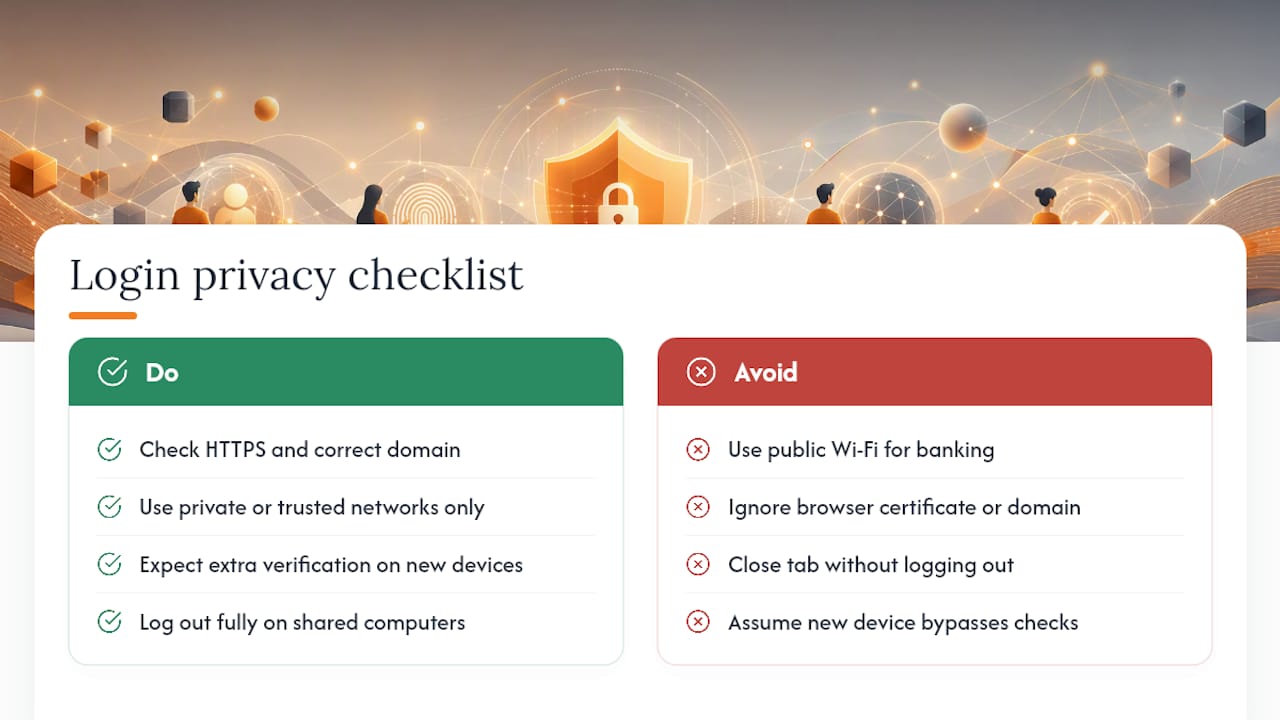
Every time you sign in, Regions encrypts the connection between your browser or app and its servers, which is why checking for HTTPS and the correct domain before entering credentials matters more than people think. A fake login page mimicking Regions’ branding can look nearly identical, but it can’t replicate a valid SSL certificate tied to the real domain.
Regions also uses device recognition behind the scenes, flagging logins from unfamiliar devices, locations, or networks for extra verification. That’s part of why signing in from a new phone or a different country sometimes triggers an additional identity check instead of a smooth pass through.
Public Wi-Fi is worth avoiding for banking altogether. Coffee shop networks and airport hotspots are common spots for traffic interception, and while HTTPS encryption helps, it’s not a reason to treat open networks as safe by default.
Regions’ privacy practices also govern what data gets collected during a session, including device information and login timestamps, primarily used for fraud detection rather than marketing. If you’re logging in from a shared or public computer, always log out fully rather than just closing the browser tab, since a lingering session is an open door for the next person who sits down.
How Session Timeouts and Automatic Logouts Work
Regions automatically ends inactive sessions after a set period, logging you out even if you never clicked the button yourself. This isn’t an inconvenience so much as a safeguard against someone walking up to an unattended computer or phone mid session.
The exact timeout window isn’t publicly published, but the underlying principle holds across most banking platforms: extended inactivity ends the session automatically, and any sensitive action, like changing your password or updating linked accounts, often triggers a fresh authentication check even within an active session.
If you’re transferring funds or updating personal details, expect the system to occasionally ask you to re-enter your password or complete a secondary verification step, even though you never technically logged out. That’s by design, not a bug.
On mobile, the app may hold a session open slightly longer if biometric login is enabled, since a fingerprint or face scan re-confirms identity almost instantly. Still, closing the app fully after banking, rather than leaving it minimized in the background, is the safer habit.
Keeping Your Account Secure After You Log In
Getting into your account is only half the job. What you do during and after that session determines whether your money actually stays safe.
Review your transaction history regularly rather than only when something looks off. Catching a fraudulent $4 charge early is often how people catch a compromised card before larger charges follow. Set up account alerts for logins, large withdrawals, and balance thresholds so Regions notifies you the moment something unusual happens, rather than you discovering it during a monthly statement review.
Log out completely when you’re done, especially on shared devices, and avoid saving your password in a browser that other household members or coworkers can access. If you ever get an email or text claiming to be from Regions asking you to “verify your account” through a link, don’t click it. Navigate to login.regions.com manually instead and check your account for any real alerts. Legitimate banks rarely ask you to confirm credentials through unsolicited links.
Author Perspective: Why Layered Protection Beats a Strong Password Alone
If you take one thing from this: verify the URL every single time, and reset your password the moment you’re unsure whether it’s been exposed anywhere else. A strong password matters, but pairing it with multi-factor authentication and a dedicated password manager closes the gap that password strength alone can’t. Layered defenses catch what a single strong credential misses.
— Mike
Consider LogMeOnce to Strengthen Your Regions Login Security
Regions secures the banking side. What happens to your login credentials everywhere else, including how you store and reuse them, is on you. LogMeOnce is built to close that gap with passwordless multi-factor authentication, an encrypted credential vault, and dark-web monitoring that flags exposed login details before they turn into a drained account.

Instead of relying on memory or a browser’s autofill for your Regions Online ID and password, a dedicated vault keeps every credential encrypted and unique, while dark-web scanning checks whether any of your logins have already surfaced in a breach. Pair that with two-factor authentication across your other accounts, and one compromised password stops being a chain reaction.
If you’re ready to see what a dedicated credential manager adds on top of your bank’s own protections, compare plans on the LogMeOnce pricing page and start a trial today.
Official Pages to Bookmark Right Now
Use these direct links instead of searching and risking a lookalike site:
- Regions Online Banking login
- Forgot Password reset tool
- Enrollment requirements
- LogMeOnce password manager
This article is general information, not a substitute for advice from a qualified financial advisor. Consult a qualified financial professional about your own circumstances before acting on anything here.
Sources
- Log In to Regions Online Banking | Regions Bank
- Forgot Your Password – Reset Your Regions Online Banking Password – Regions Online Banking
- What information do I need to enroll for online banking? | Regions Help
FAQ
What Is the Official Regions Login Website?
The official portal is login.regions.com, where you enter your Online ID and password to access accounts. Always type the address directly rather than clicking a link from an email or text message.
How Long Does Regions Online Banking Enrollment Take?
Enrollment typically takes 5 to 10 minutes and requires your account number, debit card or customer ID, and Social Security number. Access usually activates immediately once your identity is verified.
What Do I Do If I Forget My Regions Username or Password?
Use the “Forgot Online ID” or “Forgot Password” links on the login page and complete verification with your card number, account number, or Social Security number. Business users with a company-provisioned username should contact their administrator instead of the public reset tool.
Why Does Regions Lock My Account After Failed Login Attempts?
Multiple failed sign-in attempts or activity flagged as suspicious commonly triggers a temporary lockout as a fraud safeguard. Call 1-800-REGIONS or visit a branch with your ID and account number to verify your identity and restore access.
Can a Password Manager Help With My Regions Login?
Yes. A password manager like LogMeOnce stores a unique, complex password for your Regions account and can alert you if those credentials appear in a data breach, adding a layer beyond what the bank’s login page alone provides.
Recommended
- Scheduled Login Puts LogMeOnce Users in Control of Password Management, Making Them Elusive to Cyberattack Intruders
- How Secure is Logmeonce ?
- LogMeOnce Announces Password-Less Authentication Version 5.2 protecting Identities on Apple iOS, Android, Microsoft Windows, and Mac OS
- How LogmeOnce Works


