


 Password Manager
 Identity Theft Protection

 Team / Business
 Enterprise
 Government
 MSP
MSP

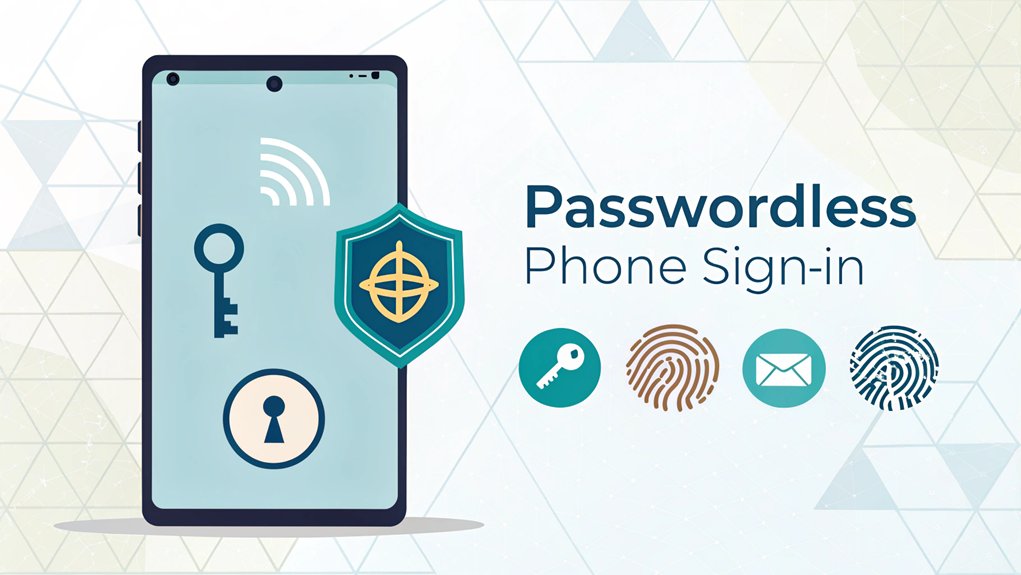
In the ever-evolving landscape of cybersecurity, the emergence of leaked passwords has become a significant concern for users and organizations alike. Recently, a staggering number of credentials were exposed in a data breach, showcasing the vulnerabilities that many online platforms face. These leaks occurred across various popular websites, leaving millions of users at risk of unauthorized access to their accounts. The significance of these leaked passwords lies in the potential for identity theft and financial fraud, emphasizing the critical need for individuals to adopt more secure methods of authentication. As users increasingly seek to protect their online identities, understanding the implications of such leaks is essential for navigating the digital world safely.
Key Highlights
- Passwordless phone sign-in replaces traditional passwords with biometric authentication like fingerprints or facial recognition for secure access.
- Users enter their username and verify a matching code displayed on both their device and the Microsoft Authenticator app.
- The system uses public-key cryptography and secure tokens stored in the phone to authenticate user identity.
- Biometric verification combines with device recognition to create a two-factor authentication process without passwords.
- Setup requires downloading an authenticator app, registering your device, and enabling biometric features for seamless sign-in.
Understanding Passwordless Authentication
Have you ever wished you didn't need to remember so many passwords? I know I have! It's like trying to remember the names of every single dinosaur – pretty tricky, right?
Well, there's something super cool called passwordless authentication. Think of it like having a special magic key that only works with your fingerprint or your face! Instead of typing in a bunch of letters and numbers, you can access your phone or apps just by being you.
It's kind of like how your best friend knows it's you by looking at your face – no secret code needed! You can use your fingerprint (like a unique stamp), your face (like taking a selfie), or even get a special code sent to your phone. Isn't that neat? This system uses public-key cryptography to keep your information safe and secure.
Key Components of Phone Sign-in
Let me show you the super cool building blocks that make phone sign-in work – it's like having a special secret clubhouse with different ways to get in!
Think of your phone as a magic wand that knows it's really you. Sometimes it looks at your fingerprint (like when you touch the screen), or maybe it checks your face (just like taking a silly selfie!). When you use your fingerprint, a special part called BiometricPrompt helps your phone check if it's really you. MFA is an essential element in enhancing security during the sign-in process.
It's also super smart about keeping your secret keys safe in a special vault – kind of like hiding your favorite candy where only you can find it.
Here are the main ways your phone helps you sign in:
- Using your fingerprint or face (biometrics)
- Having a special security token (like a digital house key)
- Being near your trusted device (like playing "Marco Polo")
- Creating special one-time codes (like secret messages between friends)
Step-by-Step Sign-in Process
Three amazing steps will help you access your apps without typing a password – it's like having a secret superhero gadget in your pocket!
Have you ever wished you could gain entry to your favorite games just by using your phone? Well, now you can!
First, go to your special website and type in your username – that's your special nickname for logging in.
Next comes the fun part: instead of typing a boring password, you'll see a magic number on your screen. It's like a secret code! The special verification process uses a simple 2-digit number match between your screen and phone. This method enhances security by incorporating multi-factor authentication to ensure that only you can access your account.
Finally, open your Microsoft Authenticator app – it's like your digital sidekick!
Match the number you see, then use your fingerprint or face (just like a spy!) to prove it's really you.
Zoom! You're in and ready to explore!
Security Features and Benefits
Now that you know how to sign in like a tech wizard, I bet you're wondering what makes this super-cool system so safe!
Think of it like having a secret treehouse – you need both the special key (your phone) and the secret handshake (your fingerprint or face) to gain access. No more worrying about forgetting passwords or bad guys stealing them! This modern approach eliminates password reuse across different websites and apps. Additionally, it incorporates multi-factor authentication to provide an extra layer of security.
Here are the awesome ways your phone keeps you safe:
- Your phone is like your personal bodyguard – only you can access it.
- Special computer codes work like invisible ink that can't be copied.
- Your fingerprint or face is your unique superhero ID.
- The system checks if your device is trustworthy, just like how you know your best friends.
Isn't that amazing? It's like having a force field around your digital stuff!
Setting Up Your Device
Ready to set up your phone for super-cool sign-ins? It's like getting a special key to your favorite treehouse!
First, you'll need to visit a website called aka.ms/mysecurityinfo – think of it as your secret control panel.
Next, you'll download an app called Microsoft Authenticator. It's like having a super-smart security guard in your pocket!
When you open it, you'll tap some buttons to set everything up. Just follow the steps like you're following a treasure map.
The fun part comes when you try to sign in. Instead of typing a password, you'll see a number on your screen. This modern approach helps prevent identity theft risks that often come with traditional passwords.
Match it with the number in your app – it's like playing a matching game! Cool, right? Now you're all set for password-free adventures!
Technical Requirements
Let's get your phone ready for some super-cool sign-ins! Just like you need special gear to play sports, your phone needs a few things before it can do passwordless magic. Think of it as getting your superhero costume ready for an amazing adventure!
Here's what you'll need to become a passwordless champion:
- A special license called Azure AD Premium P1 – it's like your ticket to the coolest tech show.
- Your phone needs the Microsoft Authenticator app – think of it as your digital superhero belt.
- A secret lock code on your phone – just like having a secret hideout password.
- Your device must be registered – similar to putting your name on your favorite lunch box.
Have you ever used a secret code before? Well, this is way cooler because your phone becomes your very own security guard! Once everything is set up, you'll approve sign-ins by selecting the displayed number in your Authenticator app.
Managing Multiple Accounts
Just like having different backpacks for school and sports, your phone can handle multiple accounts with passwordless sign-in! Think of it as having different keys to different rooms – neat, right?
Here's what you need to know: First, make sure you've got the latest Microsoft Authenticator app on your phone. It's like having the newest version of your favorite game!
Then, you can add each account you want to use – maybe one for school and one for your after-school clubs. For each account, you'll need to do a special setup (like solving a puzzle) to make it work.
When you want to sign in, just pick which account you want to use, type in a number, and use your fingerprint or special code. Easy peasy!
Right now, this feature is only available to iOS device users, so Android users will need to wait a bit longer.
Best Practices for Implementation
Setting up passwordless phone sign-in is a bit like building your first LEGO castle – you need the right pieces and a good plan!
I'll show you how to make it super safe and easy to use, just like putting a special lock on your secret treehouse.
Organizations should carefully align security strategies before implementing any passwordless authentication system.
Here are the most important things to remember when setting up passwordless sign-in:
- Test it first with a small group (like having a practice game before the big match!)
- Train everyone how to use it (think show-and-tell, but for phones!)
- Make sure help is ready if someone gets stuck (like having a lifeguard at the pool)
- Keep checking that everything works perfectly (just like making sure your bike chain stays oiled)
Remember to use strong security features, like fingerprints or special codes sent to your phone.
It's way better than trying to remember tricky passwords!
Future of Authentication Technology
Ever wonder what the future of phone security looks like? I'm excited to tell you about some amazing new ways we'll access our phones!
Instead of typing passwords, your phone might scan your face or fingerprint – just like a superhero's secret hideout! This new technology uses behavioral biometrics to make security more natural and easier than ever before.
Think about this: your phone could learn how you type, walk, or even hold your device. It's like having a best friend who knows all your special habits!
And here's something super cool – quantum computers (they're like super-fast thinking machines) will make these security checks happen in the blink of an eye.
The best part? These new security tools will work together like a team of superheroes. Your face scan, finger touch, and the way you use your phone will all join forces to keep your device safe!
Frequently Asked Questions
What Happens if I Lose My Phone or It Gets Stolen?
Don't worry! If your phone is lost or stolen, I'll help you stay safe.
You can quickly disable your phone's passkey from another device you use, like your tablet or computer. Your other devices will still work perfectly!
Plus, you can use your backup email or phone number to recover access. Think of it like having spare keys to your house – you're always covered!
Can I Still Use Passwordless Sign-In When There's No Internet Connection?
Yes, I can help you use passwordless sign-in without internet!
Once you've registered your device and set up the Microsoft Authenticator app, you're all set for offline use.
Just like saving your favorite game to play later, your phone saves special keys to let you sign in.
You'll still need to use your PIN or fingerprint, but you won't need internet to access your device.
How Long Does It Take for the Push Notification to Arrive?
Push notifications usually arrive super fast – like the time it takes to say "1-2-3!"
But you know how sometimes your pizza delivery is a bit slow because of traffic? It's kind of like that!
The exact time depends on stuff like your internet speed and how busy Microsoft's computers are.
Usually, you'll get it right away, but sometimes it might take a few extra seconds.
Is Passwordless Sign-In Compatible With Older Phone Models?
I need to tell you something about older phones!
Passwordless sign-in only works on newer phones with Android 9 or iOS 16 and up. It's like having a special key that only fits in new locks!
If you've got an older phone, it probably won't work because it's missing some important security features.
Think of it like trying to play a new video game on a really old game console – it just won't match up!
What Happens if My Fingerprint Reader or Face Recognition Stops Working?
Don't worry if your fingerprint reader or face recognition isn't working!
I'll help you fix it. First, try restarting your computer – sometimes it just needs a little nap!
If that doesn't work, I'd check for updates, just like getting new shoes when you outgrow old ones.
Still no luck? You can always use your password while we work through the troubleshooting steps together.
The Bottom Line
As we embrace the convenience of passwordless phone sign-in, it's crucial to consider the broader landscape of password security. While this innovative technology simplifies access, we must also think about how we manage our passwords and passkeys. With the rise of cyber threats, having a robust password management system is essential for safeguarding your online accounts.
That's where LogMeOnce comes in! By signing up for a free account at LogMeOnce, you can enhance your password security and streamline your login process. Their comprehensive solutions not only help you manage your passwords effectively but also protect your data from unauthorized access.
Don't wait until it's too late—take control of your online security today! Explore the features of LogMeOnce and make your digital life easier and safer. Sign up now and experience the peace of mind that comes with top-notch password management!

Mark, armed with a Bachelor’s degree in Computer Science, is a dynamic force in our digital marketing team. His profound understanding of technology, combined with his expertise in various facets of digital marketing, writing skills makes him a unique and valuable asset in the ever-evolving digital landscape.


