


 Password Manager
 Identity Theft Protection

 Team / Business
 Enterprise
 Government
 MSP
MSP


Do three things right now: enable phishing-resistant MFA or passkeys on your most critical accounts, install and use a password manager, and make any password you must memorize sufficiently long (at least 15 characters, more for important accounts). These steps cover a major portion of the risk. The rest of this article fills in the details so you can finish the job in about 10 minutes.
Quick action checklist:
- Enable MFA or passkeys on your email, password manager vault, and financial accounts first.
- Install a password manager and let it generate and store unique passwords for every account.
- Set memorized passwords to 15+ characters, preferably a passphrase of four to six random words.
- Check for breached credentials at Have I Been Pwned and update any reused or exposed passwords.
- Verify your account recovery options (backup codes, recovery email) so you can regain access if locked out.
CISA’s guidance frames it the same way: long, random, unique passwords plus a manager and MFA are the four habits that reduce the most risk.
Key Takeaways
Strong, unique passwords combined with MFA and a password manager cover the vast majority of real-world credential risk, and the full setup takes under 15 minutes.
| Point | Details |
|---|---|
| Length is the dominant lever | Use 15 characters minimum; 16+ for email, banking, and your password manager vault. |
| Passphrases beat complexity rules | Four to six random words are memorable and stronger than short strings with symbols. |
| Managers solve the reuse problem | A zero-knowledge manager with MFA on the vault eliminates credential stuffing risk. |
| MFA first, passwords second | Enable phishing-resistant MFA on email and your manager vault before anything else. |
| Logmeonce covers all four controls | Vault encryption, passwordless MFA, breach monitoring, and enterprise onboarding in one platform. |
Why passwords alone are no longer enough
Passwords remain the most common authentication factor, but they fail in predictable ways. Phishing steals them directly. Credential stuffing takes a leaked username/password pair from one breach and tries it across hundreds of other sites automatically. Malware logs keystrokes before the password ever reaches the server. None of these attacks require cracking anything.
The core problem is human memory. People reuse passwords because remembering dozens of unique, long strings is genuinely impossible without a tool. NIST’s public guidance acknowledges this directly and recommends password managers and MFA as the practical solution, not stricter memorization demands.
Common attack vectors worth knowing:
- Phishing: A fake login page captures your password in real time, regardless of how strong it is.
- Credential stuffing: Attackers buy breach databases and test those credentials at scale across popular services.
- Password spraying: A small set of common passwords tried against many accounts to avoid lockout triggers.
- Keyloggers and malware: Capture credentials at the endpoint before encryption applies.
Password strength matters, but it only stops one of these four. MFA and a manager address all of them.
The three core password recommendations: length, randomness, and uniqueness
These three rules come directly from NIST SP 800-63-4 and are the foundation of any sound password policy.
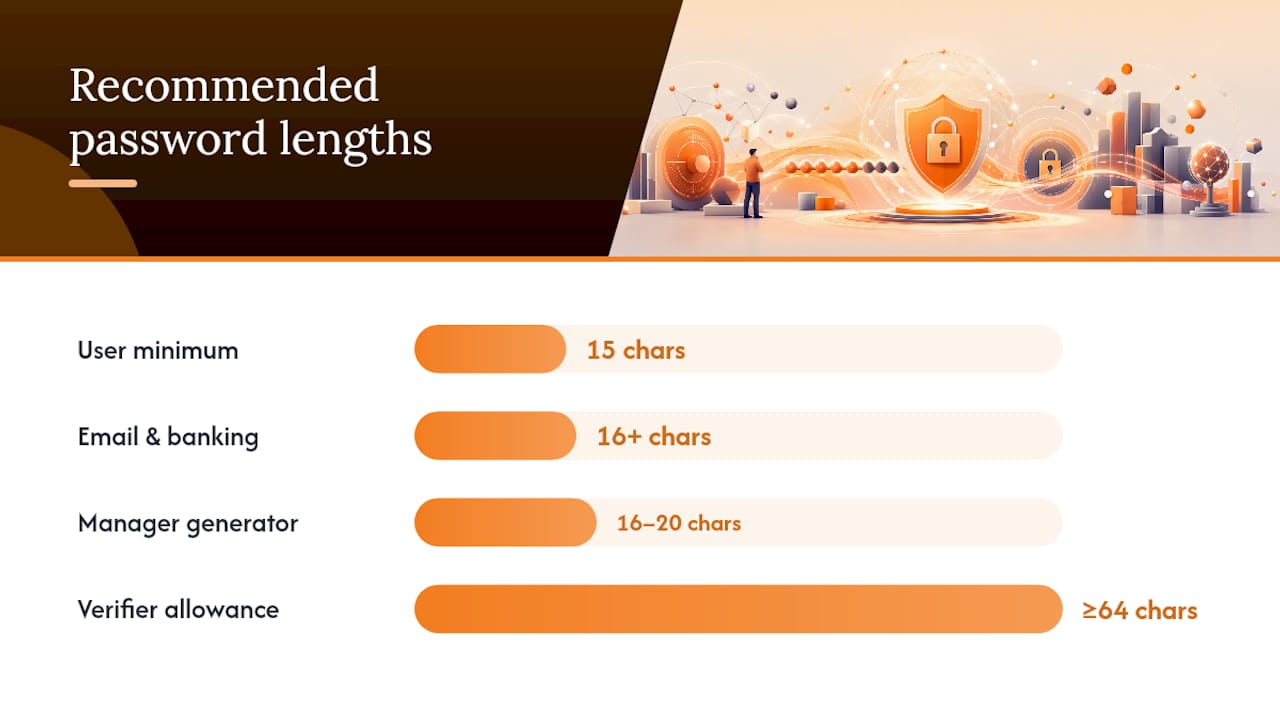
Length beats complexity. NIST recommends a 15-character minimum for user-chosen passwords. CISA’s examples push to 16 characters for most accounts. The math is straightforward: every additional character multiplies the search space an attacker must cover. A 16-character random string is not marginally harder to crack than an 8-character one with symbols; it is orders of magnitude harder. Verifiers should allow at least 64 characters to support long passphrases.
Randomness prevents guessing. Predictable patterns (keyboard walks, names, dates, song lyrics) are the first things automated tools try. True randomness, whether from a generator or a diceware word list, removes the patterns attackers exploit. For passwords you must type, a passphrase of four to six genuinely random words is both memorable and strong. For passwords stored in a manager, let the generator produce a random string of 16–20 characters.
Uniqueness stops credential stuffing cold. Reusing a password across accounts means one breach exposes all of them. This is the single biggest user-level risk, and a manager eliminates it with almost no extra effort.
- Use 15 characters minimum; 16+ for email, banking, and your password manager vault.
- Prefer a passphrase for anything you must memorize; use random strings for everything else.
- Never reuse a password across two accounts, even slightly modified versions.
- Screen new passwords against known breach lists; NIST SP 800-63-4 requires this for compliant systems.
Pro Tip: For your master password or any memorized secret, try diceware: roll physical dice (or use a diceware tool) to pick four to six words from a standard word list. “correct-horse-battery-staple” is the famous example, but pick your own four words with no personal connection. That gives you a passphrase that is both genuinely random and possible to remember.
How to create a strong password you can actually remember
When a password manager is not an option for a specific account, a passphrase is your best move.
How to build one:
- Pick four to six words with no relationship to each other, your life, or pop culture.
- Avoid quotes, song lyrics, book titles, or anything a social media profile could reveal.
- Separate words with a space, hyphen, or number if the site requires it.
- Add one uppercase letter and one number if composition rules demand it, but keep the words random.
What to avoid:
- Dictionary words used alone or in obvious phrases (“sunshine,” “iloveyou,” “letmein”).
- Predictable substitutions: “Password1!” is still one of the most commonly guessed strings in breach databases. Swapping “a” for “@” or “o” for “0” adds almost no real entropy because attackers apply those substitutions automatically.
- Keyboard walks like “qwerty,” “123456,” or “zxcvbn.”
- Personal facts: birthdays, pet names, street addresses, or anything in your social media bio.
- Short passwords padded with symbols to meet a minimum, such as “Cat!1234.”
Handling sites with forced composition rules:
Some sites still require uppercase, lowercase, a number, and a symbol. Satisfy those rules at the end of a long passphrase rather than building the whole password around them. “correct-horse-battery-7Staple” meets most composition requirements while keeping the length and randomness that actually matter. The WildandFree Tools guide on strong password patterns confirms that substitution tricks are defeated quickly by modern cracking tools, while length remains the dominant protection.

Why a password manager is the most practical security upgrade you can make
A password manager solves the memory problem completely. It generates a unique, random password for every account, stores it encrypted, and fills it in automatically. You remember one strong master password; the manager handles the rest.
Both NIST and CISA now explicitly recommend password managers. NIST SP 800-63-4 requires verifiers to support paste and autofill on login forms precisely because blocking them discourages manager use. The security model behind password managers relies on zero-knowledge encryption, meaning the provider never sees your vault contents.
What to look for when choosing a manager:
- Zero-knowledge encryption: Your vault is encrypted locally before it ever reaches a server.
- MFA on the vault: Protect the manager itself with a hardware key or authenticator app.
- Secure recovery: Understand the recovery process before you need it; a manager with no recovery path is a liability.
- Breach monitoring: Alerts when a stored credential appears in a known breach database.
- Autofill compatibility: Works across browsers and mobile apps without friction.
- Open standards support: FIDO2/WebAuthn compatibility for passkey storage is increasingly important.
Deployment tips for organizations:
Set generator defaults to 20 characters. Migrate high-value accounts (email, VPN, admin consoles) first. Train staff on creating a strong master password using the passphrase method above. Require MFA on every vault. Block the ability to export vault contents to unencrypted formats.
Pro Tip: Before migrating, audit your existing accounts for reuse. Most managers flag duplicate passwords automatically. Fix the duplicates in order of account sensitivity, starting with anything tied to financial data or identity verification.
MFA and passkeys: what to turn on first
MFA is the single most effective control you can add after a strong password. Even a weak password becomes much harder to exploit when a second factor is required. Passkeys go further: they replace the password entirely with a cryptographic key pair tied to your device, making phishing nearly impossible.

NIST guidance recommends passkeys (FIDO2/WebAuthn) as the preferred option where available, with authenticator apps as the fallback, and SMS as a last resort only.
Comparison by security level:
- Passkeys (FIDO2/WebAuthn): Phishing-resistant by design. The private key never leaves your device. No code to intercept. Enable wherever the service supports it.
- Authenticator apps (TOTP): Significantly better than SMS. Codes are generated locally and expire in 30 seconds. Vulnerable to real-time phishing but far harder to intercept than SMS.
- SMS one-time codes: Better than nothing, but SIM-swapping attacks can redirect them. Avoid for high-value accounts if a better option exists.
- Hardware security keys (FIDO2): The gold standard for high-risk accounts. Physically present the key; no code to type or intercept.
Where to enable MFA first:
- Your password manager vault.
- Your primary email account (it controls password resets for everything else).
- Banking and financial accounts.
- Work accounts and VPN.
- Social media accounts with access to payment methods.
Pro Tip: Enable MFA on your recovery email and backup phone number too. Attackers who can’t break your primary account often target the recovery path instead. Store backup codes for each MFA-enabled account in your password manager vault, not in a text file on your desktop.
What to do immediately if an account is compromised
Speed matters here. The faster you act, the less damage a breach causes.
Immediate actions (within the first hour):
- Change the password on the compromised account to a new, unique one generated by your manager.
- Enable MFA on that account if it was not already active.
- Revoke all active sessions and third-party app tokens connected to the account.
- Check whether you used the same password anywhere else and change every instance.
Within 24 hours:
- Search Have I Been Pwned to confirm the scope of the exposure.
- Review recent account activity for unauthorized logins, sent messages, or changed settings.
- Notify contacts if the compromised account could have been used to send phishing messages to them.
Within 72 hours:
- For financial accounts: contact your bank, place a fraud alert with the major credit bureaus (Equifax, Experian, TransUnion), and review recent transactions.
- For work accounts: notify your IT or security team immediately; do not wait to assess the damage yourself.
- Consider an identity protection service if sensitive personal data (Social Security number, financial credentials) was exposed.
Common password mistakes that undermine your security
Most breaches exploit the same handful of predictable behaviors. Recognizing them is the first step to stopping them.
User-level mistakes:
- Reusing the same password across multiple accounts.
- Using short passwords padded with symbols to meet a minimum length requirement.
- Applying predictable substitutions (“3” for “e,” “@” for “a”) and thinking they add real security.
- Writing passwords in a notes app, spreadsheet, or sticky note in cleartext.
- Storing passwords in a browser without a master password protecting the browser profile.
Site and policy red flags:
- Login forms that block paste or autofill, which discourages manager use and signals outdated security thinking.
- Sites that cap password length at 8 or 12 characters, suggesting passwords may be stored in a weak format.
- Sites that reject spaces or special characters without explanation.
Organizational policy mistakes:
Mandatory periodic resets (e.g., every 90 days) push users toward weaker, predictable passwords because they run out of strong ideas. NIST SP 800-63-4 explicitly advises against routine expiration. The evidence on password policy consistently shows that forced rotation and overly strict composition rules reduce real-world security by increasing predictable patterns and help-desk resets. Reserve forced resets for confirmed compromises only.
A 10-minute checklist to secure your most important accounts
Work through this in order. The first three steps cover the most risk.
- Enable MFA on your email account (2 minutes): Go to security settings, choose an authenticator app or passkey, and save backup codes to your manager.
- Install a password manager (3 minutes): Choose one with zero-knowledge encryption and MFA support. Set the generator default to 16–20 characters.
- Secure the manager vault (1 minute): Enable MFA on the vault itself. Set a strong passphrase as the master password.
- Change your email password (1 minute): Generate a new one via the manager.
- Enable MFA on banking accounts (2 minutes): Use an authenticator app if the bank supports it; hardware key if available.
- Check for reused passwords (2 minutes): Most managers flag duplicates automatically. Prioritize financial and work accounts.
- Run a breach check (1 minute): Enter your email at Have I Been Pwned. Change any exposed passwords immediately.
- Verify recovery options (1 minute): Confirm your recovery email and phone number are current on each critical account. Store backup codes in the manager.
Total: roughly 13 minutes for a thorough pass. TextKit’s migration guidance recommends the same prioritization: email and manager vault first, then financial accounts, then everything else in batches.
When you actually need to update a password
The old rule of changing passwords every 60 or 90 days is gone. NIST SP 800-63-4 and the synthesis of updated NIST guidelines both advise against scheduled rotation because it drives predictable patterns (“Summer2026!” becomes “Fall2026!”) without improving security.
Change a password when:
- A service you use announces a breach.
- Your breach-monitoring tool flags the credential as exposed.
- You suspect unauthorized access (unfamiliar login location, changed settings you did not make).
- You shared a password with someone who no longer needs access.
- You created the password before you had a manager and it is short, reused, or predictable.
For everything else, a strong, unique, manager-stored password does not need a scheduled replacement. The energy is better spent enabling MFA and migrating remaining weak passwords.
How to store passwords safely without a password manager
A manager is the right answer for almost everyone, but if you genuinely cannot use one for a specific account, here are the safer alternatives.
Encrypted notes: Use an app that encrypts content at rest and requires authentication to open (a PIN, biometric, or passphrase). Apple Notes with a password lock, or an encrypted notes app, is meaningfully better than a plain text file.
Paper, stored securely: Writing passwords on paper is not inherently wrong if the paper is stored like a physical asset. A locked drawer or a home safe is reasonable for a small number of critical recovery codes. Never carry it in a wallet or leave it near a workstation.
What to avoid absolutely:
- Unencrypted text files, spreadsheets, or email drafts.
- Browser-saved passwords without a master password protecting the browser profile.
- Sticky notes on or near a monitor.
- Shared documents or cloud notes without encryption.
The security considerations around password manager safety make clear that even an imperfect manager with MFA on the vault is more secure than most manual storage methods. Paper is a fallback for a handful of recovery codes, not a system for managing dozens of accounts.
The trade-offs organizations consistently get wrong
Most organizations are still running password policies that NIST deprecated years ago: 90-day forced resets, minimum-complexity rules that ban spaces and long passphrases, and no breach-credential screening. The NIST guidelines synthesis is direct about this: those rules increase help-desk volume, push users toward weaker predictable passwords, and provide almost no real security benefit.
The better investment is straightforward. Deploy a password manager to every employee. Require phishing-resistant MFA (FIDO2 keys or passkeys) for privileged accounts and email. Set a 15-character minimum and allow passphrases with spaces. Screen new passwords against breach databases at creation. Then stop there. Adding more complexity rules on top of those four controls does not improve security; it just adds friction.
The honest trade-off is user friction versus security. Some friction is worth it: MFA on email is non-negotiable even if a few users complain. Forced 90-day resets are not worth it: the friction is real, the security gain is negligible, and the password policy evidence backs that up. Start with the highest-impact controls, measure help-desk volume and phishing incident rates, and iterate from there. Organizations that try to fix everything at once usually fix nothing.
Logmeonce puts these recommendations into practice for you
Knowing the right password recommendations is one thing. Having a system that enforces them automatically is another. Logmeonce provides password management, phishing-resistant MFA, and breach monitoring in a single platform, so you are not stitching together three separate tools to cover the same ground.

The vault uses zero-knowledge encryption, which means Logmeonce never sees your stored credentials. Passwordless and passkey options are built in for accounts that support FIDO2/WebAuthn. Breach monitoring runs continuously and alerts you when a stored credential appears in a known leak. For organizations, enterprise onboarding includes admin controls, SSO integration, and audit logging. See the full password management benefits and start a free trial to evaluate whether it fits your setup.
Sources
- NIST.SP.800-63-4
- How Do I Create a Good Password? | NIST
- Use Strong Passwords | CISA
- NIST Password Guidelines 2026: What Actually Changed (And What You Must Do) | TextKit Blog
Recommended
- The Best Password Manager Tips You Need to Know
- Password Reuse: Convenient, But Dangerous – LogMeOnce


