


 Password Manager
 Identity Theft Protection

 Team / Business
 Enterprise
 Government
 MSP
MSP


TL;DR:
- Two-factor authentication enhances security by requiring two proofs of identity before granting account access. Most platforms recommend using authenticator apps or hardware keys over SMS to avoid vulnerabilities like SIM-swapping. Proper setup, backup code storage, and matching security levels to account risk are essential for effective protection.
Two-factor authentication (2FA) is a security process that requires two separate proofs of identity before granting access to your account. A password alone is no longer enough. Services like Google, Microsoft, and Apple now treat 2FA as the baseline standard for account protection, and for good reason. This guide walks you through how to use two-factor authentication from setup to daily use, without the technical jargon.
What do you need before setting up two-factor authentication?
Getting ready before you start saves time and prevents lockouts. You need three things in place before enabling 2FA on any account.
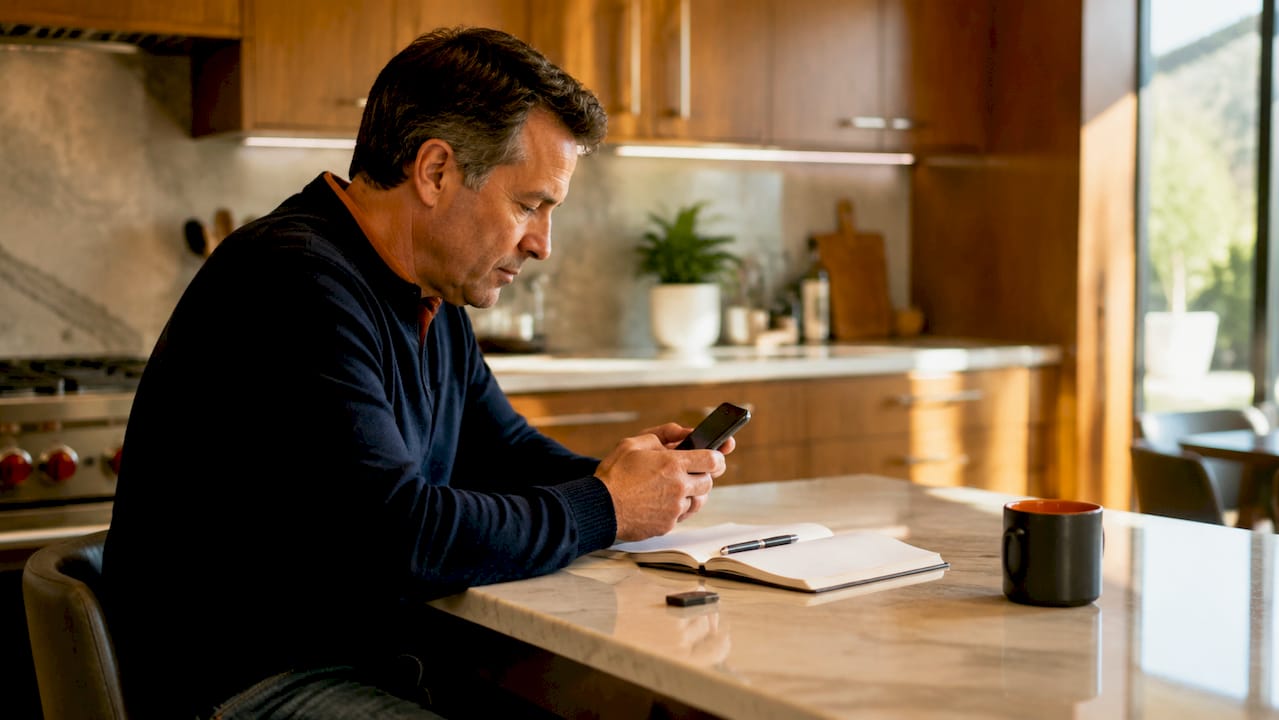
A device to receive codes. Most people use a smartphone. Some use a hardware security key like a YubiKey. Either works, but your choice affects how secure you are.
An authenticator app. Authenticator apps like Google Authenticator, Authy, and Aegis generate rotating six-digit codes locally on your device without needing an internet connection. That local generation is what makes them more secure than SMS. A text message can be intercepted through SIM-swapping; a locally generated code cannot.
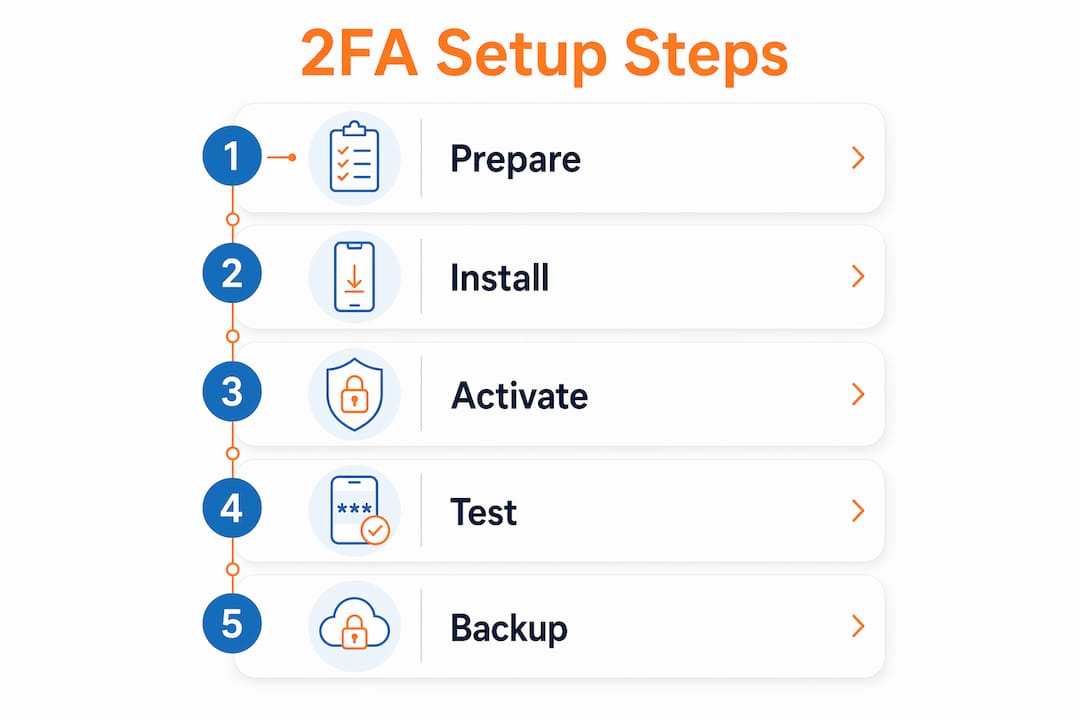
Backup codes. Every major platform gives you a set of one-time backup codes when you enable 2FA. These are your safety net if you lose your phone. Failing to save backup codes risks a lockout that can take days or weeks to resolve. Print them or store them in an encrypted notes app.
Here is a quick checklist of what to gather before you start:
- A smartphone with Google Authenticator, Authy, or Aegis installed
- A hardware key (optional but recommended for high-value accounts)
- Access to the email address or phone number tied to your account
- A secure place to store backup codes (printed copy or encrypted storage)
- Five to ten minutes per account for initial setup
Pro Tip: Set up 2FA on your email account first. Your email is the recovery key for almost every other account you own. Securing it first protects everything downstream.
How to enable two-factor authentication on popular platforms
The steps vary slightly by platform, but the pattern is the same across Google, Apple, and Microsoft.
Enabling 2fa on your apple account
- Open Settings on your iPhone or iPad.
- Tap your name at the top, then select Sign-In & Security.
- Tap Two-Factor Authentication and follow the prompts.
- Enter a trusted phone number to receive verification codes.
- Apple will send a six-digit verification code to your trusted device or phone number whenever you sign in on a new device.
You can also enable it on the web at appleid.apple.com under the Security section. Apple recommends securing your device with a passcode and Face ID alongside 2FA, because a compromised device undermines the second factor entirely.
Enabling 2fa on your google account
- Go to myaccount.google.com and click Security.
- Under “How you sign in to Google,” select 2-Step Verification.
- Click Get Started and follow the prompts.
- Choose your second factor: Google Authenticator, a hardware key, or a backup phone number.
- Scan the QR code with your authenticator app if you chose that option.
- Save your backup codes in a secure location.
Enabling 2fa on microsoft and social media accounts
For Microsoft, go to account.microsoft.com, select Security, then Advanced Security Options, and turn on two-step verification. For Facebook, navigate to Settings and Privacy, then Security and Login, and look for Two-Factor Authentication. Instagram and X (formerly Twitter) follow a nearly identical path through their security settings menus.
The table below summarizes where to find 2FA settings on the most common platforms:
| Platform | Where to Find 2FA Settings |
|---|---|
| Apple Account | Settings > [Your Name] > Sign-In & Security |
| Google Account | myaccount.google.com > Security > 2-Step Verification |
| Microsoft Account | account.microsoft.com > Security > Advanced Security Options |
| Settings > Security and Login > Two-Factor Authentication | |
| Settings > Accounts Center > Password and Security |
Pro Tip: After enabling 2FA on any account, immediately test it by signing out and signing back in. Confirm your authenticator app or backup code works before you need it in a real situation.
How does two-factor authentication work day to day?
Once 2FA is active, your daily sign-in experience changes slightly but predictably. Users should expect 2FA prompts primarily when signing into new devices or browsers, not every single time they open an app on a trusted device. That distinction matters because many people assume 2FA will slow them down constantly. It does not.
Here is what the typical flow looks like:
- You enter your username and password as usual.
- The platform detects you are on a new device or browser and triggers the second factor.
- Your authenticator app displays a six-digit code that refreshes every 30 seconds.
- You type the code into the login screen and gain access.
- The device is marked as trusted, and future logins from it skip the code prompt.
The most common daily mistake is letting your phone battery die with no backup plan. Keep your recovery codes accessible offline. A printed copy in a locked drawer is a perfectly valid strategy for small business owners who manage multiple accounts.
Biometrics add another layer of protection here. If your phone uses Face ID or a fingerprint to open the authenticator app, a thief who steals your phone still cannot retrieve your codes without your face or fingerprint. That combination of device security and app-level authentication is exactly what security professionals recommend.
What are the biggest two-factor authentication pitfalls to avoid?
Most 2FA failures come from setup mistakes, not from the technology itself. Knowing the common traps in advance keeps you protected.
Relying solely on SMS. SMS-based 2FA is vulnerable to SIM-swapping attacks, where a criminal convinces your carrier to transfer your number to their SIM card. SMS is still better than no second factor, but switch to an authenticator app or hardware key whenever the platform allows it.
Not testing recovery before you need it. Verifying backup access before relying fully on 2FA is the first operational step most guides skip. Sign out and test your backup code within 24 hours of setup.
Using the same phone number across all accounts. If that number is compromised, every SMS-based account falls at once. Use an authenticator app to decouple your second factor from your phone number.
Ignoring assurance levels. NIST SP 800-63B-4 defines authentication assurance levels that guide which 2FA method fits which risk level. A personal social media account and a business banking account do not need the same level of protection. Matching the method to the risk is what security professionals call identity hardening.
“Hardware security keys such as YubiKey fully defeat phishing attacks unlike SMS or authenticator apps, making them the strongest available second factor for high-value accounts.”
For small business owners managing payroll systems, client data, or financial accounts, a YubiKey is worth the $25–$50 investment. For personal accounts, Google Authenticator or Authy covers the vast majority of threats you will actually face.
Key takeaways
Two-factor authentication works because it requires physical possession of a second device or code, making stolen passwords alone worthless to attackers.
| Point | Details |
|---|---|
| Start with your email account | Securing email first protects every account that uses it for password recovery. |
| Choose authenticator apps over SMS | Apps like Google Authenticator and Authy generate codes locally, defeating SIM-swap attacks. |
| Save backup codes immediately | Store printed or encrypted backup codes before you need them to avoid days-long lockouts. |
| Test recovery before relying on 2FA | Sign out and verify your backup method works within 24 hours of enabling 2FA. |
| Match method to risk level | Use hardware keys like YubiKey for financial and business accounts; apps suffice for personal use. |
Why i think most people set up 2fa wrong
After years of working in the identity security space, the pattern I see most often is this: someone enables 2FA on one account after a scare, feels secure, and never revisits the setup. That is not a security strategy. That is a checkbox.
The NIST digital identity guidelines updated in 2025 make a point that most consumer guides ignore. Authentication assurance levels exist because not all accounts carry the same risk. Treating your Netflix login the same as your business bank account is a mistake. One requires convenience. The other requires the strongest factor you can deploy.
What I have found actually works is a tiered approach. Use an authenticator app for everyday accounts. Use a hardware key for anything tied to money, client data, or your business identity. And treat your recovery codes like a physical key to your house. You would not leave a spare key under the doormat. Do not leave your backup codes in an unencrypted notes app.
The other thing most guides miss is the business case for 2FA. For small business owners, a compromised account is not just an inconvenience. It can mean exposed client records, lost revenue, and reputational damage that takes months to repair. The ten minutes it takes to set up 2FA on your business accounts is the highest-return security investment you can make.
Convenience and security are not opposites here. A well-configured 2FA setup, with trusted devices and a reliable authenticator app, adds maybe five seconds to your login on a new device. That is the trade-off. Five seconds of friction for a dramatically harder target.
— Mike
Protect your accounts with Logmeonce
Logmeonce brings together password management and multi-factor authentication in one platform built for individuals and small businesses. You get passwordless MFA, single sign-on, dark web monitoring, and encrypted cloud storage without needing to juggle separate tools. Setting up and managing 2FA across dozens of accounts becomes significantly easier when everything lives in one secure dashboard. Logmeonce supports the NIST 800 security standards that underpin modern authentication best practices. Explore Logmeonce’s full cybersecurity solutions and see how they complement the 2FA setup you just completed.
FAQ
What is two-factor authentication?
Two-factor authentication is a login process that requires two proofs of identity: your password plus a second factor such as a code from an authenticator app, an SMS message, or a hardware key.
Is sms-based 2fa safe enough?
SMS-based 2FA is better than no protection but is vulnerable to SIM-swapping attacks. Authenticator apps like Google Authenticator or Authy are more secure and are the recommended alternative.
What happens if i lose my phone with 2fa enabled?
Use the backup codes you saved during setup to regain access. If you did not save backup codes, contact the platform’s support team directly, though account recovery can take days or weeks.
Which accounts should i prioritize for 2fa setup?
Start with your primary email account, then your financial accounts and any business tools that store client data. These carry the highest risk and benefit most from a strong second factor.
Do i need a hardware key or will an authenticator app work?
An authenticator app like Authy or Google Authenticator covers most personal and small business needs. Hardware keys like YubiKey provide the strongest protection and are worth using for high-value accounts such as banking or payroll systems.
Recommended
- How Two Factor Authentication (2FA) Can Keep Your Accounts Safe
- What is 2FA? The Importance of Two Factor Authentication
- What Is Two-Factor Authentication? – LogMeOnce
- The Business Benefits of Two-Factor Authentication – LogMeOnce


