


 Password Manager
 Identity Theft Protection

 Team / Business
 Enterprise
 Government
 MSP
MSP

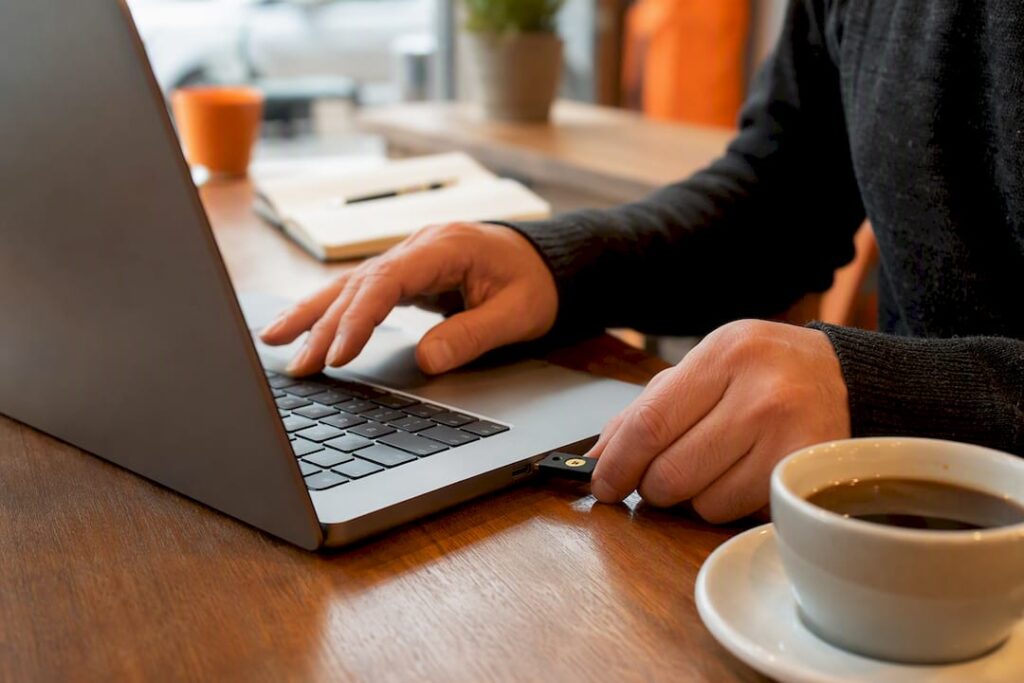
Here’s the whole system in one line: one memorized master passphrase, a password manager for everything else, passkeys or an authenticator app for multi-factor authentication, devices kept current, and a breach monitor running in the background. That’s it. Learning how to secure online accounts doesn’t require a security degree; it requires setting this up once and letting it run.
Not every account deserves equal attention on day one. Start with the accounts that unlock everything else:
- Your primary email (it resets every other password)
- Banking and financial apps
- Your main cloud storage account
- Any admin or developer accounts tied to your work
Right now, before you read further: turn on multi-factor authentication for your primary email, then check whether you’re reusing passwords anywhere. Most password managers will flag reused credentials in about a minute.
Key Takeaways
Securing your accounts long term comes down to one system: a password manager, passkey or app-based MFA, and breach monitoring working together instead of five separate habits you have to remember.
| Point | Details |
|---|---|
| Start with high-value accounts | Secure email, banking, and cloud storage first since they unlock or protect everything else. |
| Length beats complexity | Use passphrases of 15 or more characters instead of forced symbols, per NIST guidance. |
| Rank your MFA methods | Choose hardware keys or passkeys first, authenticator apps second, SMS only as a last resort. |
| Back up recovery methods | Store MFA backup codes and a spare hardware key somewhere separate from your main device. |
| Use an integrated system | Logmeonce combines a password vault, passwordless MFA, and dark web monitoring in one account. |
How to Secure Online Accounts With Better Passwords
Forget the old rule about mixing symbols and capital letters into an unmemorable mess. The National Institute of Standards and Technology now recommends length over complexity: aim for a length considered long by modern standards, and don’t bother forcing a password change on a schedule unless you have a specific reason to believe it’s been exposed.
A passphrase built from several unrelated words beats “P@ssw0rd1!” every time, both for security and for your own sanity. Something like “purple-tractor-moonlight-42” is longer, harder to crack, and actually possible to type from memory. Save fully random, generator-made strings for accounts your password manager will autofill anyway. You’ll never type those by hand, so there’s no reason to make them memorable.
The friction shows up when a site still enforces outdated rules: an 8-character maximum, a mandatory special character, no spaces allowed. When that happens, don’t fight it. Let your password manager generate the longest, most complex string the site allows and store it. You only need one password memorized. Every other credential can be gibberish.
- Build your master passphrase from multiple random words, not a memorable sentence a guesser could piece together
- Reserve full complexity requirements for manager-generated passwords you’ll never type
- Only change a password after a real signal of compromise, not on a calendar
Pro Tip: Test your passphrase by trying to say it out loud to a stranger without embarrassment. If you can’t, it’s probably too personal or too guessable.
Why Use a Password Manager for Every Other Account?
A password manager is the only realistic way to have a unique, long password on every account without losing your mind. The FTC recommends password managers specifically because they generate, store, and autofill credentials, and many will alert you the moment one of your saved logins turns up in a breach.
Behind the scenes, a manager worth trusting encrypts your vault so that even the company running it can’t read your stored passwords, a model often called zero-knowledge encryption. That vault should itself be protected by MFA and a device that locks automatically, because a manager that isn’t secured with its own MFA becomes a single point of failure instead of a safeguard.
Setting one up correctly takes about 20 minutes:
- Create your one memorized master passphrase (15+ characters, no reuse anywhere else)
- Turn on MFA for the vault itself before adding a single password
- Import or manually add your highest-value accounts first: email, banking, cloud storage
- Let the manager generate new, unique passwords for weak or reused logins as you go
- Configure autofill only on your trusted devices, not on shared or public computers
- Test account recovery once, before you need it in an emergency
Migrate in that order. Moving your highest-value accounts first and testing recovery immediately avoids the lockout scramble that happens when people switch managers mid-crisis.
Pro Tip: Don’t delete old passwords from your memory or a written backup until you’ve successfully logged into each migrated account at least once through the new manager.
Which MFA Method Should You Actually Use?
Not all multi-factor authentication is equal, and treating a text message code the same as a hardware key is a mistake that gets people breached. Rank your options like this: hardware security keys and passkeys sit at the top, authenticator apps like Google Authenticator or Authy come next, and SMS codes are the fallback you use only when nothing better is offered.
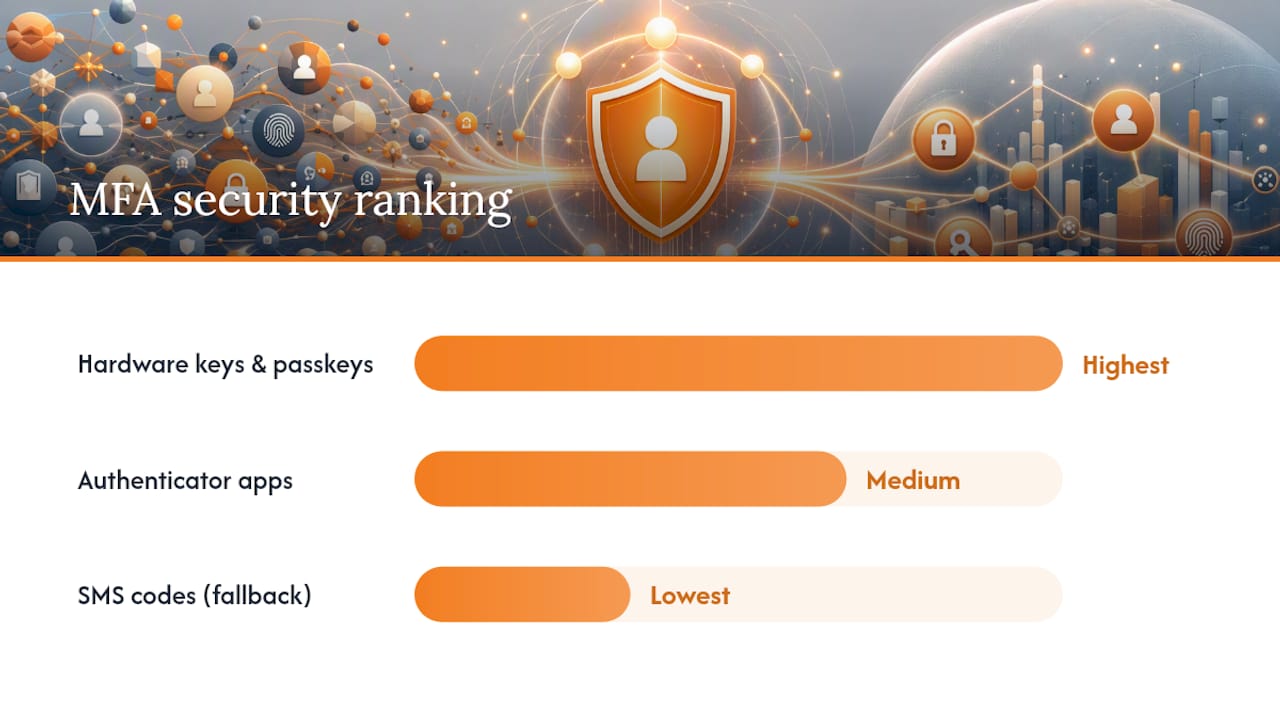
CISA and the FTC both point out that SMS is vulnerable to SIM swapping and interception, where an attacker convinces your carrier to move your number to their device. Authenticator apps generate codes locally on your phone, so there’s nothing to intercept over the cell network. Passkeys go a step further: they’re built on cryptographic key pairs that resist phishing entirely, since there’s no code to trick you into typing into a fake site.
Enrolling a passkey usually takes under a minute through your account’s security settings, and most platforms let you register a physical key like a YubiKey alongside it. When you set this up, generate backup codes and store them somewhere separate from your primary device, ideally in an encrypted note rather than a screenshot on your phone.
- Prioritize hardware keys or passkeys for email, banking, and cloud accounts
- Use an authenticator app everywhere passkeys aren’t yet supported
- Keep SMS only as a last resort, and drop it once a stronger method is confirmed working
MFA fatigue attacks, where an attacker spams your phone with approval prompts hoping you’ll tap “approve” out of annoyance, are a real reason to move away from push notifications toward number matching or hardware keys wherever your accounts support it.
Keeping Devices and Software Patched
Weak passwords get the headlines, but an outdated browser or router is often the easier door in. Three habits close most of that gap.
- Turn on automatic updates for your operating system, browser, and any app that touches sensitive data, and don’t defer security patches for “later.”
- Lock down your home router: change the default admin password immediately, enable WPA3 encryption if your router supports it, and disable remote administration unless you specifically need it.
- Audit your browser extensions every few months. Remove anything you don’t actively use, since a single compromised extension can read everything you type. Pair that with full-disk encryption and an automatic screen lock on every device you own.
NCSC’s top-tips guidance groups these together with password managers and two-step verification for a reason: none of them work in isolation, and skipping the boring patching step undoes the effort you put into MFA.
Are Your Recovery Options a Backdoor Into Your Accounts?
Your recovery email and phone number are effectively master keys to every account tied to them, yet most people secure them less carefully than the accounts they protect. Lock down your recovery email with the same hardware key or authenticator app you use on your primary accounts, not an afterthought password.
Third-party app permissions are the other blind spot. Look through the connected-apps or “sign in with Google/Apple” list on your major accounts twice a year and revoke anything you no longer use. That old quiz app from three years ago that still has read access to your email is not doing you any favors.
- Protect recovery email and phone with the strongest MFA you have available
- Revoke OAuth access for apps you no longer recognize or use
- Use a separate email alias for forums, contests, and low-trust signups
Pro Tip: Create a dedicated “throwaway” alias for one-off signups so a breach on some random site never touches your real inbox.
What to Do the Moment an Account Is Breached
Speed matters more than perfection here. The moment you learn a password’s been exposed, work through this in order:
- Change the compromised password immediately, using your manager to generate a new, unique one
- Confirm MFA is active on that account, and enable it now if it wasn’t already
- Revoke all active sessions and logged-in devices from the account’s security settings
- Check for unauthorized email forwarding rules, added recovery contacts, or changed account details
A password appearing in a breach doesn’t automatically mean your account was accessed, but it does mean you should treat the credential as burned and rotate it immediately rather than waiting to see what happens.
Services like Have I Been Pwned will tell you whether an email address turns up in a known breach, and most password managers layer their own alerts on top of that. The FTC’s guidance on protecting personal information covers what to do next if financial accounts are involved. For identity theft specifically, identitytheft.gov walks through reporting and recovery, and a documented breach response checklist can save you from missing a step while you’re rattled.
Advanced Protections for High-Value Accounts
If you own a domain, run a business account, or manage a large digital footprint, the basics need reinforcement. Hardware-bound passkeys, tied to a physical device rather than synced across a cloud keychain, are the strongest option for your most critical logins. Synced passkeys are convenient, but they inherit the security of whatever account syncs them, so plan your recovery path before you need it.
Domain owners face their own exposure. Lock your domain registrar account behind hardware MFA, enable registrar lock to prevent unauthorized transfers, and configure SPF, DKIM, and DMARC records so attackers can’t spoof mail from your domain.
- Use hardware-bound passkeys on email, financial, and admin accounts where the option exists
- Enable registrar lock and hardware MFA on any domain you own
- Store backup codes and private keys in a separate, encrypted location from your primary device
Why Trust This Security Framework?
This guide draws directly on federal and international guidance including NIST’s password standards, CISA’s account security recommendations, and NCSC’s top tips, cross-checked against how modern security tools actually implement them.
Logmeonce builds password vaults, passwordless MFA, and dark web monitoring specifically to operationalize these same controls, documented across its resource library, rather than leaving them as advice you have to assemble yourself.
- Password vaults implement the “one manager, unique passwords everywhere” recommendation directly
- Passwordless MFA and passkey support map to the hardware-key-first tiering this guide recommends
- Dark web monitoring covers the breach-detection gap between when a credential leaks and when you find out
How Do You Back Up Passwords and MFA Recovery Methods?
Losing access to your password manager or your authenticator app without a backup plan turns a minor inconvenience into a full lockout. Most managers let you export an encrypted backup of your vault; store that file on an encrypted drive or in encrypted cloud storage, never as a plain text file on your desktop.
Authenticator apps are the more common failure point. If your phone is lost or wiped, any authenticator codes tied only to that device are gone unless you saved the setup QR codes or backup codes when you first enrolled. Most services generate one-time backup codes at MFA setup; write them down or store them in an encrypted note, and keep that note somewhere other than the device the MFA protects.
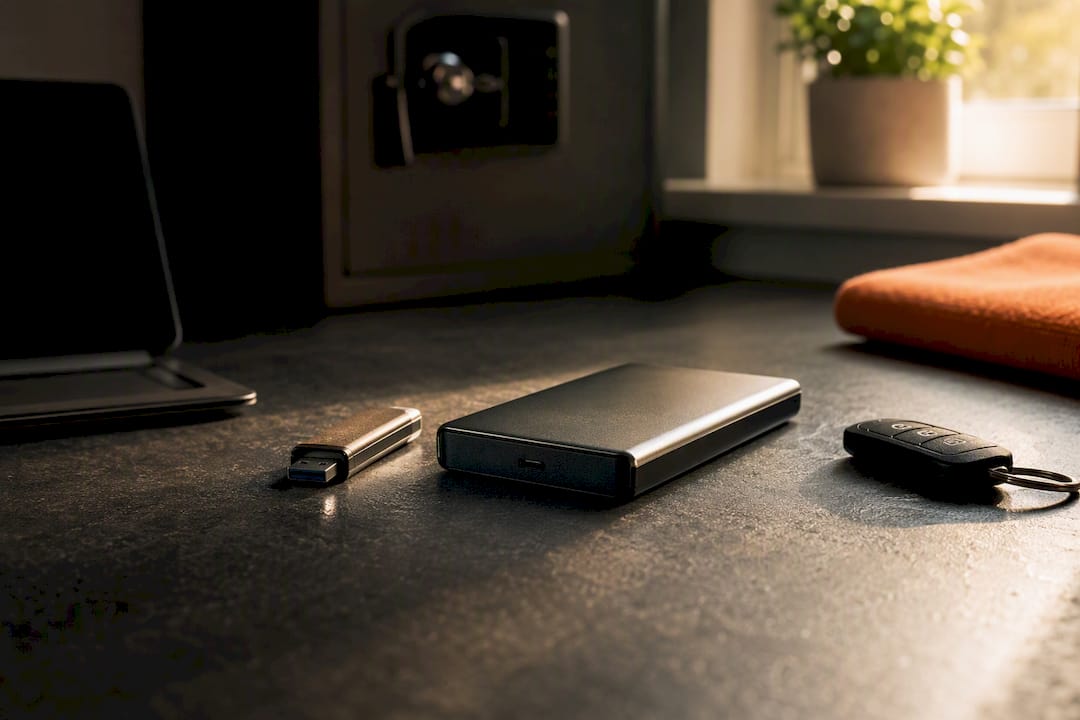
Hardware keys need a backup too. Security professionals generally recommend registering two physical keys per critical account: one you carry, and one stored somewhere safe, like a home safe or a bank box, in case the first is lost or damaged.
A practical backup hierarchy looks like this: your password manager’s encrypted export, your MFA backup codes, and a spare hardware key, each stored in a different location so a single fire, theft, or device failure can’t take out all three at once. Test the recovery process once a year, before an emergency forces you to test it for the first time under stress.
How Do You Set Up Alerts for Suspicious Account Activity?
Most major platforms already offer activity alerts; the problem is almost nobody turns them on until after something goes wrong. Go into your email, banking, and cloud account security settings and enable notifications for new device logins, password changes, and unrecognized locations.
Your password manager can extend this further. Many will monitor the dark web and breach databases continuously and notify you the moment one of your saved credentials shows up in a leaked dataset, often days or weeks before the affected company sends its own notification.
Banking apps typically let you set transaction-amount alerts, which catch fraud faster than any password practice ever could. A $200 charge notification means you can freeze a card in minutes rather than discovering the damage on a monthly statement.
Set up alerts in this order of priority: login alerts on your primary email first, then banking transaction alerts, then breach monitoring on your password manager, and finally login alerts on any account holding stored payment information. Each one takes two or three minutes to configure, and together they shrink the window between compromise and discovery from weeks to minutes.
Is Public Wi-Fi Actually Dangerous, and What Should You Use Instead?
Public Wi-Fi at a coffee shop or airport isn’t automatically a trap, but it removes a layer of protection you don’t get back easily. On an open or poorly secured network, someone else on that same network can potentially intercept unencrypted traffic between your device and the sites you visit.
A VPN encrypts your connection between your device and the VPN provider’s server, closing that gap on networks you don’t control. It’s worth turning on any time you’re on public Wi-Fi, and worth leaving on by default on a laptop that travels with you regularly.
At home, the bigger risk usually isn’t your own network. It’s the router’s default settings. A router still running its factory admin password is an open door for anyone within range, which is why locking that down matters as much as any VPN choice you make on the road.
If you’re ever unsure whether a network is safe, treat it as public by default: avoid logging into banking or sensitive accounts, and let a VPN handle the encryption for you until you’re back on a network you trust.
How Should You Manage Privacy Settings on Your Accounts?
Privacy settings and security settings solve different problems, and conflating them leaves gaps. Security settings stop unauthorized access; privacy settings control what people who are authorized, or the platform itself, can see and do with your information.
Start with your social media accounts, since they tend to have the deepest privacy menus and the most consequences for getting them wrong. Review who can see your posts, whether your location is being tagged automatically, and whether your friends list or follower list is public by default. Most platforms default to more sharing than most people realize.
Search-related privacy settings deserve a separate look. Check whether your accounts are discoverable by phone number or email search, since that setting is often what allows a stranger to find your profile in the first place using information from an unrelated breach.
Go through this every few months, not just once. Platforms change their defaults after redesigns more often than people expect, and a setting you locked down last year can quietly reset.
What I’ve Learned About Making Security Habits Actually Stick
The system in this guide only works if you revisit it. Set a quarterly reminder to check for reused passwords and stale app permissions, and treat every breach notification as an immediate trigger, not a someday task. The people who stay secure aren’t the most paranoid ones. They’re the ones who made checking a habit small enough to actually keep.
Put This System on Autopilot With Logmeonce
Everything in this guide, the password manager, the passkey and MFA enrollment, the breach monitoring, works better as one connected system than as five separate tools you have to remember to check. Logmeonce builds all five into a single account: a password vault, passwordless MFA and passkey support, dark web monitoring that watches for your credentials showing up in breaches, and encrypted cloud storage for the recovery artifacts you can’t afford to lose.

Instead of stitching together an authenticator app, a separate password manager, and a third breach-alert service, you set it up once. If you’ve been putting off migrating from browser-saved passwords or sticky notes, start with the Logmeonce cybersecurity suite and move your email and banking logins over first. That’s the highest-leverage 20 minutes you can spend on this today.
Where to Learn More
- How Do I Create a Good Password? (NIST): the federal standard behind the length-first password guidance in this article
- Creating Strong Passwords and Other Ways to Protect Your Accounts (FTC): consumer guidance on password managers and MFA
- Use Strong Passwords (CISA): government guidance on password managers and two-step verification
- What Should You Do After a Password Breach? (Logmeonce): a step-by-step breach response walkthrough
- Logmeonce Resources: product-aligned guides for implementing the controls in this article
Frequently Asked Questions
What is the single most important step in how to secure online accounts?
Enabling multi-factor authentication on your primary email matters most, since email is usually the reset path for every other account you own.
Do I really need a password manager, or can I just memorize strong passwords?
Memorizing unique, long passwords for dozens of accounts isn’t realistic for most people; a password manager is what makes unique passwords per account actually achievable.
Is SMS-based two-factor authentication still worth using?
It’s better than no MFA at all, but authenticator apps and hardware keys are stronger since SMS can be intercepted through SIM swapping.
How often should I change my passwords?
Change a password immediately if there’s evidence it was exposed in a breach; otherwise, NIST guidance advises against forced periodic rotation for passwords that haven’t been compromised.
What should I do first if I get a breach notification?
Change the affected password right away, confirm MFA is active on that account, and revoke any active sessions before checking for unauthorized changes like new forwarding rules.
Sources
- How Do I Create a Good Password? | NIST
- Creating strong passwords and other ways to protect your accounts | FTC
- Create long, random, unique passwords with a password manager (CISA)
Recommended
- Single Sign On – Online Security Needn’t be Complex
- How Secure is Logmeonce ? – LogMeOnce
- Super Password App – Is It Worth Getting? – LogMeOnce


