


 Password Manager
 Identity Theft Protection

 Team / Business
 Enterprise
 Government
 MSP
MSP


TL;DR:
- Choosing a password manager with zero-knowledge encryption and independent audits ensures maximum security for your vault.
- Dedicated managers with cross-platform sync, MFA support, and export functions provide essential protection and flexibility, especially for small teams.
A password manager is defined as a dedicated application that stores, generates, and autofills your credentials using encrypted vaults protected by a single master password. Knowing how to choose a password manager is one of the most practical security decisions you can make for your personal accounts or small business. The wrong choice leaves you with a tool you stop using. The right choice means every account gets a unique, complex password without the mental overhead of remembering any of them. This guide covers the criteria for choosing a password manager that actually matter: encryption architecture, multi-factor authentication (MFA), cross-platform sync, pricing, and setup pitfalls.
What key features should you look for in a password manager?
The five non-negotiable features of any password manager are zero-knowledge encryption, independent third-party security audits, cross-platform synchronization, MFA support for the vault, and a transparent export function. Each one addresses a specific failure point. Zero-knowledge encryption means the vendor cannot read your vault, even if their servers are breached. Independent audits mean a third party has verified that claim rather than you taking the vendor’s word for it.

Cross-platform sync is not a convenience feature. Dedicated password managers sync encrypted vaults across different operating systems and browsers, which browser-built-in managers cannot reliably do. If your vault only works on one device or one browser, you will bypass it on others, and that defeats the purpose entirely.
MFA for vault access adds a second layer of protection beyond the master password. Even if someone obtains your master password through phishing, they cannot open the vault without the second factor. The export function matters for a different reason: it protects you from vendor lock-in and lets you migrate your data if the service shuts down or raises prices.
Beyond those five, several features are worth having:
- Password generator: Creates random, complex passwords on demand so you never reuse credentials.
- Secure notes: Stores sensitive text like software license keys, Wi-Fi passwords, or banking PINs.
- Breach monitoring: Alerts you when a stored credential appears in a known data leak.
- Secure sharing: Lets you share a login with a family member or colleague without exposing the actual password.
- Emergency access: Grants a trusted contact access to your vault if you are incapacitated or locked out.
Pro Tip: Before you commit to any manager, search for its most recent independent security audit report. If the vendor does not publish one, treat that as a red flag.
How do different pricing models affect your choice?
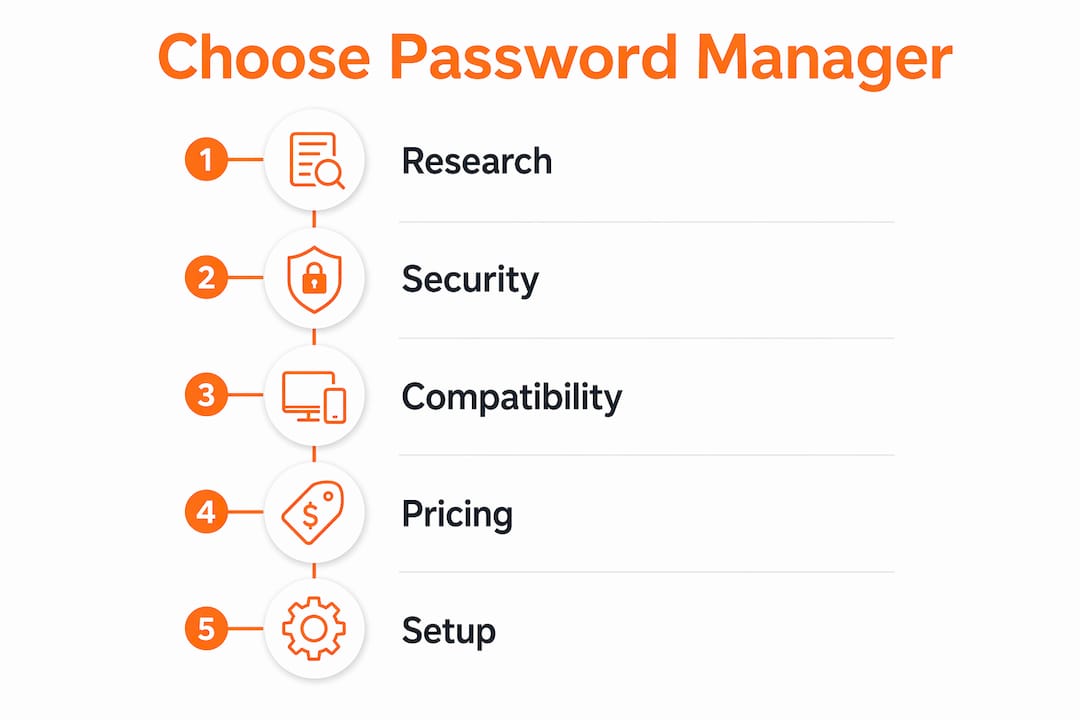
Free password managers can be as secure as paid tiers. The security architecture, not the price, determines how well your vault is protected. What free plans typically lack are the features that matter most for families and small businesses: secure item sharing, priority support, and administrative controls.
Paid plans typically cost between $10 and $60 per year, depending on the tier and number of users. That range covers both individual plans and small team licenses. For a small business, admin controls are the critical differentiator. They let you revoke access when an employee leaves, enforce password policies, and audit who has access to which credentials.
The cost-benefit analysis is straightforward:
- Free plan: Suitable for individuals who need basic storage and autofill on one or two devices.
- Personal paid plan: Adds breach monitoring, cross-device sync without limits, and secure notes.
- Family or team plan: Adds shared vaults, admin controls, and priority support, typically $3–$5 per user per month.
- Business plan: Adds directory integration, detailed audit logs, and policy enforcement.
The mistake most small business owners make is starting on a free plan and never upgrading. When a team member leaves and you cannot revoke their vault access, the free plan’s limitations become a real security gap.
What are the practical steps to set up a password manager securely?
Setup takes less than 30 minutes and the order of steps matters. Skipping steps two or three creates vulnerabilities that undermine the whole system.
- Download the app and browser extension. Install both. The browser extension handles autofill; the app manages your vault and settings.
- Create a strong master password. Use a passphrase of four or more unrelated words, a number, and a symbol. The master password is the sole key to your encrypted vault. Never reuse it from another account.
- Enable two-factor authentication immediately. Do this before importing any passwords. Use an authenticator app rather than SMS when possible.
- Import existing passwords. Most managers accept a CSV export from your browser. After importing, delete the saved passwords from your browser.
- Run the password health report. Most managers flag reused, weak, or compromised passwords. Fix the highest-risk ones first.
- Configure emergency access. Designate a trusted contact who can request access after a waiting period you define.
Pro Tip: Set your emergency access waiting period to 48–72 hours. That window is long enough to deny a fraudulent request but short enough to be useful in a real emergency.
The table below shows which setup steps protect against which specific threats:
| Setup step | Threat it addresses |
|---|---|
| Strong master password | Brute-force attacks on the vault |
| Two-factor authentication | Phishing and credential theft |
| Browser password cleanup | Parallel attack surface on browser data |
| Password health report | Credential stuffing from reused passwords |
| Emergency access | Permanent vault lockout |
What common mistakes should you avoid when choosing a password manager?
The biggest mistake is treating a browser’s built-in password manager as a primary solution. Browser-based managers lack cross-platform portability, advanced sharing controls, and the security hardening that dedicated apps provide. They are convenient, but convenience is not a security architecture.
The second mistake is choosing based on marketing rather than architecture. Several well-marketed password managers have suffered breaches in recent years. Transparent, audited architectures with open-source code are a more reliable signal of trustworthiness than brand recognition or affiliate rankings. Read the audit reports, not the press releases.
Other common pitfalls include:
- Reusing the master password. If your master password exists anywhere else, your entire vault is only as secure as that other account.
- Skipping emergency access setup. Without emergency access configured, a forgotten master password means permanent data loss.
- Ignoring export options. A manager with no export function traps your data. Always verify you can export a full, encrypted backup.
- Choosing a manager with poor update history. Check when the app last received a security patch. Slow patching cycles signal low security investment.
“The best password manager is the one you will actually use consistently. A clunky manager gets bypassed, and a bypassed manager protects nothing.”
That quote captures the core tension in this decision. Security and usability are not opposites, but they do require balance. A manager that demands too many steps for every login will be abandoned within weeks.
Key takeaways
Choosing the right password manager requires prioritizing verifiable security architecture over brand reputation, then matching features to your actual workflow and team size.
| Point | Details |
|---|---|
| Zero-knowledge encryption is non-negotiable | The vendor must be unable to read your vault, even if their servers are compromised. |
| Audits beat marketing | Choose managers with published independent security audits, not just strong brand recognition. |
| Free plans have real limits | Small businesses need paid plans for admin controls, shared vaults, and access revocation. |
| Setup order matters | Enable MFA before importing passwords, and configure emergency access on day one. |
| Browser managers are not enough | Dedicated apps provide cross-platform sync, sharing controls, and stronger security hardening. |
What I’ve learned after years of watching people get this wrong
The most common pattern I see is someone choosing a password manager based on a top-ten list, setting it up halfway, and then abandoning it six months later because it slowed them down. The list was probably affiliate-driven. The setup was incomplete. And the manager was never the right fit for how that person actually works.
The best password manager is not the one with the longest feature list. It is the one that fits your workflow so well that you stop thinking about it. For most individuals, that means a clean interface, reliable autofill, and breach alerts. For small business owners, it means admin controls and shared vaults that do not require an IT department to manage.
The architecture question is where most people underinvest their attention. Open-source code and published audit reports are the two signals that actually tell you whether a vendor’s security claims are real. Marketing copy tells you nothing. A vendor that publishes its audit results is making a verifiable commitment. One that does not is asking you to trust them on faith.
My honest advice: spend 20 minutes reading the security documentation before you spend 20 minutes on the setup. Check whether the password manager is truly secure by looking for audit reports dated within the last 18 months. Then set up emergency access on day one, not later. Later never comes, and a locked vault with no recovery option is a painful lesson.
— Mike
Logmeonce offers a secure starting point for individuals and small businesses
Logmeonce is built around the features that matter most when selecting a password manager: zero-knowledge encryption, cross-device synchronization, MFA, and emergency access. It is designed to work for individuals managing personal accounts and for small business owners who need shared vaults and admin controls without enterprise-level complexity.
The password management benefits Logmeonce provides include breach monitoring, a built-in password generator, secure notes, and cloud storage encryption. Plans are available for personal users and growing teams, with pricing structured to match actual needs rather than forcing upgrades for basic features. If you want to see how the security architecture holds up, Logmeonce publishes detailed feature documentation and offers a free trial so you can test the workflow before committing.
FAQ
What is zero-knowledge encryption in a password manager?
Zero-knowledge encryption means the vendor encrypts your vault on your device before it ever reaches their servers. The vendor cannot read, access, or hand over your passwords, even under legal pressure.
Are free password managers safe to use?
Free password managers can use the same encryption standards as paid tiers. The security architecture matters more than the price, but free plans often lack breach monitoring, secure sharing, and admin controls.
How do I choose a password manager for a small business?
Prioritize admin controls, shared vault access, and the ability to revoke credentials when employees leave. Team password manager features like audit logs and policy enforcement are the key differentiators between personal and business plans.
Why should I avoid using my browser’s built-in password manager?
Browser-based managers lack cross-platform portability, advanced sharing controls, and the security hardening of dedicated apps. They work on one browser but fail when you switch devices or operating systems.
What happens if I forget my master password?
Without a recovery option configured, a forgotten master password means permanent loss of your vault. Set up emergency access with a trusted contact immediately after creating your account.
Recommended
- The Best Password Manager Tips You Need to Know
- Are Password Managers Safe? How to Find a Secure Password Manager
- Data Security: The Incredible Benefits of Using a Password Manager
- How to Choose the Best Password Manager for Business


