


 Password Manager
 Identity Theft Protection

 Team / Business
 Enterprise
 Government
 MSP

AutoFill for credit cards on iPhone requires saving your card in Apple Wallet or iCloud Keychain. Navigate to Settings > Safari > AutoFill, then enable Credit Cards. Your saved cards automatically populate payment fields in Safari and apps where Apple Pay is unavailable. LogMeOnce’s passwordless vault secures your financial data with zero-knowledge encryption.
Key Takeaways
- AutoFill for credit cards requires saving the card in Apple Wallet or iCloud Keychain.
- Enabling Credit Cards in Settings > Safari > AutoFill populates payment fields automatically.
- Adding a credit card to iPhone AutoFill speeds up purchases and eliminates manual entry errors.
- The security code is not stored; Safari prompts for it at checkout each time.
How to add autofill credit card on iPhone?
Adding a credit card to iPhone AutoFill speeds up online purchases and eliminates manual entry errors. The setup works across Safari, apps, and websites. For example, checking out on a retailer’s site in Safari becomes a two-step action: tap the card field, confirm with Face ID or Touch ID, and the card number, expiration date, and cardholder name fill in automatically instead of you digging out a physical card.
What do I need before adding a card?
You need your physical credit card and your iPhone passcode or biometric authentication ready. The process requires iOS 26 or later for systemwide AutoFill support. Older iOS versions limit AutoFill to Safari only.
How do I add a card through Safari settings?
- Open the Settings app and tap Safari.
- Select AutoFill from the Safari menu.
- Turn on the Credit Cards toggle.
- Tap Saved Credit Cards and authenticate with Face ID, Touch ID, or your passcode.
- Tap Add Credit Card.
- Enter your card details manually or tap Use Camera to scan the card without typing.
Your iPhone captures the card number, expiration date, and cardholder name. The security code is not stored. Safari prompts for the code at checkout each time.
How do I turn off credit card autofill on my iPhone?
Open Settings, tap Safari, select AutoFill, and turn off the Credit Cards toggle. Your saved cards stay stored on the device, Safari and supporting apps simply stop suggesting them in payment fields until you switch the toggle back on.
Can I add a card through the Wallet app?
Yes. The Wallet app offers an alternative path. Open Wallet, tap the Add button, then select AutoFill. Authenticate and add your card details. Cards saved here sync through iCloud Keychain to your other Apple devices. For a deeper look at how iCloud Keychain stores and secures this data, see the resource on what iCloud Keychain actually protects and where it falls short.
Where does AutoFill work after setup?
9to5Mac reports that iOS 26 expands systemwide AutoFill to include credit cards. The feature now works in any app or website that requests payment information. Tap a text field, and the AutoFill suggestion appears above the keyboard. Select your card, authenticate, and the fields populate automatically.
Storing payment details on your device creates convenience. It also creates risk if your device falls into the wrong hands. LogMeOnce Passwordless Vault protects sensitive data with zero-knowledge encryption and passwordless authentication. Your payment information stays encrypted and inaccessible to anyone without your biometric approval.
How to update home address on iPhone autofill?
Updating the home address your iPhone uses for AutoFill requires editing the contact card assigned as My Info. Safari and other apps pull address data from this specific contact card. An outdated address leads to shipping errors and missed deliveries.
Where does iPhone autofill get the home address?
The autofill system reads the address from the contact card selected in Settings. Apple’s support documentation confirms that the contact information from that card is entered when you tap AutoFill on webpages in Safari. You lose accuracy the moment that card falls out of date.
How to update home address on iPhone autofill
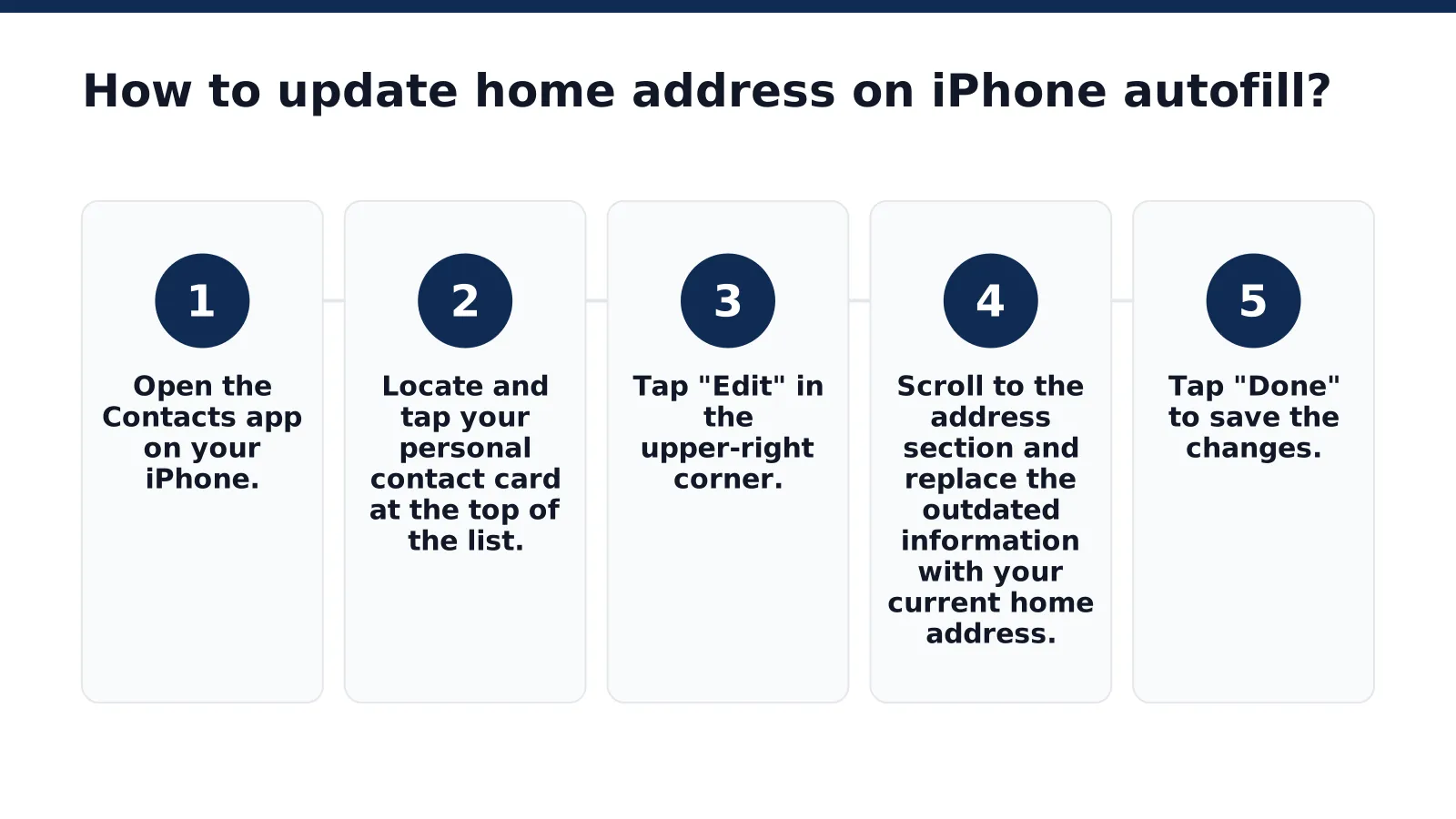
Follow these steps to correct the address your iPhone autofills:
- Open the Contacts app on your iPhone.
- Locate your personal contact card. It appears at the top of the list with “My Card” underneath.
- Tap Edit in the upper-right corner.
- Scroll to the address section and replace the old home address with the current one.
- Tap Done to save the changes.
The update takes effect immediately. Safari and any app using the system autofill service now pull the corrected address.
How to verify the correct contact card is selected
Your iPhone may have multiple contact cards. Only one serves as the autofill source.
- Open Settings and tap Safari.
- Tap AutoFill.
- Ensure Use Contact Info is toggled on.
- Tap My Info and confirm your personal contact card is selected.
A mismatch here causes the wrong address to populate every time. Check this setting after any Apple ID settings change, since account updates sometimes reset the selection.
Does updating the contact card also fix credit card billing addresses?
No. Credit card billing addresses are stored separately. You must edit each card individually. Navigate to Settings > Safari > AutoFill > Saved Credit Cards. Authenticate with Face ID or Touch ID, select the card, and update its billing address. LogMeOnce protects this sensitive data with zero-knowledge encryption, ensuring only you can access stored payment information. Without this step, your transactions risk failing address verification checks.
For users managing multiple passwords and sensitive data across devices, LogMeOnce provides a Passwordless Vault with zero-knowledge encryption. The vault secures passkeys, files, and account credentials without requiring you to remember a master password.
What if iPhone autofill doesn’t work?
iPhone autofill failures block quick checkouts and expose payment details to manual entry errors. A few targeted checks restore the feature.
Why is my iPhone not showing autofill suggestions?
The feature requires explicit activation in two places. Open Settings, tap Safari, then AutoFill. Both Use Contact Info and Credit Cards must display green toggles. A single disabled switch silences all autofill prompts across every app and website.
Authentication also matters. Accessing saved cards demands Face ID, Touch ID, or your passcode. Without that verification, the system withholds card data entirely.
How do I fix autofill on iOS 26?
Apple expanded systemwide autofill in iOS 26. Tap any text field to invoke the copy/paste menu. Choose the AutoFill option, then tap Credit Card. This surfaces saved cards without opening Safari settings.
If the menu still omits autofill, verify both toggles remain active. Restart your iPhone after enabling them. The restart clears temporary caches that sometimes suppress the prompt. For instance, if a checkout page’s card field never shows the AutoFill bar above the keyboard even with both toggles on, a restart followed by reopening Safari typically resolves it without any further settings changes.
What if native autofill keeps failing?
Persistent failures signal deeper configuration conflicts. LogMeOnce offers a Passwordless Vault that works across platforms, providing an alternative to native browser autofill. The vault stores passwords, passkeys, files, and accounts in one secure place. Signing in uses patented passwordless technology backed by zero-knowledge encryption. Your sensitive data never sits exposed in browser caches that corrupt or reset after updates.
Is iPhone credit card autofill secure enough?
iPhone credit card autofill provides strong baseline security through Apple’s encrypted infrastructure. Saved credit cards are stored in iCloud Keychain and synced across devices signed into the same Apple Account. This means your payment data remains encrypted both in transit and at rest. However, native autofill has a critical limitation: it only works within Apple’s ecosystem. You lose access to saved cards the moment you switch to a Windows laptop or an Android tablet.
How does iCloud Keychain protect stored cards?
Apple encrypts your card numbers end-to-end within iCloud Keychain. The data syncs seamlessly across your iPhone, iPad, and Mac. But the protection stops at the device boundary. Native Safari autofill is limited to Apple devices and browsers, whereas dedicated vaults offer cross-platform access. For example, a card saved through iCloud Keychain on an iPhone will autofill in Safari on a Mac, but it will not appear in Chrome on a Windows laptop or in a browser on an Android tablet. If you work across operating systems, that gap leaves you manually typing card numbers on non-Apple hardware.
What security does a dedicated password manager add?
A dedicated password manager adds layers that Apple’s built-in tool does not provide. LogMeOnce uses zero-knowledge encryption, meaning the company cannot access user data. Even if LogMeOnce’s servers were compromised, your stored cards remain unreadable. LogMeOnce also provides identity protection and dark web monitoring to detect compromised credentials early. Stolen credentials are a common cause of data breaches, and most victims only discover the exposure after real damage is already done. A breach at an online retailer could expose your card number weeks before you notice the fraudulent charge. Dark web monitoring catches that exposure and alerts you immediately.
How to add autofill credit card on iPhone with stronger protection
- Download and install the LogMeOnce app from the App Store.
- Create your account and set up biometric unlock with Face ID or Touch ID.
- Add your credit card details to the LogMeOnce password vault.
- Enable the LogMeOnce autofill extension in Settings > Passwords > AutoFill Passwords.
- Select LogMeOnce as your autofill provider and deselect iCloud Keychain to avoid conflicts.
How to change home address on iPhone autofill
- Open the LogMeOnce app and navigate to your identity profile.
- Tap your saved address entry and edit the street, city, or ZIP code fields.
- Save the changes. The updated address syncs instantly across all your devices.
How to update home address on iPhone autofill when you move
Moving requires updating your address in every service that stores it. LogMeOnce centralizes that change. Update your home address once in the vault, and every autofill form pulls the corrected information. You avoid the frustration of packages shipped to an old apartment or billing errors from outdated card addresses.
FAQ
How do I enable credit card autofill on my iPhone?
Open Settings, tap Safari, select AutoFill, turn on Credit Cards, and add your card manually or by scanning with the camera.
Does AutoFill store my credit card security code?
No. Safari does not store the security code and prompts you to enter it at checkout each time.
How do I turn off credit card autofill on my iPhone?
Open Settings, tap Safari, select AutoFill, and turn off the Credit Cards toggle. Your cards remain saved but Safari stops suggesting them until you turn the toggle back on.
Can iCloud Keychain autofill my cards on a Windows or Android device?
No. iCloud Keychain autofill is limited to Apple devices and browsers signed into the same Apple Account. A cross-platform password manager is required to autofill the same card on non-Apple hardware.
How does LogMeOnce protect my saved credit card data?
LogMeOnce Passwordless Vault secures your financial data with zero-knowledge encryption and passwordless authentication, keeping it encrypted and inaccessible without your biometric approval.
Conclusion
iPhone autofill handles credit cards securely within Apple’s ecosystem, but its protection stops at the device boundary and leaves billing addresses stored separately. Updating your contact card does not fix card billing addresses, and native autofill fails on non-Apple hardware. LogMeOnce centralizes payment data in a zero-knowledge vault, syncs changes across every platform, and adds dark web monitoring to catch exposed card numbers early. Choose the solution that matches how and where you actually check out.
Ready to protect your saved cards and personal details beyond what iPhone autofill alone can offer? Sign up for a free LogMeOnce account and secure your payment information with zero-knowledge encryption and passwordless authentication.

Mark, armed with a Bachelor’s degree in Computer Science, is a dynamic force in our digital marketing team. His profound understanding of technology, combined with his expertise in various facets of digital marketing, writing skills makes him a unique and valuable asset in the ever-evolving digital landscape.


