


 Password Manager
 Identity Theft Protection

 Team / Business
 Enterprise
 Government
 MSP
MSP


The fastest safe move is to generate a random string or passphrase of 15 or more characters using a trusted password generator, following NIST and CISA length guidance. Save it immediately in a password manager, never a note app or sticky note, and turn on multifactor authentication the same minute. Password managers can handle both steps in one place, and that is the whole point.
TL;DR:
- Length matters more than complexity, so aim for passwords of at least 15 characters, with 20 recommended for sensitive accounts.
- Use passphrases of four or more unrelated words instead of strings with symbols if they are easier to remember and still secure.
- Always pair generated passwords with a password manager and turn on multifactor authentication to enhance security.
- Prefer client-side password generation for sensitive sites to avoid online generator logging risks and check generator policies first.
- When sites reject longer passwords or certain symbols, trim instead of rebuilding and verify the password is accepted before saving.
How to Generate a Password Online in Under a Minute
You don’t need to overthink this part. Open a password generator, either a standalone tool, your browser’s built-in option, or the one inside your password manager, and follow this sequence:
- Pick your mode. Choose “random characters” for maximum entropy or “passphrase” if you’d rather have something you could theoretically type from memory.
- Set length to 15 or higher. Push it to 20 for anything financial or work-related.
- Generate the password. One click, done.
- Copy it to your clipboard. Most managers auto-fill instead, which skips this step entirely and is safer.
- Paste it into the account’s password field, not a text document first. Verify it registers correctly before saving.
- Save it in your password manager under a clear label, then clear your clipboard manually if you copied it by hand.
- Enable multifactor authentication on that same account before you close the tab.
Clipboard managers and some operating systems log copy history, so clearing it after pasting matters more than people assume. If your password manager offers direct autofill, use that instead of copy and paste every time.
Why Length Beats Complexity Every Time
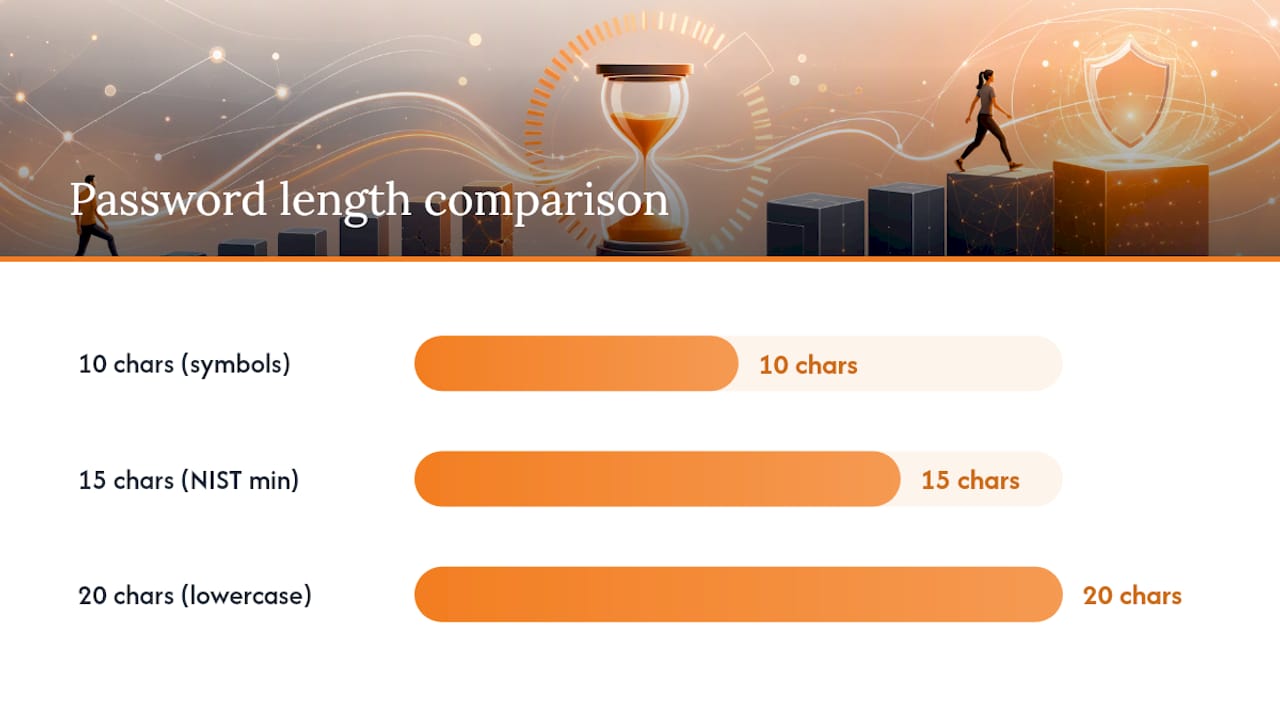
NIST’s current guidance sets the floor at 15 characters minimum, a shift from the old advice that obsessed over symbols and capital letters. Every additional character multiplies the number of possible combinations a brute-force attacker has to try, while adding one more symbol type barely moves the needle by comparison. A 20-character password built from lowercase letters alone can outlast a 10-character password stuffed with symbols and numbers, simply because length scales exponentially and character variety scales linearly.
That’s why NIST specifically calls out passphrases, strings of four to seven unrelated words, as a legitimate, memorable alternative to random character soup. The structure matters: the words need to be unrelated to each other and to you personally. A phrase built from your street, your dog, and your birth year fails immediately, no matter how long it is.
Good passphrase construction generally means:
- Four or more genuinely unrelated words, not a sentence fragment
- No obvious personal connection (names, dates, pets, sports teams)
- A random word order, not “adjective noun verb” grammar patterns
- Optional numbers or symbols inserted mid-string rather than tacked on at the end
Random strings still have a place too. If a site allows unlimited length and you don’t need to type it manually, an 18 to 20 character mix of letters, numbers, and symbols generated by a tool remains the gold standard. Use symbols and mixed case when a site requires them, but treat length as the priority and everything else as a secondary layer on top of it.
Pairing a Generated Password With a Manager and MFA
A password generator solves randomness. It doesn’t solve the fact that you now have one more unique string to remember on top of the dozens you already have. That’s the job for a password manager, which generates, stores, and autofills credentials so you’re never tempted to reuse one out of convenience. CISA’s guidance treats the manager and the strong password as a single unit, not two separate habits.
Multifactor authentication is the backup plan for the day a password leaks anyway, whether through a data breach or a phishing page you didn’t catch in time. Prioritize:
- Authenticator apps (time-based codes) over SMS, since text messages can be intercepted through SIM swapping
- Hardware security keys for your highest-value accounts, like your primary email or financial logins
- Backup codes stored somewhere separate from your main device, in case you lose your phone
The workflow after generating a password takes about two minutes: save it into your manager with a clear label, test that autofill actually populates the login form correctly, then head into the account’s security settings and turn on MFA before you move to the next site.
Online Generators vs. Client-Side Tools: What’s Actually Safer
An online password generator technically creates your password on someone else’s server before sending it to your browser. Random addresses this directly: it uses atmospheric noise for randomness and states plainly that it does not store the passwords it generates. That’s reassuring, but the company’s own guidance still recommends against using any online generator for your most sensitive accounts when a local alternative exists.
For everyday logins, an online generator or your browser’s built-in tool is fine. For something like your primary email, your bank, or a password manager’s own master password, lean toward client-side generation, meaning the password is created and stays entirely inside your device or browser and never touches a server at all.
Pro Tip: Before trusting any generator with a sensitive account, check whether it discloses a storage or logging policy. If you can’t find one in ten seconds, assume the worst and generate offline instead.
What to Do When a Site Rejects Your Generated Password
Plenty of login forms still cap password length at 12 or 16 characters, or reject certain symbols outright. It’s an annoying relic of outdated security practices, but there’s a right way to work around it:
- Shorten by trimming length, not by stripping character types. A shorter password that still mixes letters, numbers, and symbols beats a long one that dropped its symbols to fit.
- Try a site-specific short suffix on your base passphrase if the site demands a symbol or number you didn’t include, rather than rebuilding the whole thing from scratch.
- Re-test the login after saving to confirm the site actually accepted the full string you think it did, some forms silently truncate input.
- Update the entry in your password manager immediately so the stored version matches exactly what the site accepted.
Your One-Minute Checklist After Generating a Password
Run through this the moment a new password lands in your clipboard:
- Paste it directly into the account’s password field, not into a note or message first.
- Save it to your password manager under a label you’ll recognize later.
- Clear your clipboard if you copied manually instead of using autofill.
- Test autofill on that account to confirm it saved correctly.
- Turn on multifactor authentication before you close the browser tab.
- Flag and replace any other account still using that same old reused password.
That last step is the one people skip. A single strong new password does nothing for the six other accounts still running on the password you reused from 2019.
Publisher Perspective: Logmeonce Guidance and Recommended Next Steps
Some password management and multifactor authentication tools are built around the principle NIST and CISA lay out: length and randomness first, storage and verification second. A generated password that lives only in your memory or a sticky note defeats its own purpose no matter how strong it looks on screen.
The practical sequence we recommend matches what’s outlined above: generate with a length-first mindset, store the result in a manager rather than memory, and layer MFA on top so a single leaked credential doesn’t become a full account takeover. For readers who want the storage side handled automatically, our guide on password manager security and our breakdown of the real cost of weak passwords both go deeper into why this combination matters more than any single strong password ever could on its own.
Length First, Habits Second
The industry spent two decades training people to fear a missing symbol more than a short password, and that emphasis was backwards. NIST’s own shift toward length-first guidance is a quiet admission that the old complexity rules produced predictable patterns instead of genuine security, things like swapping an “a” for a symbol, which attackers cracked long ago.
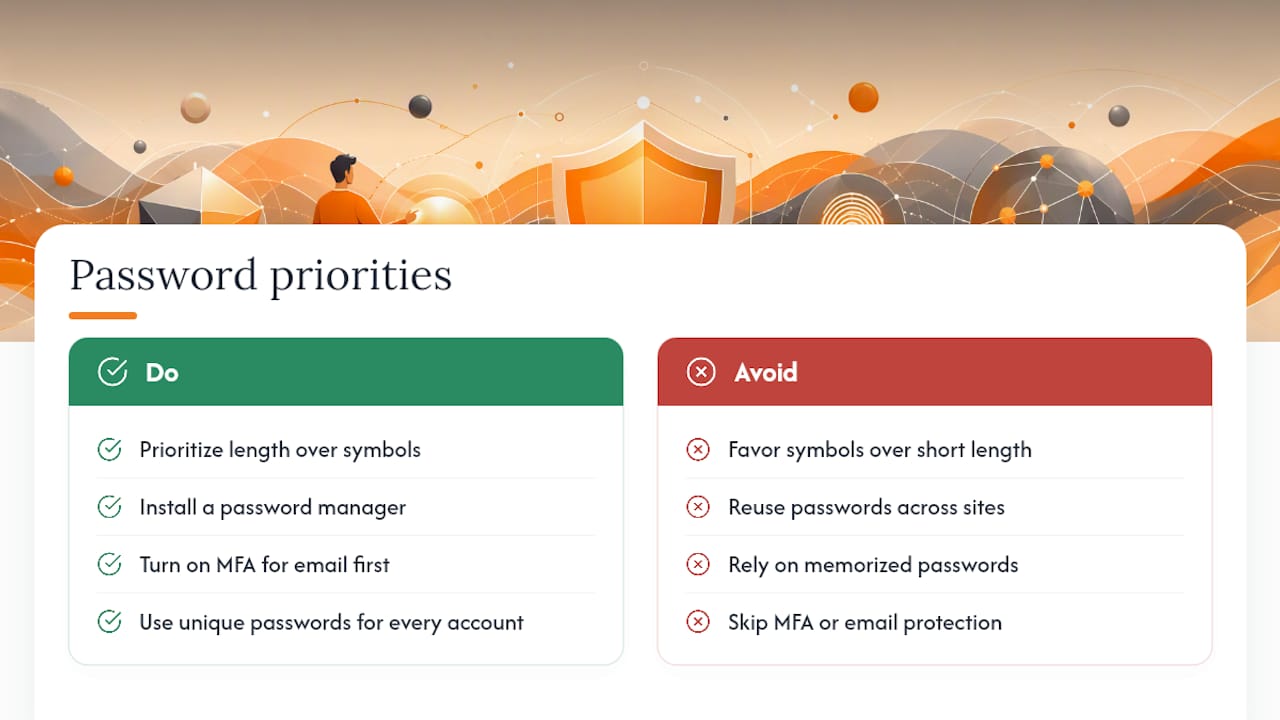
What gets underrated in most advice columns is the reuse problem. A generator can hand you a flawless 20-character random string, but if you only use that discipline for your bank and fall back to a memorized password everywhere else, you’ve solved 10% of your actual exposure. The habit that matters most isn’t the generator, it’s the manager that makes using a unique generated password effortless for every single account, not just the important-feeling ones.
If I had to prioritize one thing for someone starting from zero, it wouldn’t be memorizing NIST’s character-count recommendations. It would be getting a password manager installed and MFA turned on for email first, since email recovery is how most account takeovers cascade into everything else.
— Mike
Try Logmeonce: Generate, Store, and Protect Passwords in One Place
Standalone generators solve the first five seconds of the problem. Logmeonce solves what happens for the next five years, generating strong credentials, storing them behind encryption, and pairing every login with multifactor authentication so a single leaked password never becomes a full breach.

That combination matters because the accounts people forget to update are usually the ones that get compromised first. Logmeonce’s password management benefits page walks through how generation, secure storage, and autofill work together in one dashboard instead of three separate habits you have to maintain yourself. If you’re ready to stop juggling a generator, a notes app, and a separate authenticator, consider starting a free trial and setting up your first vault entry today.
Sources
Recommended
- How to Create a Strong Password
- Strong Password Generator
- Weak Password Cost
- How to Remember Passwords


