


 Password Manager
 Identity Theft Protection

 Team / Business
 Enterprise
 Government
 MSP
MSP

In recent times, the issue of leaked passwords has taken center stage in the realm of cybersecurity, highlighting the vulnerabilities that can compromise our personal information. One particularly alarming leak occurred when a set of credentials was exposed on various dark web forums, showcasing how easily hackers can access sensitive data. This incident is significant as it underscores the importance of robust authentication methods in an age where traditional passwords fail to provide adequate security. For users, the relevance of such leaks is clear: adopting advanced security measures, like Microsoft passkeys, is essential to safeguard against unauthorized access and protect their digital identities.
Key Highlights
- Visit account.microsoft.com, sign in to your account, and navigate to the Security settings section.
- Enable Windows Hello on your device by setting up biometric authentication like fingerprint or facial recognition.
- Select "Passwordless account" in Security settings and choose the option to add a new sign-in method.
- Follow on-screen instructions to set up your passkey, ensuring your device meets compatibility requirements for Windows 11.
- Verify successful setup by testing the passkey login with your biometric data and confirming device recognition.
Understanding Microsoft Passkey Technology
Imagine your phone is like a magical door that only opens for you! That's exactly what Microsoft's passkeys do – they're like your very own secret superhero identity for logging into your accounts.
Instead of remembering tricky passwords, passkeys use things that are special to you, like your fingerprint or face. Cool, right? It's just like how your best friend knows it's you by looking at your smile!
When you set up a passkey, it's like creating a special handshake that only works between you and your device. You can use passkeys on desktop and mobile browsers while more apps add support every day. Additionally, using passkeys enhances security by reducing reliance on weak passwords, making your online experience even safer.
The best part? Your secret identity stays safe on your device – just like how you keep your favorite trading cards in a special box.
No bad guys can steal or copy your passkey, making it super secure. Isn't technology amazing?
System Requirements and Device Compatibility
Before you jump into the magical world of passkeys, let's check if your device is ready for the adventure!
Think of it like checking if you've got everything you need for a super-fun playground game. You'll want a newer version of Windows 11 (it's like having the latest video game), and your computer needs some special features to make the magic happen.
Passkeys are secured through Windows Hello protection on your device. Two-factor authentication is a key concept that enhances security by requiring an additional verification step.
Here's what your device needs to join the passkey party:
- A Windows computer with Pro, Enterprise, or Education edition
- Bluetooth turned on (for when your device needs to talk to other devices)
- Windows Hello set up (that's the cool face or fingerprint scanner)
- A modern browser like Chrome, Edge, or Firefox
- A Microsoft account (it's like your special VIP pass)
Want to know something neat? Your phone can help too! It's like having a trusty sidekick.
Step-by-Step Passkey Setup Guide
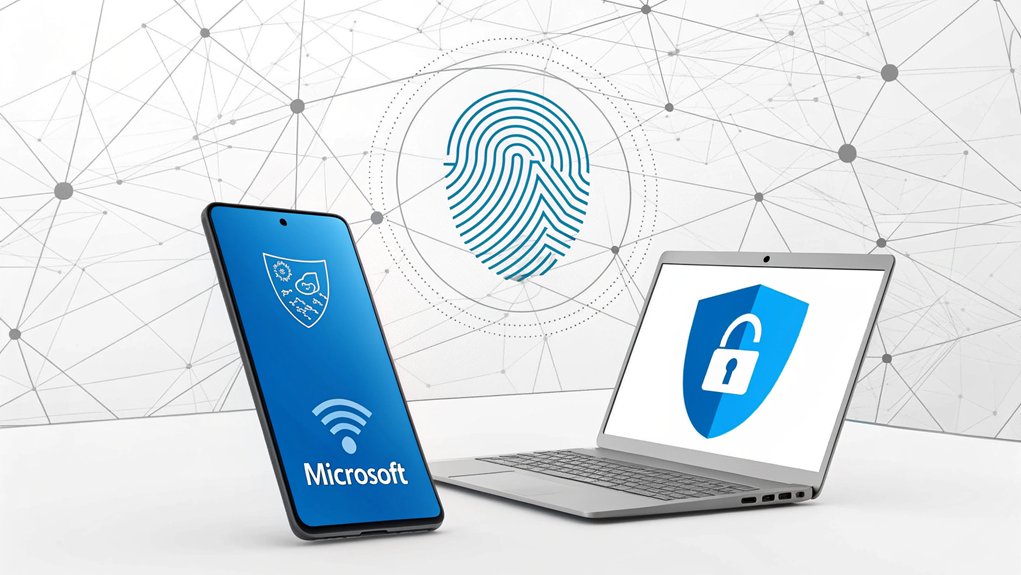
Now that your device is ready for action, let's get your passkey up and running! Think of a passkey like your secret superhero identity – it's a special way to access your Microsoft account using your face or fingerprint.
First, visit account.microsoft.com and sign in. Click on "Security" (it's like finding the entrance to your secret hideout!).
Look for "Passwordless account" and click "Add a new way to sign in." Choose how you want to gain entry to your account – maybe with your fingerprint, just like a detective! Your passkey provides unique device-specific credentials that make your account more secure than traditional passwords. This method of authentication is a key aspect of multi-factor authentication that enhances your security.
Follow the steps on your screen and test your new passkey. It's as easy as accessing your favorite video game!
Want to remove it later? No problem! Just go back to Security settings and click "Remove" – like pressing the undo button in your favorite app.
Security Features and Benefits
I'm excited to tell you about Microsoft Passkey's super-cool security features. It's like having a secret fortress for your account that only you can enter! Instead of remembering tricky passwords, you'll use your face or fingerprint – just like a spy in a movie!
Here are some awesome things that make Passkey super safe:
- It's like having three locks instead of one – something you know, have, and are!
- Bad guys can't trick you with fake websites because your device knows the real ones.
- No more worrying about password thieves – they can't steal what isn't there.
- It's harder to break into than Fort Knox because it uses your unique features.
- Works on lots of devices, so you're protected everywhere you go.
Unfortunately, Passkeys currently have limited browser compatibility, so they may only work in the specific browser where you create them.
What do you think about never having to remember another password again?
Choosing the Right Security Key
When picking a security key, it's like choosing your favorite superhero sidekick! You want one that's strong, reliable, and always there when you need it.
I recommend getting two FIDO2 security keys – think of them as twins that help protect your account! One can be your everyday helper (like carrying your favorite snack), while the other stays safe at home as a backup. The YubiKey 5Ci offers multi-protocol capabilities for versatility.
You'll want to make sure your key works with your computer or phone, just like making sure your shoes fit before playing soccer.
Have you ever used a house key? A security key works similarly, but it's super-smart! It keeps your account extra safe from bad guys trying to steal your password. Cool, right?
Let's get you set up with the perfect security sidekick!
Managing Your Passkeys Effectively
Managing your passkeys is a bit like organizing your favorite toys! Just like keeping your toys in special boxes, you'll want to keep your passkeys neat and tidy in your account settings. Your passkeys can be easily managed through the Credential Manager API for a smooth experience.
I'll show you how to be a passkey superhero!
Here are some cool tips to help you manage your passkeys:
- Put all your passkeys in one special spot, like keeping your LEGOs in one big box
- Give each passkey a fun name so you know which device it belongs to
- Delete old passkeys you don't need anymore, just like cleaning out your toy chest
- Make sure you have backup passkeys on different devices, like having spare crayons
- Keep track of when you made each passkey, like writing dates on your drawings
Troubleshooting Common Setup Issues
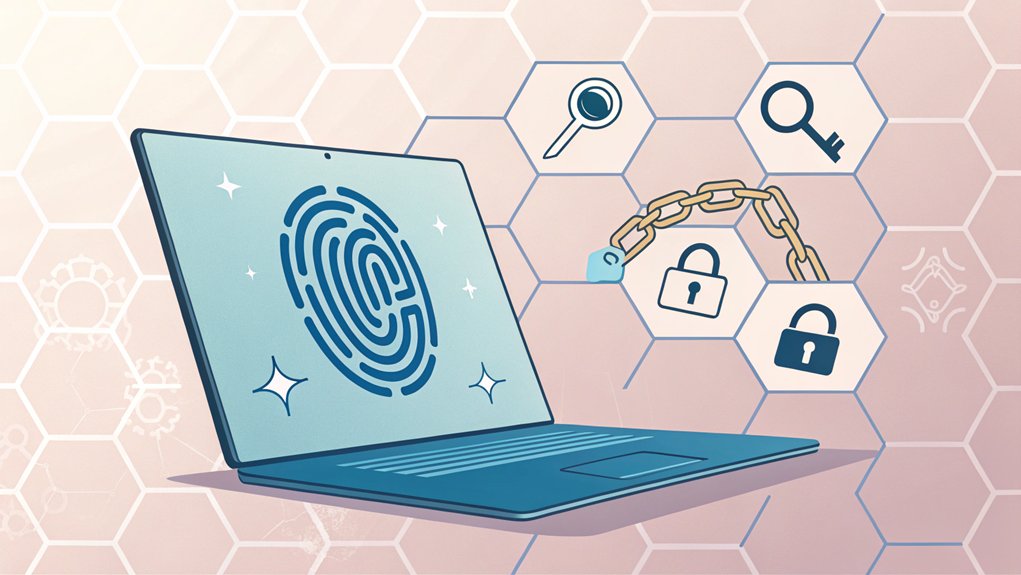
Setting up Microsoft passkeys can sometimes feel like trying to solve a tricky puzzle! But don't worry – I'll help you fix the most common problems that might pop up along the way. First, let's check if your device can use passkeys – just like checking if you're tall enough for a roller coaster! I recommend documenting your troubleshooting steps using Markdown formatting for easy reference.
| Problem | What It Means | How to Fix |
|---|---|---|
| Old Windows | Your computer's too old | Try using your phone instead |
| Wrong Browser | Browser needs updating | Update to newest version |
| Policy Blocks | Rules stopping you | Ask your tech helper |
Best Practices for Passkey Usage
To stay super safe with your passkeys, let's learn some cool tricks – just like having a special hideout password with your best friends!
Think of your passkey as your very own superhero shield that keeps the bad guys away from your Microsoft account. Only passkey-ready devices can use this special protection, so make sure yours is compatible.
I'll show you how to be a passkey pro!
- Check your sign-in ways regularly, like counting your favorite marbles every week
- Use your fingerprint or face to access – it's like having a magical key that only works for you
- Keep your device's software fresh and new, just like getting the latest superhero comics
- Turn on two-factor authentication – it's like having two secret handshakes instead of one
- Consider getting a special security key – it's like wearing an extra suit of armor
Want to make your account super strong? Let's practice these tricks together!
Cross-Device Integration and Syncing
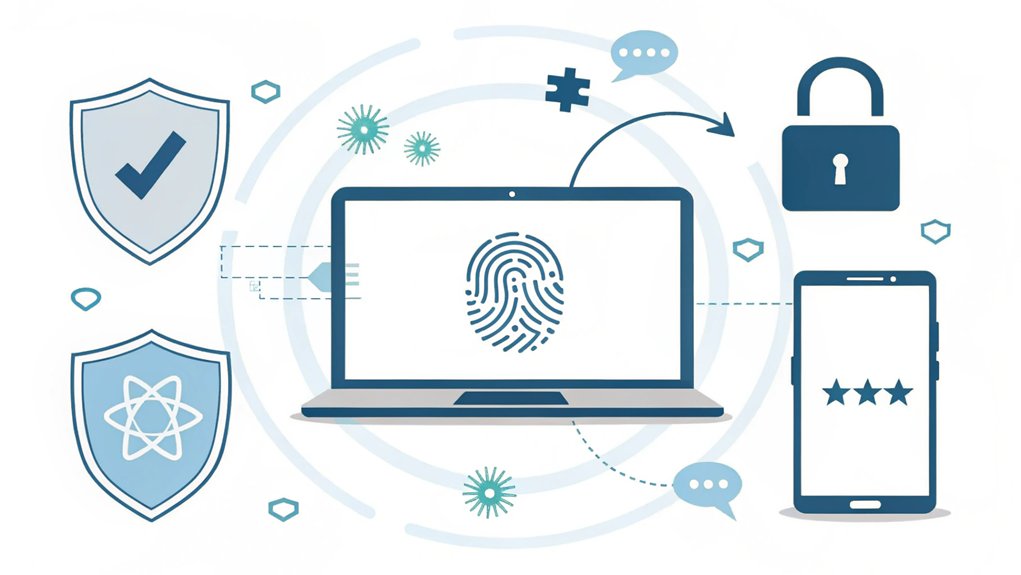
Just like sharing your favorite toy with a friend, your passkeys can work on all your devices!
It's like magic – your phone, tablet, and computer can all work together to keep your accounts safe.
Want to try it? First, make sure your devices have Bluetooth turned on (it's like a special way for them to talk to each other).
Then, when you want to sign in on your computer, you'll see a funny-looking square called a QR code. It's like a secret picture message!
Use your phone's camera to scan it, just like taking a photo of your favorite ice cream.
Your devices will become best friends and work together to let you sign in. Cool, right?
You'll need Android 14 or iOS 17 or newer versions to use passkeys on your mobile devices.
And guess what? Your passkeys will follow you everywhere, just like a loyal puppy!
Frequently Asked Questions
Can I Use Passkeys if My Organization's IT Policy Restricts Biometric Authentication?
No, you won't be able to use passkeys if your organization blocks biometric authentication.
Passkeys need those cool fingerprint or face scans to work properly! It's like trying to open a magic door without the special key.
I'd suggest checking with your IT team to see if they can update the policy.
Until then, you'll need to stick with your regular login methods.
What Happens to My Passkeys if I Reset My Windows Device?
When you reset your Windows device, your local passkeys will go poof – just like magic!
But don't worry, I've got good news. If you've synced them with your Microsoft account, they're safe and sound in the cloud.
Just like keeping your favorite toys in a special box, your passkeys stay protected.
You'll need to set up your hardware security keys again, though. Think of it as giving them a fresh start!
Is There a Limit to How Many Passkeys I Can Create?
You can create up to 10 passkeys per account – that's like having 10 special digital keys!
Think of it like having different keys for different doors in your house. You might want one passkey for your phone, another for your laptop, and maybe one for your tablet.
It's neat because you can pick what works best for each of your devices!
Can I Temporarily Disable Passkey Login Without Completely Removing It?
I've got some news that might make you a bit sad – there's no way to temporarily turn off passkey login in Windows 10 without completely removing it.
It's kind of like having a special treehouse key – you can't just pause using it, you have to take it off your keyring completely!
If you need to stop using it, you'll have to remove it and set it up again later.
Will Passkeys Still Work if I'm Offline or Without Internet Connection?
I've got great news! Your passkeys will work even when you're offline.
Think of it like having a special key to your house – it works whether or not you have internet.
But here's the funny part: while you can use your passkey offline, you'll still need internet to actually get to the website or app you're trying to use.
It's like having a key but needing a road to reach the door!
The Bottom Line
If you've been looking for a way to enhance your online security, now is the perfect time to explore Microsoft passkeys. They not only simplify your login process, but also significantly bolster your password security. As we transition away from traditional passwords, effective password management becomes essential. That's where tools like LogmeOnce come in. By using LogmeOnce, you can manage all your login credentials in one secure place, making it easier to switch to passkeys and ensuring that your sensitive information stays safe. Don't wait until it's too late to protect your accounts. Take the first step towards a more secure digital life by signing up for a Free account at LogmeOnce. Embrace the future of secure login and enjoy peace of mind knowing your accounts are protected by the latest security measures.

Mark, armed with a Bachelor’s degree in Computer Science, is a dynamic force in our digital marketing team. His profound understanding of technology, combined with his expertise in various facets of digital marketing, writing skills makes him a unique and valuable asset in the ever-evolving digital landscape.


