


 Password Manager
 Identity Theft Protection

 Team / Business
 Enterprise
 Government
 MSP
MSP

Three actions stop most account takeovers: turn on multi-factor authentication, use long unique passwords or passphrases, and run a password manager. Do these on your email and banking accounts before anything else, since those two are the master keys to everything else you own online.
TL;DR:
- Securing your email and banking accounts with MFA and strong, unique passwords is crucial, as these serve as the master keys to your online presence.
- Using passphrases of at least 15 characters and avoiding password rotation unless compromised significantly increases security against cracking attempts.
- Enabling phishing-resistant MFA methods like passkeys or hardware keys greatly reduces the risk of account takeovers, with fallback options like SMS less reliable.
- Implementing a password manager for all accounts and importing stored passwords helps enforce the use of long, unique passwords, especially when combined with MFA.
- Prioritize detecting breaches early through dark web monitoring and reacting swiftly by changing passwords and enabling MFA on affected accounts.
Best Practices for Account Security: Your Priority Checklist
Security work fails when it feels endless. So don’t try to fix everything at once. Work through this in order, starting today.
- Secure your primary email and bank accounts first. These accounts can reset passwords on everything else you own, which makes them the highest-value target for anyone trying to break into your digital life. Techwalla’s breakdown of account security steps recommends this exact sequence for a reason: attackers who get into your email don’t need to guess anything else.
- Turn on a passkey or authenticator app for MFA on those accounts today, not next week.
- Install a password manager and import your saved logins from your browser, then delete the browser’s stored copies so you’re not keeping two versions of the same weak link.
- Rotate any password you’ve reused across sites, starting with whichever accounts share a password with your email.
- Switch to 15+ character passphrases anywhere a manager isn’t available or a site still forces manual password entry.
- Run a blocklist or breach check on your existing passwords, either through your manager’s built in audit or a dedicated dark web monitoring service.
- Turn on automatic updates for your phone, laptop, and browser this week; unpatched software is still one of the easiest doors into an account.
- Save your MFA recovery codes offline somewhere physical, like a locked drawer or a safe, not a screenshot in your camera roll.
Pro Tip: Do steps 1 through 3 in one sitting. Once your email and bank accounts have MFA and a manager-generated password, the risk on everything else drops sharply, and you can tackle the rest over the following week without feeling rushed.
How to Build Passwords That Actually Hold Up
Length beats complexity almost every time. NIST SP 800-63B recommends passwords of at least 15 characters and explicitly favors length over arbitrary rules like forcing a symbol and a capital letter into every password. The math backs this up: a random 15-character lowercase password would take a modern cracking rig running 100 billion guesses per second over 500 years to brute force.
That’s why passphrases work so well. Instead of “Tk9!qL2z,” try something like “purple.tractor.window.42,” four or five unrelated words strung together. It’s longer, easier to remember, and far harder to crack.
A few rules to follow:
- Never truncate or reject long passwords. OWASP’s Authentication Cheat Sheet flags silent truncation as a real vulnerability some sites still have.
- Run new passwords through a blocklist check before using them.
- Only change a password after a confirmed compromise, not on a fixed schedule. NIST’s guidance has moved away from forced rotation because it pushes people toward weaker, predictable variations.
Statistic Callout: A 15-character random password takes over 500 years to crack at 100 billion guesses per second. An 8-character one falls in hours.
Why MFA and Passkeys Matter More Than Any Password
No password, however long, protects you once it leaks. That’s what makes multi-factor authentication the single highest-leverage move on this entire list. OWASP’s guidance notes that MFA methods aren’t interchangeable. Some resist phishing far better than others.
Rank your options this way:
- Passkeys or FIDO2 hardware keys — phishing-resistant, tied to the specific device and site, and the strongest option available today.
- Authenticator apps (generating rotating codes) — strong, though not immune to sophisticated real-time phishing.
- SMS or email codes — better than nothing, but interceptable, so treat this as a fallback rather than a first choice.
Microsoft’s internal analysis on account compromise, cited widely in OWASP’s guidance, points to MFA of any kind stopping the overwhelming majority of automated account takeover attempts. That single toggle does more work than almost anything else on this page.
Pro Tip: When you enable MFA, generate backup recovery codes immediately and store them somewhere offline. Losing your phone shouldn’t mean losing access to your own accounts. Setting up two-factor authentication correctly the first time saves you a painful recovery process later.
Setting Up a Password Manager the Right Way
A password manager only helps if you actually use it everywhere, which means the setup matters as much as the choice. CISA recommends password managers specifically because they make long, random, unique passwords practical for every single account instead of just the ones you bother to memorize.
- Import everything from your browser’s saved passwords into the manager, then delete the browser copies so credentials live in one hardened place.
- Install the browser extension and mobile app so autofill works everywhere, removing the temptation to reuse a password because typing a long one is annoying.
- Build a strong master passphrase and protect it with MFA. Treat this one credential like the key to a safe, because it unlocks everything inside.
- Store your recovery codes offline, separate from the device you normally log in from.
- Run the manager’s audit dashboard monthly and fix reused or breached passwords first, weak-but-unique ones second.
Spotting Phishing and Reacting Fast to a Breach
Most account compromises start with a message, not a hack. Watch for urgency (“your account will be closed in 24 hours”), mismatched sender domains, and links that ask you to log in from an email instead of typing the address yourself.
- Never click a link in an unexpected message asking for credentials; go to the site directly or call your bank using the number on the back of your card.
- Check the sender’s actual email address, not just the display name.
- If a message pressures you to act immediately, that urgency is itself a red flag.
If you get a breach notification or suspect one:
- Change the affected password immediately, and any other account reusing it.
- Turn on MFA if it wasn’t already active.
- Review recent login activity and active sessions for anything unfamiliar.
- Report identity theft through the appropriate consumer protection channel if personal information was exposed.
FTC guidance recommends exactly this sequence, and prioritizing email and financial accounts first still applies here since those are what attackers chain into next.
How Logmeonce Helps You Put This Into Practice
Every recommendation above maps directly to something Logmeonce builds for. The platform combines password management, passwordless MFA, passkey support, encrypted cloud storage, and dark web monitoring, so instead of piecing together five separate tools, you’re managing account security from one dashboard.
A few starting moves:
- Start a free trial and import your existing saved passwords in one pass.
- Enable MFA on the manager account itself, ideally through passwordless MFA rather than SMS.
- Turn on dark web monitoring so you get notified the moment credentials tied to your email show up in a breach.
- Review the password management benefits page for the full feature set, including encrypted cloud storage.
| Action | Why it matters |
|---|---|
| Passwordless MFA on manager | Removes SMS interception risk |
| Import and delete browser passwords | Closes the weakest storage gap |
| Dark web monitoring | Flags breached credentials before attackers use them |
| Encrypted cloud storage | Protects files, not just login credentials |
Organizations managing multiple employee accounts can find deployment specifics in the enterprise password management guide. Explore the full cybersecurity solution set to see how these pieces fit together.
The Real Priority Most Guides Get Backwards
Most security advice treats every account like it deserves equal attention, and that’s exactly why people give up halfway through. It doesn’t. Your email account is worth more to an attacker than a decade-old forum login, because email is the recovery path for nearly everything else you own. Secure that one account with a passkey and a manager-generated passphrase, and you’ve closed off the path attackers use most often to cascade into your bank, your work accounts, and your cloud storage.
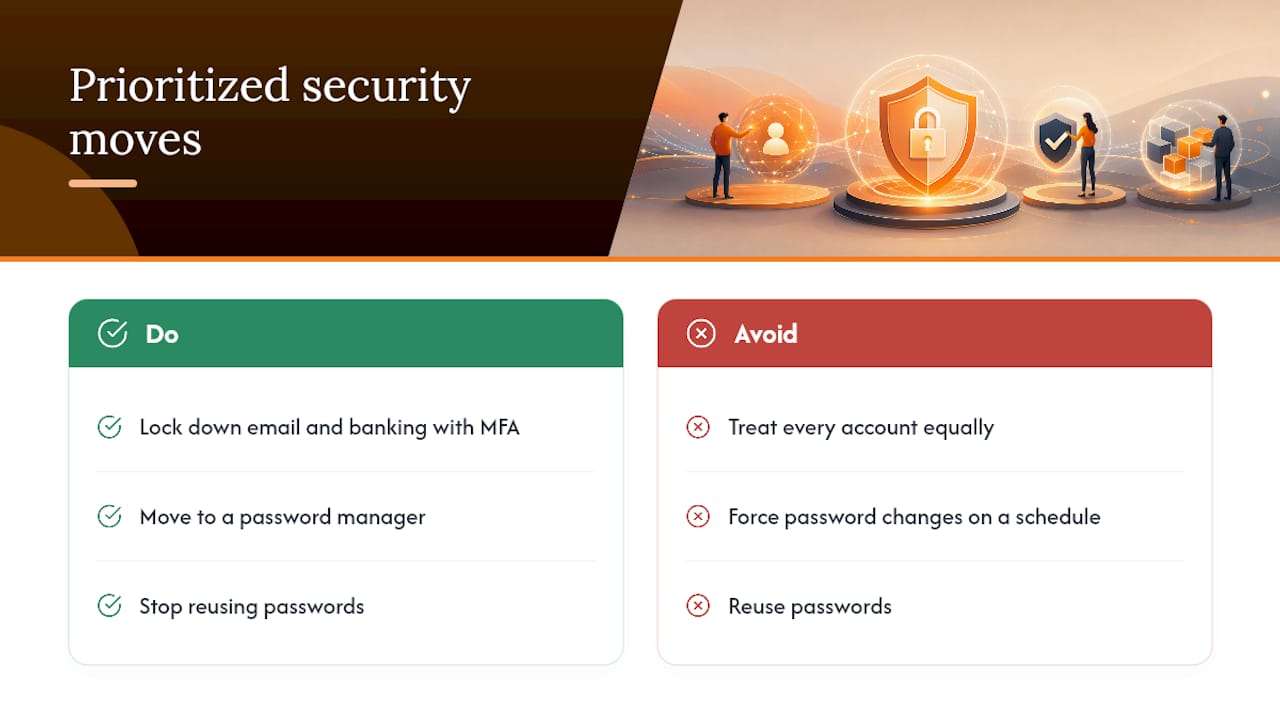
The conventional advice on rotation is also outdated. Forcing password changes every 90 days doesn’t make anyone safer. It makes people pick weaker, more predictable passwords out of fatigue, which is precisely why NIST walked that guidance back. Change a password when you have a reason, not on a calendar.
If you only do three things this month: lock down email and banking with MFA, move to a password manager, and stop reusing passwords. Everything else on this list is refinement.
— Mike
Sources
- NIST SP 800-63B — Digital Identity Guidelines
- OWASP Authentication Cheat Sheet
- Protect your personal information from hackers and scammers — FTC
- Use strong passwords — CISA
Recommended
- 4 Ways to Use Account Freeze to Improve Online Safety
- 6 Signs It’s Time to Invest in a Team Password Manager
- The 6 Key Features of Any Team Password Manager


