


 Password Manager
 Identity Theft Protection

 Team / Business
 Enterprise
 Government
 MSP
MSP


The safest free workflow is simple: use a client-side password generator, copy the result directly into an encrypted vault like Logmeonce, and enable multi-factor authentication on the account. CISA recommends using a dedicated password manager because manually creating and remembering unique long passwords is impractical for most people. NIST advises at least 15 characters and endorses both passphrases and password managers as core defenses. The best free password generator is the one you actually use correctly, and that means pairing it with a vault from the first password you generate.
Quick start: Open a free generator, set length to 16+ characters, include uppercase, lowercase, numbers, and symbols, generate, and paste directly into your Logmeonce vault before you do anything else.
Key Takeaways
A strong free password generator workflow means generating client-side, storing the result immediately in an encrypted vault like Logmeonce, and enabling MFA before you close the tab.
| Point | Details |
|---|---|
| Minimum length | NIST recommends at least 15 characters; use 16–20+ for most accounts. |
| Passphrase vs. random string | Use passphrases for master passwords; use random strings for all autofill-supported accounts. |
| Safe storage is non-optional | Copy generated passwords directly into an encrypted vault; never store them in plain text. |
| Enable MFA immediately | Add MFA to every account right after setting a new password. |
| Logmeonce as your vault | Logmeonce provides an integrated generator, encrypted storage, and MFA in one free-to-try platform. |
How free password generators actually create secure passwords
A password’s strength comes down to entropy: the number of possible combinations an attacker would have to guess. More entropy means more guessing time. A truly random 16-character password drawn from 94 printable ASCII characters has very high entropy, which puts a brute-force attack well beyond practical reach with current hardware.
The key word is random. Most reputable free generators use a cryptographic pseudorandom number generator (CSPRNG), specifically the browser’s built-in crypto.getRandomValues() function. This runs entirely in your browser, never touches a server, and produces output that is statistically indistinguishable from true randomness for security purposes. Random, using atmospheric noise to generate true randomness, though it transmits results over HTTPS rather than generating them locally.
What you can typically control in a generator:
- Length — the single biggest lever on entropy; every extra character multiplies the search space.
- Character sets — uppercase, lowercase, digits, symbols; more sets mean more possible characters per position.
- Exclusions — removing ambiguous characters like
0,O,l, and1helps when you need to type a password manually. - Mode — random string, passphrase, or pronounceable; each trades entropy for usability differently.
Tools like LazyTools’ password generator display an entropy estimate alongside your settings, which lets you see the security impact of each change in real time.
Passphrase vs. random string: which one should you use?
Both are secure when configured correctly. The choice depends on how you’ll use the password.
| Factor | Random string | Passphrase |
|---|---|---|
| Entropy per character | High (large charset) | Moderate (word space) |
| Memorability | Very low | High |
| Typing convenience | Poor | Good |
| Best use case | Autofill-supported accounts | Master passwords, manual entry |
| Example | kR7#mPx2@Lq9!Wz |
correct-horse-battery-staple |
A four-to-six word passphrase of completely unrelated words can achieve sufficient entropy while remaining something a person can actually type from memory. CISA notes that length matters more than superficial complexity, and a long passphrase often beats a short symbol-heavy string on both security and usability. Google’s account security guidance echoes this, suggesting lyrics, quotes, or random word combinations as a foundation for memorable long passwords.
Pro Tip: Use a passphrase only as a master password candidate, and only when it is protected by MFA. For every other account, let your vault generate and store a random string so you never need to type it at all.
How to pick a safe free password generator
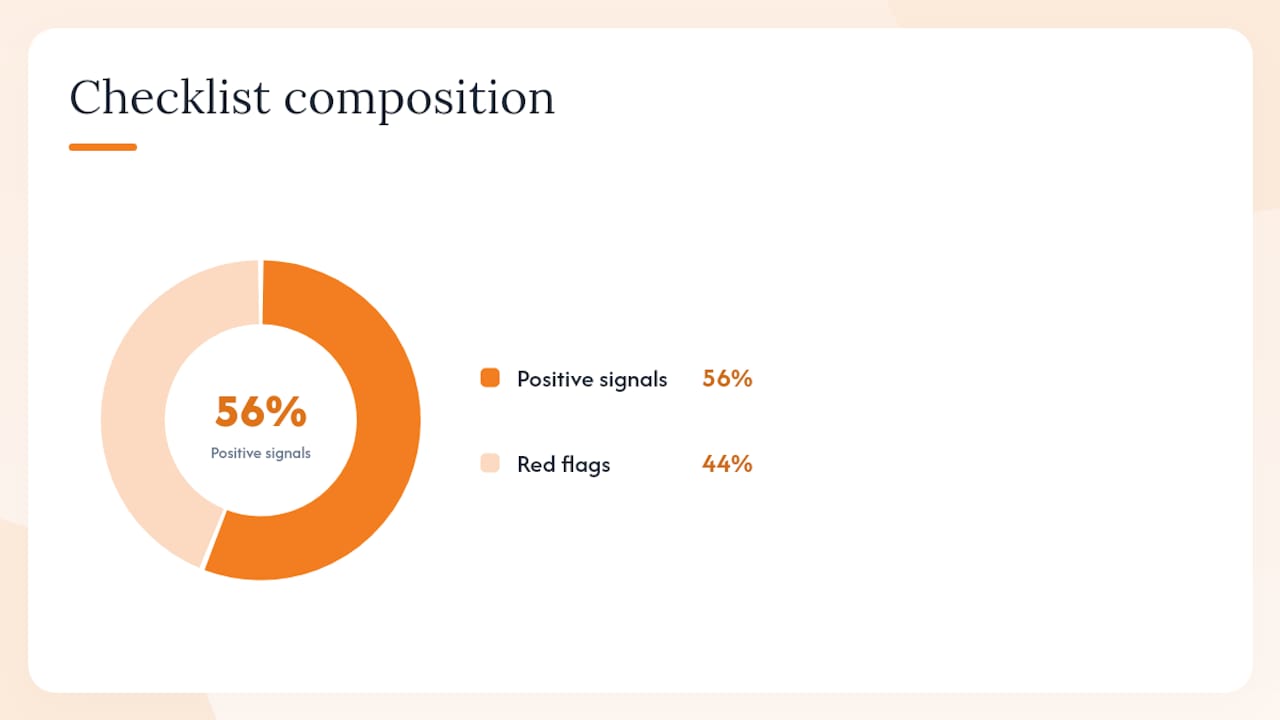
Not every free generator deserves your trust. Before you use one, run through this checklist.
Positive signals:
- Generates passwords in your browser (client-side), with no network request visible in the browser’s developer tools during generation
- Open-source code or a published, audited cryptographic implementation
- Displays an entropy estimate so you can verify your settings
- Loads over HTTPS
- States a clear no-log policy and does not require an account or email address
Red flags:
- Requires you to install a browser extension from an unknown publisher
- Sends a network request at the moment of generation (check the Network tab in DevTools)
- Asks for an email before showing the password
- Stores or displays previously generated passwords
Pro Tip: Test any unfamiliar generator on a throwaway account first. Open your browser’s developer tools (F12), click the Network tab, then generate a password. If you see an outbound request carrying your new password, close the tab immediately.
The National Cyber Security Alliance recommends treating password managers as the primary tool for managing credentials, which means the generator is only half the workflow. A generator that passes the checklist above is still only as safe as what you do with the password afterward.
How to use a free generator safely and store passwords correctly
The generation step is the easy part. Where most people slip up is in the seconds between generating a password and actually saving it somewhere secure.
- Generate client-side. Use a generator that runs in your browser, not one that fetches results from a server.
- Copy and paste directly into your vault. Open your Logmeonce vault in a separate tab before you generate. Paste the password there first, before you paste it anywhere else.
- Save the entry, then fill the account field. Let your vault autofill the new password into the account’s password field. This avoids leaving it in your clipboard longer than necessary.
- Enable MFA on the account immediately. A strong password plus MFA is the combination NIST recommends as a primary defense.
- Clear your clipboard. Copy something innocuous (a space, a word) to overwrite the password in your clipboard buffer.
Pro Tip: Use your vault’s secure notes or password-history feature to track when you last rotated a credential. Never store a generated password in a plain text file, a notes app, or an email draft.
For a deeper look at what makes vault storage trustworthy, the Logmeonce guide on how secure password manager tools are walks through the encryption and zero-knowledge architecture behind a well-built vault.
Quick presets: exact settings to use right now
Set your generator to create passwords of sufficient length and complexity to be secure for different account types. For example, longer passwords with a mix of character types are appropriate for more sensitive accounts, and passphrases of several unrelated words can be suitable for master passwords.
Example random string (16 chars): kR7#mPx2@Lq9!Wz4
Example passphrase (5 words): velvet-crane-orbit-flint-dozen
Tools like LazyTools show the entropy value live as you adjust settings, so you can confirm you’ve hit your target before copying. For the master password specifically, aim for a passphrase you can type from memory, then protect it with MFA so a single forgotten word doesn’t lock you out permanently.
Pro Tip: Avoid symbols like ", ', `, and in passwords for older web forms. Some sites reject them silently, which means the password you saved in your vault won’t match what the site accepted.
When you should skip free online generators entirely
Free online generators are fine for most everyday accounts. A handful of situations call for something more controlled.
- Primary bank accounts and brokerage accounts: Use your vault’s built-in generator, which runs locally and saves the password in one step with no clipboard exposure.
- Corporate admin or privileged accounts: An IT-managed vault with audit logging is the right tool. A general online generator leaves no audit trail.
- Any account where the site itself generates the password for you: Accept it, save it to your vault immediately, and skip the third-party generator entirely.
- Situations where you’re on an untrusted network or device: Don’t generate or enter passwords on public computers or unsecured Wi-Fi, regardless of the generator.
For these high-stakes accounts, the safer path is a vault-integrated generator, a hardware security key, or a passkey where the site supports it. RANDOM.ORG itself warns against using online generators for the most sensitive passwords. The Logmeonce post on whether automatic password generators are safe for businesses covers the enterprise side of this question in detail.
Passkeys are worth mentioning here. For accounts that support them, a passkey eliminates the password entirely and replaces it with a cryptographic key pair tied to your device. No generator needed, no password to store, and phishing becomes nearly impossible.
What most people get wrong about free password generators
The generator itself is almost never the weak link. The risk lives in what happens after you click “generate.”
Most people copy a password, paste it into an account field, and then either let the browser save it in plaintext or, worse, type it into a notes app “just for now.” That gap between generation and secure storage is where credentials get exposed. A sophisticated attacker doesn’t need to crack your 20-character random string; they just need to find it in your unencrypted notes.
The other underrated mistake is treating password length as a one-time decision. A 12-character password that felt strong in 2018 is a different proposition today, as GPU-based cracking rigs have grown faster. NIST’s current floor of 15 characters reflects that shift. If you set up accounts years ago with shorter passwords, a free generator paired with a vault makes rotating them straightforward, not a weekend project.
Logmeonce completes the secure password workflow
Generating a strong password is step one. Storing it safely is where most free tools stop short.

Logmeonce pairs an integrated Strong Password Generator with encrypted vault storage, passwordless MFA, and dark web monitoring in a single platform. You generate, it saves, and MFA locks the door behind you. There’s no clipboard risk, no plaintext exposure, and no separate app to juggle. The cloud storage encryption behind the vault uses zero-knowledge architecture, so your passwords are encrypted before they ever leave your device.
See what the full workflow looks like at Logmeonce password management benefits and try the generator free today.
Sources
- Use Strong Passwords | CISA
- How Do I Create a Good Password? | NIST
- passwords
- Random
- Create a strong password & a more secure account – Google Account Help
Recommended


