


 Password Manager
 Identity Theft Protection

 Team / Business
 Enterprise
 Government
 MSP
MSP

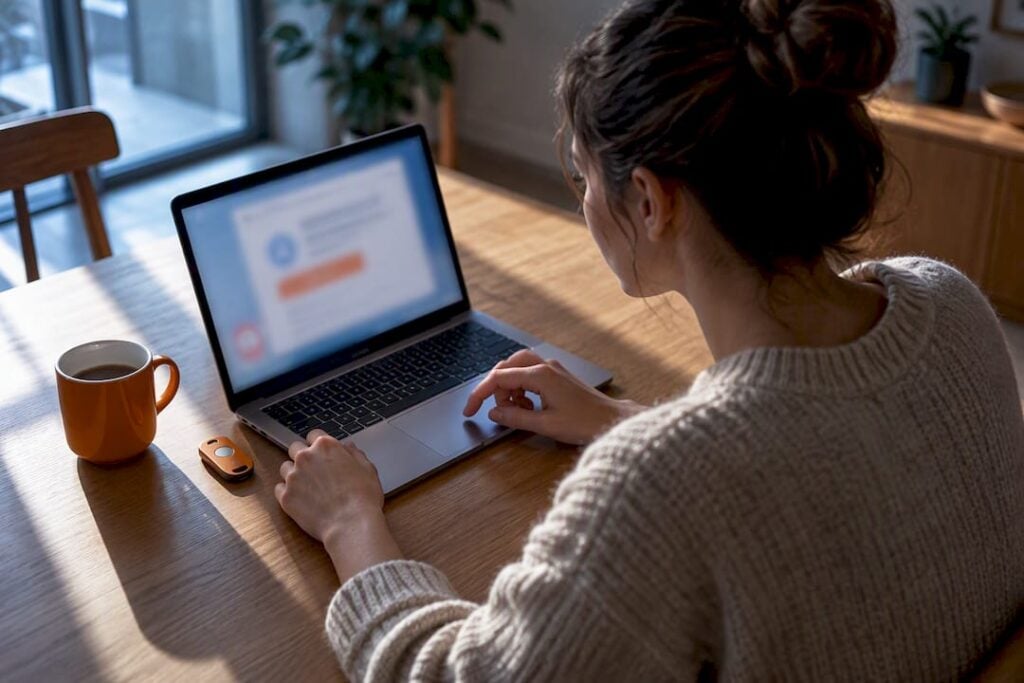
A Gmail phishing email typically poses as a trusted sender (Google, a colleague, a delivery service) and pushes you to click a link, open an attachment, or type your password right now. Before you touch anything, check three things: the actual sender address, where the link really points when you hover over it, and whether the message demands urgent action. Gmail’s own security badges can look convincing even on a fake, so authentication alone never proves an email is safe.
TL;DR:
- Gmail phishing emails often use familiar branding and create a false sense of urgency to prompt quick action, making verification essential.
- Attackers can pass Gmail’s security checks using sophisticated methods like OAuth abuse, so examining the sender address and email headers is crucial.
- Hovering over links and checking “mailed-by” fields on desktop or full sender info on mobile helps identify scam messages before clicking.
- Immediate password changes and account reviews are necessary if you interact with a suspected phishing email, along with enabling two-factor authentication.
- Layered defenses such as avoiding password reuse, enabling two-factor authentication, and using dark web monitoring significantly reduce phishing success chances.
What Makes an Email a Phishing Attempt
Phishing is a con built on trust and speed. Someone sends a message dressed up as a bank, a boss, or Google itself, hoping you react before you think. The goal is almost always one of three things: your password, your money, or a foothold on your device through a malicious attachment.
Attackers impersonate Google specifically because a Gmail-branded warning carries built-in authority. People have been trained for years to take account alerts seriously, and that trained reflex is exactly what gets exploited. A message that says “unusual sign-in detected” triggers fear before it triggers scrutiny.
It helps to understand, at a basic level, how email tries to prove it’s legitimate. Three technical standards, SPF, DKIM, and DMARC, let a receiving server check whether a message actually came from the domain it claims. They work well against crude spoofing, but they are not foolproof, since a message can pass all three checks and still be part of a scam.
Common warning signs that show up across nearly every variant:
- Urgency or threats (“your account will be disabled soon”)
- A request for a password, verification code, or payment
- A sender name that looks right but an email address that doesn’t match
- A link that leads somewhere other than where it claims to lead
- An attachment you weren’t expecting, especially invoices or “shared documents”
Modern phishing emails also tend to have flawless grammar and copied Google branding, so the old advice about “look for typos” is far less reliable than it used to be. CISA recommends treating any message with these traits as phishing until you’ve independently confirmed otherwise.
Real Gmail Phishing Email Examples and Their Tells
Most Gmail scam email examples fall into a handful of recurring templates. Recognizing the pattern is faster than reading every word of the message.
-
The security alert or subpoena scare. Subject lines like “Security alert” or, in one well-documented case, a fake legal subpoena notice. These messages often arrive looking completely legitimate because attackers have found ways to abuse Google’s own infrastructure. In one campaign, scammers registered a look-alike domain, created a Google account, and set up an OAuth app named with the phishing text itself, then let Google generate a real, DKIM-signed security alert and forwarded it to victims. The result actually passed authentication checks. According to Kaspersky’s analysis, the giveaway is in the “mailed-by” field and the linked domain: legitimate Google security pages live at accounts.google.com or support.google.com, not on a sites.google.com page or an unrelated domain. Check the sender details before you believe the badge.
-
The shared document lure. “A colleague shared a document with you” is one of the oldest Gmail phishing email examples still working today, because Google Drive sharing is a routine part of most people’s day. The tell: hovering over the “Open in Docs” button reveals a link that doesn’t go to drive.google.com, and the page it opens asks you to sign in again, something Drive rarely requires mid-session.
-
The invoice scam. “Invoice #4471 past due” arrives with a PDF or Word attachment you weren’t expecting. Two tells: an attachment from an unfamiliar vendor, and a “pay now” link that routes to a payment page with a URL that doesn’t match any company you actually do business with.
-
The parcel delivery notice. “Your parcel delivery failed, reschedule now” plays on how normal package notifications feel. Real carrier links use their own domain and a tracking number format specific to that carrier; scam versions often use shortened links or oddly formatted tracking URLs that redirect through unrelated domains.
-
The account verification or password expiry notice. “Your password will expire, verify your account” mimics IT department language. Legitimate Google account changes never require you to type your password into a form linked from an email; Gmail will not ask for your password by email, according to Google’s own help documentation.
-
The event invite credential trap. “Open invitation, enter your email and password to RSVP” is a newer variant. No legitimate calendar invite or event platform asks for a Gmail password to confirm attendance.
Pro Tip: If a message asks you to “verify,” “confirm,” or “reactivate” anything, treat that verb as a red flag by default. Legitimate services almost never phrase requests that way over email.
How to Check a Suspicious Email in Gmail
The fastest way to test any of the examples above is to inspect the message inside Gmail itself, rather than trusting how it looks at a glance.
On desktop:
- Hover your cursor over any link without clicking; Gmail shows the real destination URL in the bottom left corner of the browser window.
- Click the small arrow next to the sender’s name to expand the “from,” “to,” “mailed-by,” and “signed-by” fields.
- Click the three-dot menu and select “Show original” to view the full email headers, including the actual sending server.
On mobile:
- Tap the sender’s name to reveal the full email address, not just the display name.
- Long-press any link to preview the destination before opening it.
- Use the “Report phishing” option in the app menu if anything looks off.
The “mailed-by” and “signed-by” fields tell you which server actually sent the message and whether it passed DKIM signing. That’s useful information, but it isn’t a guarantee. As the Google Sites subpoena scam proved, a message can be legitimately signed by Google’s own systems and still be part of a scam someone else engineered. When in doubt, skip the email entirely: go to the company’s known website directly or call a phone number you already had on file, never one supplied in the suspicious message, per FTC guidance.
What to Do Immediately If You Clicked or Typed Your Password
Acting fast limits the damage. Work through these steps in order:
- Change your password immediately, but navigate to Google’s login page directly rather than through any link from the email.
- Review and revoke active sessions and third-party app permissions in your Google Account security settings, since a stolen session token can bypass a password change entirely.
- Turn on two-factor authentication if it isn’t already active, or confirm it’s still configured correctly.
- Check for unauthorized forwarding rules, filters, and recent sign-in activity. Attackers often set up silent forwarding so they keep reading your mail after you’ve changed your password.
- Scan your device for malware, particularly if you opened an attachment, and update passwords on any other account that reused the same password.
- Report it. Use Gmail’s built-in “Report phishing” tool, and file a report with the FTC at ReportFraud.ftc.gov, the FBI’s IC3, or CISA if it involves a workplace account.
The University of Indianapolis tech guide walks through exactly where Gmail’s reporting buttons live, and using them helps Google’s spam filters catch the next version of the same scam faster.
Everyday Habits That Actually Prevent Phishing
No single habit blocks every attack, but a few layered defenses close off most of the common ones.
- Stop reusing passwords. A password manager removes the excuse; it generates and stores unique, strong passwords for every account so one leaked credential can’t unlock the rest of your life.
- Turn on two-factor authentication everywhere it’s offered, and pick an authenticator app or hardware key over SMS codes, which can be intercepted through SIM-swapping.
- Let Gmail’s built-in warnings do their job. Gmail already flags many spoofed messages automatically; don’t dismiss those banners out of habit.
- Keep your browser, phone, and apps updated. Old software is exactly what malicious attachments are built to exploit.
- Monitor for exposed credentials. Dark web monitoring alerts you if your email and password show up in a breach dump, often before anyone actually tries to use them against you.
Pro Tip: Set a personal rule: any email asking for a password, payment, or personal data gets a five-minute pause before you respond, no exceptions. That single delay defeats most urgency-based scams outright.
Where Monitoring Fits After a Suspected Phish
A dark web scan checks whether your email address or password has already surfaced in a leaked credential database, which matters most right after you suspect you’ve been phished. If your email turns up in a scan, that’s your signal to change every account using that password immediately, not just the one the phishing email targeted.

A password manager makes that cleanup realistic instead of overwhelming, since resetting a dozen accounts with unique, generated passwords takes minutes instead of a weekend. Logmeonce’s dark web email scan and identity theft protection tools are built for exactly this combination: manual containment steps first, ongoing monitoring second.
A Practical Note on Staying Ahead of These Scams

The habit that actually protects people isn’t cleverness. It’s the pause. Every phishing email, no matter how well it mimics Google’s branding, depends on you acting before you check. Build in that five-second delay to look at the sender address and hover the link, and most of these scams fall apart on their own.
Layered defenses matter more than any single trick, because attackers only need one gap. Combine that pause with a password manager and regular credential monitoring, and you’ve closed off the two things phishing actually needs from you: speed and reused passwords.
— Mike
Add Monitoring to Your Phishing Defense
Checking sender addresses and hovering links catches most phishing attempts, but it won’t tell you if your credentials are already sitting in a breach database from an attack you never noticed. Logmeonce’s dark web scan tool checks your email against known leak data, and its password manager makes the resulting cleanup, unique passwords across every account, actually manageable instead of a weekend project.

This is a monitoring layer, not a replacement for the manual checks covered above; use both together. If you want to see current plans, including Dark Web Monitoring starting at low monthly pricing, or explore the full password manager lineup, take a few minutes to run a free scan and see what turns up.
Sources
- Recognize and Report Phishing | CISA
- Avoid & report phishing emails – Gmail Help
- How to recognize and avoid phishing scams | FTC
- How phishing emails are sent from no-reply@accounts.google.com | Kaspersky official blog
- Report phishing in Gmail and spam in Google Calendar (University of Indianapolis tech guide)
FAQ
What does a Gmail phishing email look like?
It usually poses as Google, a colleague, or a company you recognize, and pushes urgent action such as verifying your account, reviewing an invoice, or opening a shared document. The sender address, the linked URL, and the “mailed-by” field almost always give it away once you check them, per Gmail’s own guidance.
How do I check if an email is phishing in Gmail?
On desktop, hover over any link to see its real destination, and click the sender’s name to expand the “mailed-by” and “signed-by” fields. On mobile, tap the sender name for the full address and long-press links before opening them, then use Gmail’s “Report phishing” option if anything looks wrong.
Can you give me an example of a phishing email?
A common one reads “Security alert: unusual sign-in detected, verify your account now” with a link that doesn’t lead to accounts.google.com. Another frequent example is “Invoice #4471 past due” with an unexpected attachment from a vendor you don’t recognize.
Can I get phished just by opening an email?
Opening a plain email is generally safe, but clicking a link or opening an attachment inside it is where the risk starts. Some attachments carry malware that runs the moment you open the file, so the safer move is to check the sender and hover the link before interacting with anything inside the message, as CISA recommends.
Does LogMeOnce help after a phishing attempt?
Logmeonce’s dark web scan tool checks whether your email or password has already appeared in a breach, which helps you prioritize which accounts to secure first. Current pricing for its plans, including Dark Web Monitoring, is listed on the Logmeonce site.


