


 Password Manager
 Identity Theft Protection

 Team / Business
 Enterprise
 Government
 MSP
MSP

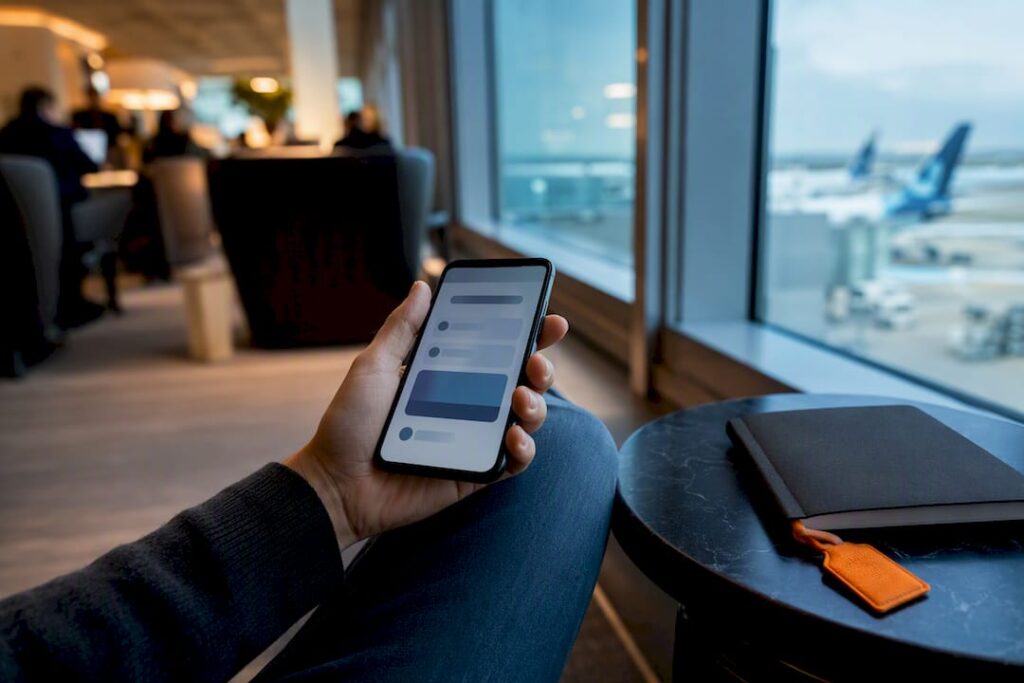
Start here: protect your devices with a lock screen and updates, use long unique passwords stored in a password manager, turn on multi-factor authentication, and stay alert for phishing. That order matters because it follows the same risk-reduction logic used by CISA and the FTC: fix the biggest exposure first. Work through the checklist below in sequence, starting at step one.
TL;DR:
- Using long passphrases and a password manager is more effective than complex passwords with symbols because reuse is the biggest security risk.
- Prioritize enabling MFA on your primary email, banking, and social media accounts, with hardware security keys being the strongest option.
- Automatic software and firmware updates significantly reduce vulnerabilities that hackers exploit, especially on routers and IoT devices.
- Recognizing phishing attempts involves slowing down and verifying links or sender identities, while reporting scams helps prevent further attacks.
- Backing up data following the 3-2-1 rule and encrypting storage ensures resilience against ransomware and device loss.
A Short, Ordered Checklist You Can Follow Now
Cyber hygiene works best when you tackle it in order of impact, not alphabetically or by whatever feels easiest. Here’s the sequence that gives you the biggest drop in risk for the least effort:
- Protect your devices — set a lock screen PIN or biometric, install pending updates. Next: run a full security scan.
- Fix your passwords — stop reusing them, move to a password manager. Next: change your three most sensitive logins first (email, bank, work).
- Turn on MFA — start with email and financial accounts. Next: add your password manager’s own vault.
- Automate updates — OS, browser, apps, router firmware. Next: check your router’s admin panel today.
- Learn to spot phishing — slow down before clicking. Next: bookmark your bank’s real site instead of clicking email links.
- Lock down Wi-Fi — change default router credentials. Next: enable WPA3 if your router supports it.
- Back up your data — automated cloud plus one offline copy. Next: test a restore this month.
Each step closes a door an attacker is actively trying to open, and the order reflects how often each one gets exploited in the real world.
Why Passphrases and a Password Manager Beat Everything Else
A long passphrase, such as a random string of unrelated words, is dramatically harder to crack than a shorter password with a symbol swapped in. Length beats cleverness almost every time. The bigger problem isn’t password strength anyway. It’s reuse. One breached account with a recycled password hands an attacker the keys to every other account sharing it.
That’s the entire case for a password manager. You stop trying to remember dozens of strong passwords and let software generate and store them instead. Look for these features when picking one:
- Random password generation of 15+ characters per account
- Zero-knowledge encryption so even the provider can’t read your vault
- Autofill across browsers and mobile apps
- Breach alerts when a stored password shows up in a leak
- A recovery method that doesn’t depend on a single point of failure
Once you choose a manager, import your existing logins, update the weak ones first, and lock the vault itself behind a strong master credential plus its own MFA. That last step gets skipped constantly, and it shouldn’t. Understanding how secure password manager tools actually are helps you vet one with more than marketing copy.
Picking the Right Kind of MFA (Not All Options Are Equal)
Multi-factor authentication blocks the vast majority of automated account takeovers, but the method you choose matters more than most people realize. Security researchers rank the options clearly: hardware security keys are strongest, authenticator apps come next, and SMS or voice codes trail behind because they’re vulnerable to SIM-swap attacks.
Prioritize MFA on these accounts first:
- Your primary email (it’s the recovery key to everything else)
- Banking and financial apps
- Your main social media accounts
- Your password manager vault itself
Pro Tip: Register backup codes for every MFA-protected account and store them somewhere separate from your phone. Losing your phone and your only backup method at the same time turns a minor hassle into a lockout nightmare.
Set up an authenticator app this week if you’re still relying on text codes. It takes about ten minutes per account.
Software Updates Matter More Than Most People Think
Most successful attacks exploit vulnerabilities that were patched months earlier. The FTC lists keeping software current as one of the simplest, highest-payoff habits available to anyone. Automatic updates close that gap without requiring you to remember anything.
Turn on auto-update for your operating system, browser, and apps wherever the option exists. Router and smart-home device firmware get ignored constantly, but they’re often the easiest entry point into a home network.
- Enable automatic updates on your phone, computer, and browser
- Check your router’s firmware version once a month
- Use built-in protections (Windows Defender, Apple’s security tools) and add reputable antivirus on older systems that need it
- Skip beta or preview builds on any device holding financial or work data
Spotting Phishing Before It Costs You Anything
The red flags repeat across almost every scam: unexpected urgency, a link that doesn’t quite match the real domain, an unfamiliar sender pretending to be familiar, or an attachment you never asked for. Google’s Safety Center points to exactly this pattern as the common thread behind most phishing attempts.
Here’s what to do when something looks off:
- Don’t click. Type the company’s address into your browser manually instead.
- Verify by phone. Call the number on the back of your card or the official website, never a number from the suspicious message.
- Report it. Forward phishing emails to your provider and report scam texts through your carrier’s tools.
One overlooked trap: replying “STOP” or “NO” to a spam text feels like the polite thing to do, but it confirms your number is active, which the Secret Service notes makes you a more attractive target for future scams. Just delete and block instead.
If you already clicked something suspicious, disconnect the device from Wi-Fi, change passwords for any account you accessed afterward, run a full scan, and enable MFA on anything that doesn’t have it yet.
Locking Down Your Wi-Fi and Staying Safe on Public Networks
Most home routers ship with a default admin password that’s published online, which is the first thing to change. After that, enable WPA3 (or WPA2 if your hardware is older), update the firmware, and put smart-home gadgets on a separate guest network so a compromised smart bulb can’t reach your laptop.
- Change the router’s default admin username and password immediately
- Enable WPA3/WPA2 encryption and keep firmware current
- Create a guest network for IoT devices and visitors
On public Wi-Fi, skip anything involving money or sensitive logins. Use your phone’s hotspot or a VPN instead, and turn off auto-join for open networks so your device doesn’t silently connect to something risky.
Pro Tip: If your router is more than five years old, call your ISP and ask about a replacement. Older hardware often stops receiving security patches entirely, no matter how careful you are with settings.
Backups: The Insurance Policy Most People Skip
Ransomware and a cracked phone screen have one thing in common: a good backup makes either one a minor inconvenience instead of a disaster. The 3-2-1 rule covers it simply: three copies of your data, on two different types of media, with one stored offsite or in the cloud.
- Automate cloud backups for photos, documents, and anything irreplaceable
- Keep one offline copy (an external drive works fine) updated periodically
- Test a restore every few months, not just the backup itself
- Store backup account credentials and recovery codes somewhere secure and separate
Device Protection Settings Worth Turning On Today
A stolen laptop with full-disk encryption is a paperweight to a thief. Without it, it’s an open filing cabinet.
- Enable full-disk encryption, a PIN or biometric lock, and automatic screen lock after a short idle period
- Turn on remote find/lock/wipe in case a device goes missing
- Keep firmware and drivers current and delete apps you no longer use
- Add antivirus or endpoint protection on older systems no longer receiving frequent OS security updates
Auditing Your Privacy Settings and Limiting What You Share
Every app asking for camera, microphone, or contacts access isn’t necessarily using that access responsibly. A periodic permissions audit closes gaps you forgot existed.
- Review app permissions every few months and revoke anything unnecessary
- Tighten social media visibility settings and skip posting details like your location or birthday publicly
- Consider a data-broker removal service if your personal information turns up in too many public searches
If You’ve Been Hacked: Immediate Steps and Where to Report It
Speed matters here. The longer a compromised account sits unaddressed, the more damage spreads to connected services.
- Isolate the affected device from the internet.
- Change passwords on the compromised account and any account sharing that password.
- Enable MFA if it wasn’t already on.
- Run a full malware scan.
- Check bank and card statements for unfamiliar activity.
- Contact the affected provider directly through their official support channel.
Report identity theft at IdentityTheft.gov and internet-enabled crimes to the FBI’s IC3. Save screenshots and timestamps before anything gets deleted, and consider a credit freeze if financial accounts were involved. This guide on using account freezes walks through when that step makes sense.
How Password Tools Map to Each Item on This Checklist
Every item above has a corresponding tool category, and matching the right one to the right problem saves you from juggling five different apps.
- A password vault handles the passwords step: generation, storage, and autofill in one place
- Passwordless MFA or an authenticator app covers the multi-factor authentication step
- Encrypted cloud storage covers your offsite backup copy
- Dark web monitoring covers breach detection, alerting you when your credentials surface in a leak
Readers who want the background before choosing a tool can start with what password management actually involves and how these pieces fit together in practice.
Use of VPNs for Secure Browsing
A VPN encrypts the connection between your device and the internet, which matters most on networks you don’t control, such as coffee shop Wi-Fi, airport terminals, and hotel networks. Anyone else on that same network with the right tools can potentially intercept unencrypted traffic. A VPN closes that window.
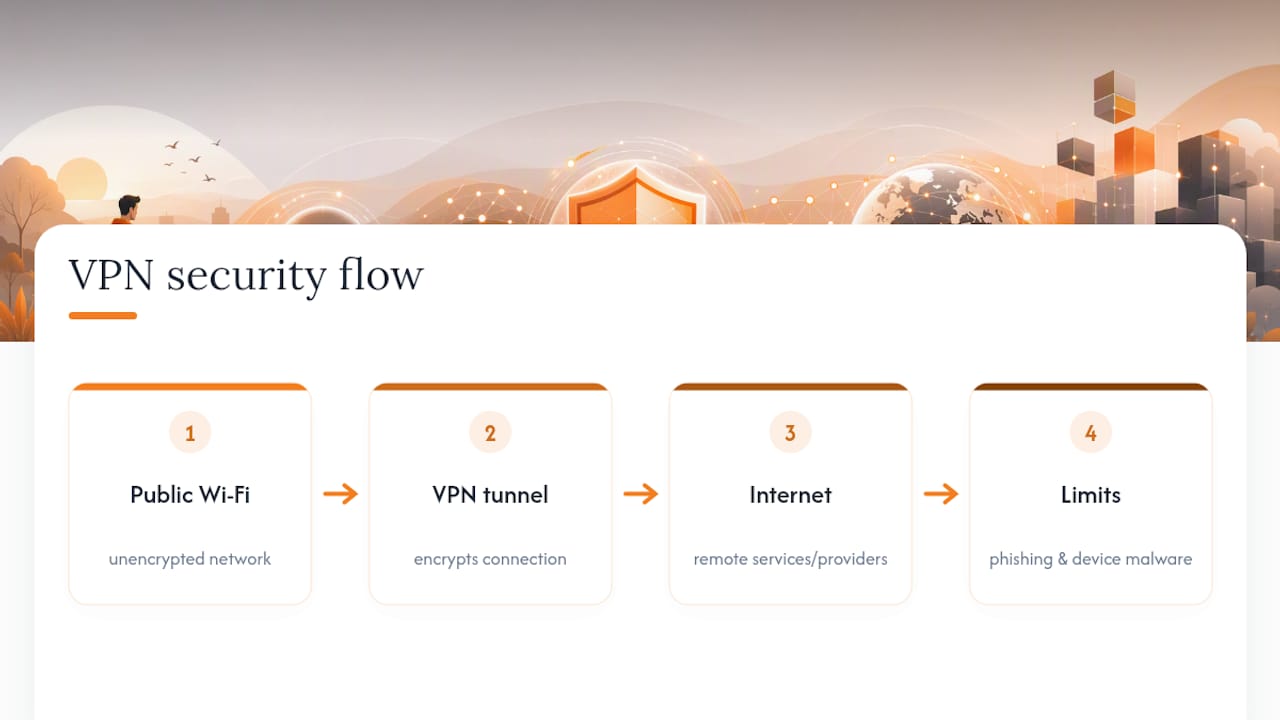
What a VPN doesn’t do is replace the rest of your security setup. It won’t stop you from typing your password into a fake login page, and it won’t protect you if malware is already on your device. Think of it as one layer among several, not a substitute for strong passwords or MFA.
When picking a VPN, look for a provider with a clearly published no-logs policy, strong encryption standards (OpenVPN or WireGuard protocols are solid choices), and a kill switch that cuts your connection if the VPN drops rather than leaving you exposed on the open network. Free VPNs are worth scrutinizing carefully. Some free providers fund themselves by selling browsing data, which defeats the purpose of using one in the first place.
Use a VPN by default on any network you don’t own or manage. At home, it’s optional for most people since your router is already encrypting traffic locally, though it adds a layer of privacy against your internet provider tracking browsing habits. On the road or in public spaces, treat it as close to mandatory, especially before logging into anything financial.
Safe Online Shopping and Payment Security
Check the address bar before entering payment details. A legitimate checkout page uses HTTPS, shown as a padlock icon, and the domain should match the retailer exactly, not a near-miss spelling designed to fool a quick glance.
Use a credit card rather than a debit card for online purchases when possible. Credit cards generally offer stronger fraud protection and dispute processes, and a compromised credit card doesn’t drain your checking account directly. Virtual card numbers, offered by many banks now, add another layer by generating a one-time or merchant-locked number instead of exposing your real card details to every retailer you buy from.
Be skeptical of deals that seem too aggressive, especially from unfamiliar retailers found through social media ads. Search the company name alongside words like “scam” or “reviews” before entering any payment information. Fake storefronts built to mimic real brands are common enough that a thirty-second check is worth the time.
Save payment details in your password manager rather than in your browser when you want autofill convenience. It keeps that sensitive data behind the same encryption protecting your other credentials, rather than scattered across multiple browser profiles. And after any purchase, especially from a new merchant, keep an eye on your statement for a week or two afterward. Unauthorized small charges sometimes show up first as a test before a larger one follows.
Recognizing and Avoiding Social Engineering Attacks
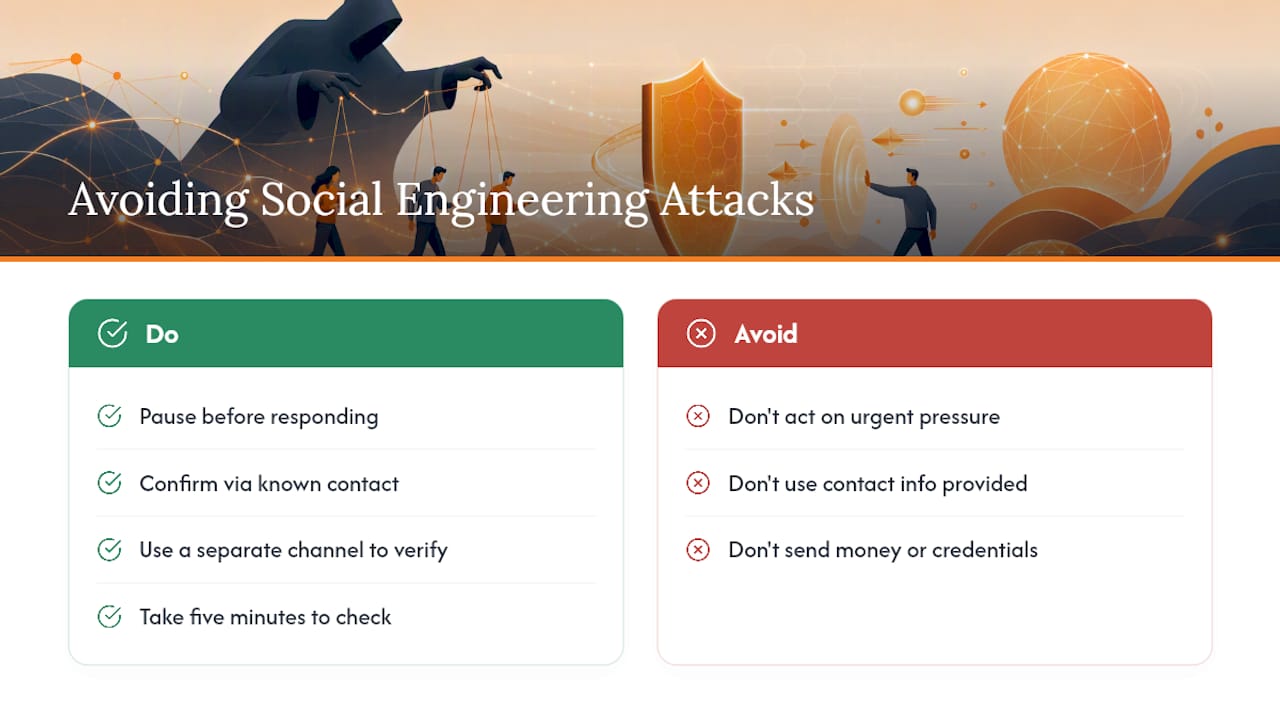
Social engineering doesn’t target your software. It targets you, using pressure, familiarity, or authority to get you to hand over information or access voluntarily. It’s often more effective than any technical exploit because it skips the hard work of breaking encryption entirely.
The classic setups repeat across email, phone, and text: a caller claiming to be from your bank asking you to “verify” your account number, a text claiming a package delivery failed and needs a small fee, an email from a “coworker” urgently requesting a gift card purchase. Each one relies on urgency and a plausible enough story to short-circuit your normal caution.
The defense isn’t paranoia about every message you receive. It’s a habit of pausing before acting on unexpected requests, especially ones involving money, credentials, or a sense of urgency. Legitimate organizations rarely demand immediate action through a single unverified channel, and they won’t penalize you for taking five minutes to confirm a request through a separate line of contact.
If someone contacts you claiming to be from a company or agency, hang up or close the message, then reach out yourself using a number or address you already know is real. Never use contact information provided in the suspicious message itself, since that’s often part of the setup. The same logic applies to unexpected requests from “family members” during emergencies. Verify through a second channel before sending money or information anywhere.
Secure Communication Tools and Encryption Basics
End-to-end encryption means only the sender and recipient can read a message, not the app maker, not an internet provider, not anyone intercepting traffic in between. Several mainstream messaging apps now offer this by default, which is a meaningful shift from a decade ago when encrypted communication required technical know-how most people didn’t have.
The practical distinction worth understanding: standard SMS text messages are not encrypted in transit the way modern messaging apps are, which matters if you’re sending anything sensitive like a one-time password or personal information. Where possible, favor apps offering end-to-end encryption for sensitive conversations over plain text messaging.
Email is trickier. Most standard email isn’t end-to-end encrypted by default, though some providers now offer opt-in encrypted modes for sensitive messages. If you’re sending something like a scanned ID or financial document, consider a password-protected file or an encrypted attachment rather than pasting sensitive details directly into an email body.
Encryption also matters for stored data, not just messages in transit. Encrypted cloud storage protects files sitting on a server the same way end-to-end encryption protects a conversation in transit. Treating your backups and stored documents with the same level of care you give your active messages closes a gap a lot of people overlook.
Where to Start If All of This Feels Like a Lot
Pick three things and start there: lock down your devices, install a password manager, and turn on MFA everywhere it’s offered. Those three cover most of the damage attackers actually do.
Setting up a password manager takes about ten minutes and pays off for years. Small, consistent steps, done in the right order, cut your risk far more than trying to fix everything in one weekend and burning out before you finish.
— Mike
A Simpler Way to Handle Passwords, MFA, and Backups Together
Managing passwords, MFA, encrypted storage, and breach monitoring across separate apps works, but it also means juggling separate logins, separate settings, and separate things to forget. LogMeOnce brings those pieces into one account: a password vault, passwordless MFA options, encrypted cloud storage, and dark web monitoring that flags your credentials if they turn up in a breach.

Here’s how the checklist above maps to what an integrated tool can automate for you:
| Checklist item | How it’s handled |
|---|---|
| Unique, strong passwords | Password vault with random generation |
| MFA setup | Passwordless MFA across accounts |
| Backup and recovery | Encrypted cloud storage |
| Breach detection | Dark web monitoring alerts |
This isn’t the only path to good security hygiene, but if you’d rather manage these pieces in one place than stitch together five separate apps, take a look at LogMeOnce’s password management benefits and start a free trial to see how it fits your setup.
Where to Verify This Advice and Report a Problem
- CISA Cybersecurity Best Practices — foundational guidance on passwords, updates, and MFA
- FTC: Protect Your Personal Information — recovery steps and IdentityTheft.gov reporting
- NCSC Top Tips for Staying Secure Online — email protection, 2-step verification, backups
- FBI IC3 — reporting internet-enabled crimes
- Google Safety Center — password checks and phishing pattern recognition
Sources
- Cybersecurity Best Practices | CISA
- Protect your personal information from hackers and scammers | FTC
- Top tips for staying secure online | NCSC
- Tips and tools to help you stay safer online | Google Safety Center
Recommended
- Professional IT Security Tips Everyone Can Benefit From
- 12 Cybersecurity Tips For Small Businesses
- How to Keep a Scalable Online Business Safe: Tools to Use and Things to Remember


