


 Password Manager
 Identity Theft Protection

 Team / Business
 Enterprise
 Government
 MSP
MSP

The fastest fix is changing your password on a trusted Apple device: go to Settings, tap Sign-In & Security, then Change Password. No trusted device nearby? Use the Apple Support app on someone else’s phone or head to Iforgot and start account recovery, which can take several days.
TL;DR:
- Changing your password on a trusted Apple device requires only a device passcode if you are signed in, which is the fastest recovery method.
- Account recovery via web or Apple Support app can take several days and resets when other signed-in devices are accessed or used during the process.
- Enabling Advanced Data Protection means losing Apple’s ability to recover your data if you lose both your password and recovery key, making independent storage crucial.
- Losing both your trusted phone number and recovery key severely limits options, but Apple Support can still attempt identity verification for account recovery.
- Lockouts from too many failed password attempts disable your account and require verification through official channels to restore access with minimal risk of extending the lockout period.
I Forgot My iCloud Password: Reset It on iPhone or iPad
If you’re already signed into your Apple ID on an iPhone or iPad, you don’t need your old password at all. You just need the device passcode.
- Open Settings and tap your name at the top of the screen.
- Tap Sign-In & Security.
- Tap Change Password.
- Enter your device passcode when prompted.
- Create and confirm your new password.
That’s the whole process, and Apple’s own account password reset instructions confirm this trusted device route is the quickest path back into your account. You may also get a two-factor authentication prompt asking you to confirm the change on another signed-in device, so don’t be surprised if a second popup shows up mid-process.
Older versions of iOS label things a little differently. If you don’t see “Sign-In & Security,” look for “Password & Security” instead, the wording Apple used before iOS 16. And if the screen shows “Forgot password?” rather than “Change Password,” that usually means you’re not actually signed in on that device, which pushes you toward the account recovery flow covered further down.
Pro Tip: If Change Password isn’t showing up at all, check that Find My iPhone hasn’t gone into a weird state after a recent update. Restarting the device before you try again fixes this more often than people expect.
How to Reset Your Apple ID Password on a Mac
MacOS handles this almost identically to iPhone, but the trigger is different: instead of a passcode, you need the password you use to unlock the Mac itself.
- Open System Settings.
- Click your name at the top of the sidebar.
- Select Sign-In & Security.
- Click Change Password, then enter your Mac’s unlock password.
If FileVault or an admin permissions prompt blocks you from finishing, that usually means the account settings are managed at the system level and won’t budge without an administrator login. At that point, switch to an iPhone or iPad you’re signed into, or move to the web based recovery flow instead of fighting with the Mac.
No Trusted Device? Try the Apple Support App or iforgot.apple.com
Lost your phone, or don’t own an iPad? You can still recover your iCloud account using a device that isn’t yours.
- Download the Apple Support app from the App Store onto a borrowed device.
- Go to Support Tools → Reset Password → Help Someone Else.
- Enter the Apple Account email or phone number tied to the locked account.
- Follow the on-screen prompts, which walk through identity verification steps.
The alternative is going straight to iforgot.apple.com from any browser and starting the Reset Password flow. Interestingly, Apple’s system sometimes detects that you own a trusted device elsewhere and redirects you to finish the reset there instead, since that’s a faster and more secure path than the web form.
If you’re borrowing someone’s phone or laptop, treat it like a rental car, not your own. Sign out of the Apple Support app when you’re done, clear any personal data you entered, and pick a family member’s device over a public kiosk or shared computer whenever you have the choice.
Pro Tip: Ask a relative or close friend to keep the Apple Support app installed on their phone permanently. It costs nothing and saves you from scrambling to find a device the one time you actually need it.
How Long Does Apple Account Recovery Take?
Account recovery isn’t instant, and that’s intentional. Apple built in a waiting period specifically to keep someone else from hijacking your account just because they guessed a security question.
Once you start the process, here’s what actually happens:
- You’ll get a confirmation email within 72 hours that includes an estimated date and time when you’ll regain access, according to Apple’s account recovery guidance.
- The actual wait can stretch to several days beyond that, depending on your account’s security settings.
- Contacting Apple Support to speed things up won’t work. Apple has confirmed it cannot shorten this window for anyone, regardless of the situation.
- You can check your request status anytime at iforgot.apple.com.
Here’s the part people miss: logging into any signed-in device after you’ve started recovery can cancel or delay the whole request. If you kick off recovery and then casually check email on an old iPad that’s still signed in, you may reset the clock without realizing it. Leave other devices alone, or power them off, until the process finishes.
What Advanced Data Protection Means for Your Recovery Key
Turning on Advanced Data Protection is a real security upgrade, but it comes with a trade-off most people don’t think about until it’s too late. With this setting on, Apple no longer holds the encryption keys to your iCloud data. You do, either through your password or a 28-character recovery key.
That’s a meaningful shift in who’s responsible for what. If you lose your password and can’t produce that recovery key, and you haven’t set up a recovery contact, Apple’s own guidance is blunt about what happens next.
Losing both your password and your recovery key with Advanced Data Protection enabled can mean permanent loss of access to your encrypted iCloud data. Apple cannot recover it for you, because Apple never had the keys to begin with.
Never store that recovery key inside iCloud Notes, iCloud Drive, or any app tied to the same Apple Account you’re trying to protect. If the account locks, so does the key. Keep it somewhere independent, written down in a safe or saved in a separate password manager that doesn’t rely on your Apple credentials to unlock.
Pro Tip: Set up an account recovery contact today, before you need one. It takes two minutes in Settings and gives a person you trust the ability to help you back in without a multi-day wait.
What to Gather Before You Start a Reset or Recovery
Having these ready before you touch a single button saves real time:
- Your trusted phone number and any backup email addresses tied to the account.
- The passcode for any device you’re still signed into, plus the one you plan to use for the reset.
- Your recovery key or recovery contact information, if you set one up, along with where it’s physically stored.
- A plan to leave other signed-in devices powered off once recovery officially starts.
Skip any of these and you’ll likely find yourself restarting the process from scratch.
Two-Factor Authentication and the Password Reset Process
Two factor authentication doesn’t get in your way during a reset. It’s actually part of how Apple confirms it’s really you.
When you change your password from a trusted device, Apple often sends a verification code to another device you own, or asks you to approve the change from a second signed-in device. This isn’t a separate hurdle bolted onto the reset. It’s the same system working in the background to make sure a stranger holding your unlocked phone can’t quietly change your password without your knowledge.
The tricky part comes when two factor authentication and a forgotten password collide, meaning you’ve lost access to both your password and the device that normally receives your verification codes. In that case, the trusted device method won’t work at all, since it depends on you already being signed in somewhere. You’ll need to fall back to account recovery through the Apple Support app or iforgot.apple.com, which verifies your identity through a different path entirely rather than a six-digit code.
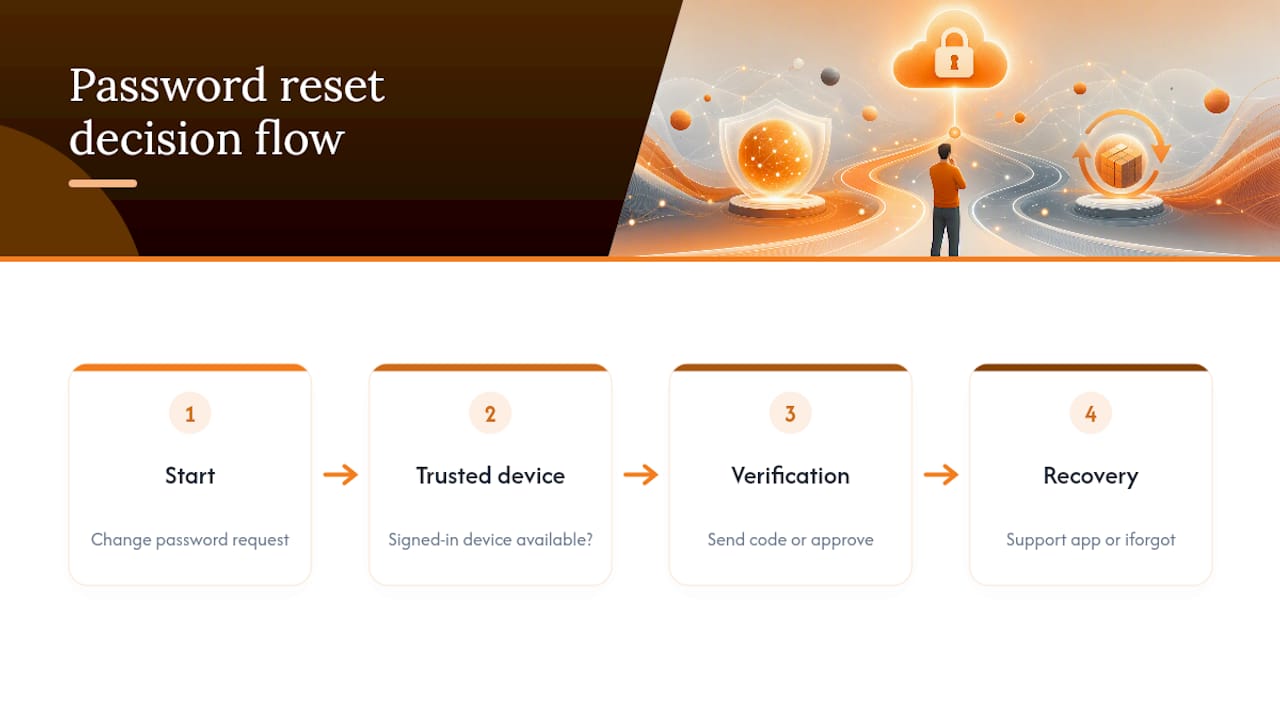
One detail worth remembering: adding a new trusted phone number now, while you still have access, gives two factor authentication another route to reach you later. It’s a small five-minute task that prevents a much longer recovery process down the road. Check Settings, then Sign-In & Security, then Two-Factor Authentication, and confirm your listed phone numbers are current.
Lost Your Trusted Phone Number and Recovery Key? Here’s What to Do
This is the toughest spot to be in, and it’s worth being honest about that upfront. Without a trusted phone number to receive codes and without a recovery key to prove ownership, your options narrow fast.
Start with account recovery through iforgot.apple.com or the Apple Support app anyway. Apple’s identity verification process doesn’t rely solely on the recovery key. It also asks for other account details and may take longer to confirm you’re the legitimate owner, but it’s not automatically a dead end.
If Advanced Data Protection is turned on for your account, the calculation changes. As covered earlier, that setting means Apple doesn’t hold your encryption keys, so encrypted data like Health records or iCloud Keychain passwords may genuinely be unrecoverable if both the recovery key and trusted number are gone. Standard iCloud data outside that encrypted category still goes through the normal recovery timeline.
Once you do regain access, treat it as a wake-up call rather than a one-time scare. Add a new trusted phone number immediately. Generate a fresh recovery key and store it somewhere physically separate from your devices, like a locked drawer or an independent password manager that isn’t tied to the Apple ecosystem you just got locked out of. Set a recovery contact too, since that person can vouch for you the next time this happens, and it will cut days off the process.

Apple ID Disabled From Too Many Password Attempts
Guess wrong enough times and Apple locks the account entirely, a separate problem from simply forgetting your password. You’ll typically see a message stating the account has been disabled for security reasons, and no amount of retrying will fix it.
The only real path forward is unlocking the account through Apple’s official channel, either at iforgot.apple.com or through Apple Support directly. You’ll be asked to verify your identity, sometimes through the same account recovery process described earlier, and sometimes through a shorter unlock flow if the disable was triggered purely by failed attempts rather than a security flag.
Resist the urge to keep guessing passwords while you wait for the unlock, since repeated attempts during this window can extend how long the account stays locked. Give it a genuine rest, verify through Apple’s process once, and let it resolve rather than testing every password variation you can remember.
Once you’re back in, this is a good moment to rethink how you’re generating passwords in the first place. Accounts get disabled from repeated failed guesses because people are working from memory instead of a stored, accurate password, which is exactly the gap a password manager is built to close.
How to Create a New Password You’ll Actually Remember
A strong password and a memorable one aren’t opposites, despite what most advice implies. The trick is building it from something structured rather than random.
Try a short phrase only you’d think of, then swap in a few numbers and symbols. Something like “MyDogHatesMondays82!” beats a jumble of random characters for one simple reason: you can recall the logic behind it even under stress, like standing at an Apple Store counter with a locked phone. Length matters more than complexity here. A 16-character phrase with a couple of substitutions is harder to crack than an eight-character password stuffed with symbols nobody could remember anyway.
Avoid reusing a password from another account, especially email or banking, since a breach on one service becomes a breach everywhere once someone tests that same password elsewhere. Skip anything tied to public information, birthdays, pet names posted on social media, and street addresses all fall into that trap.
If you genuinely can’t hold a new complex password in your head, that’s a sign to stop relying on memory entirely. A dedicated password manager generates something far stronger than anything a person would invent, and it remembers the password so you don’t have to reconstruct it from scratch during the next lockout.
Why This Whole Process Should Push You to Rethink Password Habits
Getting locked out of iCloud once is annoying. Getting locked out twice means you didn’t fix the actual problem, just the symptom. Most people who forget their Apple ID password are relying on memory for something that should live in a secure vault instead, and the recovery key situation makes that risk worse, not better, since losing a 28-character code you wrote on a sticky note is just as final as forgetting a password.
Store your recovery key somewhere independent of the account it protects, and consider a password manager for the long passwords you’ll never memorize anyway. Logmeonce’s resources cover more on building habits that prevent this exact scenario from repeating.
— Mike
Store Your Recovery Key Where a Lockout Can’t Reach It
The whole point of an iCloud lockout is that your recovery material was sitting somewhere it shouldn’t have been, or nowhere at all. Use an encrypted vault that lives independently of your Apple Account, so a locked iCloud account never means a locked recovery key too.

Look for three things in any password manager you’re trusting with this job: a zero-knowledge encryption model so even the provider can’t read your stored data, secure backup options that survive a single device failure, and support for storing more than just passwords, including recovery keys and security codes. Logmeonce’s password management benefits cover exactly this kind of setup, built for someone who wants their credentials recoverable without depending on any single company’s account recovery timeline.
Set up your vault before the next lockout happens, not during it.
Sources
Recommended


